
Contents
1 Team Performance Block
2 Overview
3 Scope
4 User Flow
5 Functional Data Definitions
6 Immediate Action Required
7 Functional Validation
8 Expected System Behavior
Team Performance Block
The Team Performance Block provides Managers with a consolidated view of their team’s overall learning performance.
Overview
This feature enables Managers to:
- Monitor team engagement levels
- Track course participation
- Measure completion performance
- Identify users requiring immediate attention
- Take proactive corrective actions
Scope
- Display of aggregated team member metrics
- Calculation of Completion Rate
- Identification of users requiring attention
- Conditional display of “Immediate Action Required” section
- Real-time data reflection
User Flow
Manager Flow:
- Login as Manager who has users assigned
- Navigate to Dashboard → Team Performance Block
- View performance metrics:
- Total Members
- Active Members
- Enrolled
- Completion Rate
- Review Immediate Action Required section (if applicable)
- Identify users under:
- Inactive
- Not Started
- Slow Progress
Functional Data Definitions
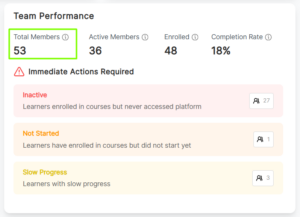
Total Members
- Total team members assigned under the Manager
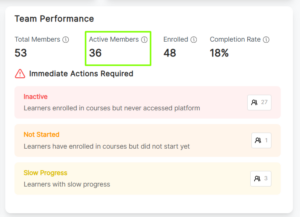
Active Members
- Users who accessed platform in last 30 days
- Logic: Last login ≤ 30 days
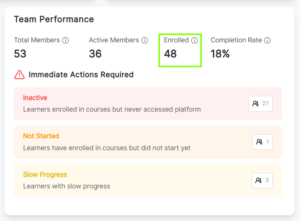
Enrolled
- Users enrolled in at least one course
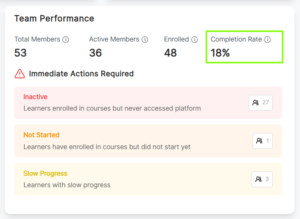
Completion Rate
- Average completion percentage across team
- Formula: (Total Completed / Total Assigned) × 100
- Displays 0% if no courses assigned
Immediate Action Required
This section appears only when count is greater than zero.
Inactive
- Users enrolled in courses but not logged in for 14 days
Not Started
- Users enrolled but have not started at least one course
Slow Progress
- Users enrolled in multiple courses but not completed at least two
Functional Validation
Role-Based Access
- Login as Manager
- Verify block is visible
Total Members Validation
- Login as Admin/Client Admin
- Navigate to the Team Overview block
- Click on Assignment option
- Select manager from choose manager dropdown.
- Assign users under that Manager.
- Login with that manager under whom users are assigned.
- Navigate to Team Performance block
- Verify Assigned Members count
Active Members Validation
- Login with user
- Login as Admin/Client Admin
- Create 2 new users
- Assign these users under the manager
- Login with one of the new team members/users.
- Login with that manager under whom newly created users are assigned.
- Verify Active Member count increased
Enrolled Validation
- Login with user
- Login as Admin/Client Admin
- Open any course and enroll any team member in that course
- Login with manager under whom that team member/user is assigned.
- Navigate to Team Performance block
- Verify that Enrolled count increased
Completion Rate Validation
- Login as Admin/Client Admin
- Open any course and enroll any team member in that course
- Login with team member and complete that course
- Login with manager under whom that team member/user is assigned.
- Navigate to Team Performance block
- Verify that Completion Rate percentage increased
Inactive Validation
- Login as Admin/Client Admin
- Create a new user
- Assign these users under the manager
- Open any course and enroll that user in a course
- Do not login with that newly created user
- Login with manager under whom that team member/user is assigned.
- Navigate to Team Performance block
- Verify that Inactive Action appear with count
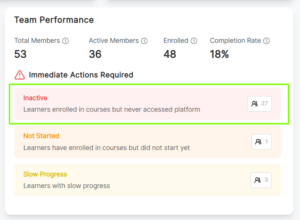
- Click on count
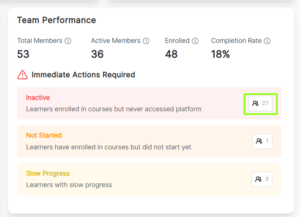
- Verify that inactive popup displays that user
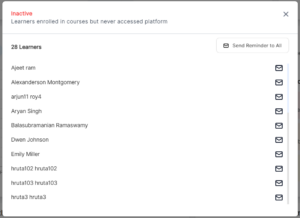
Not Started Validation
- Login as Admin/Client Admin
- Open any course and enroll any team member in that course
- Login with team member and do not start that course
- Login with manager under whom that team member/user is assigned.
- Navigate to Team Performance block
- Verify that Not Started Action appear with count
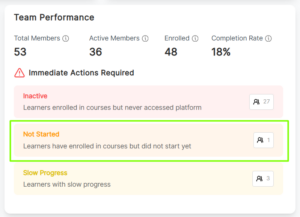
- Click on count
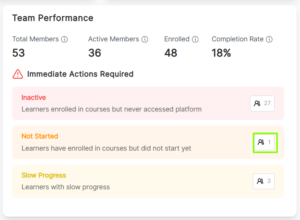
- Verify that Not Started popup displays that user
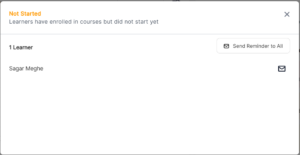
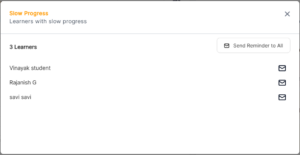
Slow Progress Validation
- Login as Admin/Client Admin
- Enroll any team member in 2 or more courses and do not complete at least 2 courses
- Login with manager under whom that team member/user is assigned.
- Navigate to Team Performance block
- Verify that Slow Progress Action appear with count
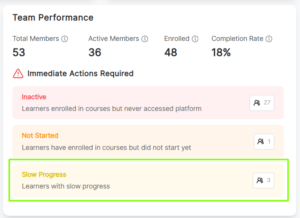
- Click on count
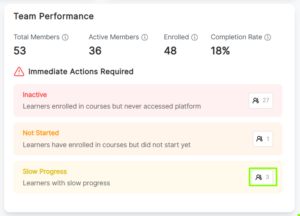
- Verify that Not Started popup displays that user
Email Validation
- Login with manager under whom that team members are assigned.
- Navigate to Team Performance block
- Click on any of the count appears on any immediate action
- Popup will open
- Click on email icon
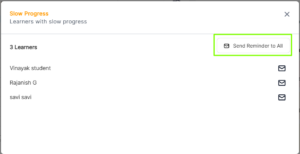
- Verify that email will send to that user