The Snakes and Ladders activity is a gamified learning tool inspired by the classic board game. Learners progress across a numbered game board by answering questions. Correct answers move them forward, while landing on ladders advances them further, and landing on snakes sends them backward. This activity helps reinforce learning in an engaging, interactive, and motivational way.
Contents
-
Setting up a Snakes and Ladders Activity
1.1 General
1.2 Grade
1.3 Snakes and Ladders Options
1.4 Header/Footer Options
1.5 Activity Completion
1.6 Tags
1.7 Competencies
Setting up a Snakes and Ladders Activity
Once the activity is added to the course, you can configure its behavior, questions, and appearance. You will find the following settings:
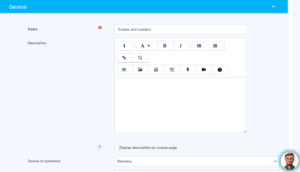
1.1 General
Name
Required field where you enter the activity title (e.g., Snakes and Ladders Game).
Description
Optional text field to describe the game for learners.
You may also choose:
-
Display description on course page
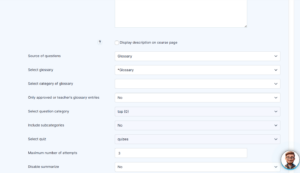
Source of Questions
Choose how questions will be populated in the game.
Glossary
If using glossary entries:
-
Select Glossary – Choose the glossary source
-
Select Category of Glossary – Optional categorization
-
Only approved entries – Yes/No
Select Question Category
If using quiz questions:
-
Choose a question category (e.g., Top, Topic category, etc.)
-
Include subcategories – Yes/No
Select Quiz
Select an existing quiz to pull questions from.
Maximum Number of Attempts
Set the total attempts learners are allowed (e.g., 3 attempts).
Disable Summarize
Choose whether or not to disable summary screens after gameplay.
Show High Score
Displays the top scores of students who played the game.
1.2 Grade
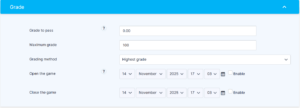
Grade to Pass
Optional field to set the minimum passing score.
Maximum Grade
Defines the score range (default: 100).
Grading Method
Choose how the final grade will be calculated:
-
Highest grade
-
Average grade, etc. (depending on LMS version)
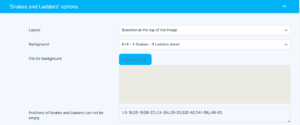
1.3 Snakes and Ladders Options
This section controls game layout, board appearance, and grid sizing.
Layout
Choose where the question appears:
-
Question at the top of the image (default)
Background
Select from predefined board styles like:
-
8×8 – 4 Snakes – 4 Ladders (new)
You can also upload a custom background image using:
-
File for background
Positions of Snakes and Ladders
Required field defining the coordinates of snakes and ladders.
Example format:
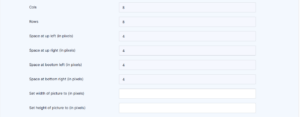
Grid Settings
-
Cols (Columns): 8
-
Rows: 8
-
Space at upper left/right/bottom left/bottom right (in pixels): Padding around the board
-
Set width of picture (px): Optional width
-
Set height of picture (px): Optional height
These settings help align question areas and improve visual clarity.
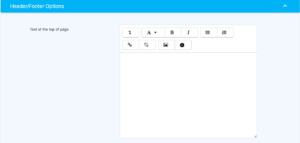
1.4 Header/Footer Options
Text at the Top of Page
Add introductory text or instructions.
The Insert Composer tool may be used for rich content.
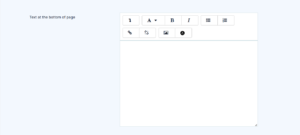
Text at the Bottom of Page
Add closing notes or additional information.
1.5 Activity Completion
Completion Tracking
Defines how activity completion is managed:
-
Students can manually mark the activity as completed
or -
Show activity as complete when conditions are met
Course Completion
You may require this activity for overall course completion.
Expect Completed On
Specify the expected completion date (optional).

1.6 Tags
Add keywords to categorize the activity and improve searchability in courses.

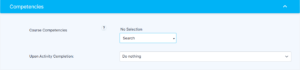
1.7 Competencies
Assign relevant competencies linked to the course.
You may select what happens upon completion, such as:
-
Attach evidence
-
Send for review