The Millionaire Activity is an interactive quiz-based game inspired by “Who Wants to Be a Millionaire?”. Learners answer one question at a time, progressing through increasing levels of difficulty. The activity supports lifelines such as 50:50, Telephone Help, Audience Help, and Quit, making learning engaging and gamified.
This activity pulls questions from the selected Quiz and converts them into a game format. Instructors can define question sources, grading rules, attempts, and game settings.
Contents
-
Setting up a Millionaire Activity
1.1 General
1.2 Grade
1.3 Millionaire Options
1.4 Header/Footer Options
1.5 Activity completion
1.6 Tags
1.7 Competencies
Setting up a Millionaire Activity
Once the activity is added, you can configure it using the following settings:
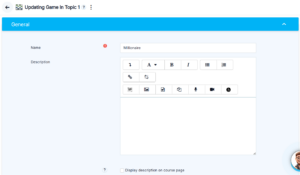
1.1 General
Name:
Enter the name of the activity. (Required)
Example: Millionaire
Description:
Optional description for learners.
-
You may enter text manually or import a Word file.
-
“Display description on course page” checkbox will show the description on the course page if enabled.
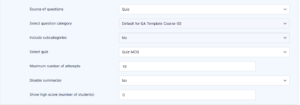
Source of Questions
Quiz:
Select the source of questions for the Millionaire game.
You will have the following fields:
-
Select question category:
Choose a category from the course question bank.
Example: Default for QA Template Course (10) -
Include subcategories:
If “Yes,” questions from subcategories will also be used. -
Select quiz:
Select an existing quiz containing the question set.
Example: Quiz MCQ
Maximum number of attempts:
Enter how many times a learner can attempt the Millionaire game.
Example: 10
Disable summarize:
Choose whether the summary screen should appear after an attempt.
-
No → Summary screen will be shown.
Show high score (number of students):
Displays the top scores for competitive engagement.
1.2 Grade
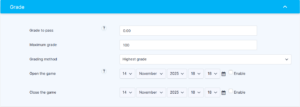
Grade to pass:
Enter the minimum passing grade.
Example: 0.00
Maximum grade:
The total score for the activity (default: 100).
Grading method:
Select the grading method.
Example: Highest grade
Open the game / Close the game
These settings control availability:
-
Open the game:
Set the date and time from when the game becomes available.
Example:-
Day: 14
-
Month: November
-
Year: 2025
-
Hour: 18
-
Minute: 18
-
-
Enable checkbox must be selected to activate the date.
-
Close the game:
Set the closing date/time (optional).
1.3 Millionaire Options
Background color:
Choose the background color of the game interface.
Example: #408080
Randomize questions:
Enable to randomize the order of questions each time the game is played.

1.4 Header/Footer Options
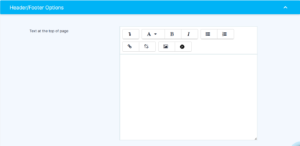
Text at the Top of Page
Add introductory text or instructions.
The Insert Composer tool may be used for rich content.
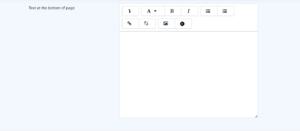
Text at the Bottom of Page
Add closing notes or additional information.
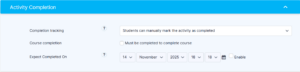
1.5 Activity Completion
Completion tracking:
Choose how completion is marked:
-
Manual
-
Automatically based on conditions
Must be completed to complete course:
Enable if course completion depends on this activity.
Expect completed on:
Set an expected completion date.
1.6 Tags
Add relevant tags to improve searchability and categorization of the activity.

1.7 Competencies
Map this activity to course competencies and define post-completion actions, such as:
-
Attach evidence
-
Send for review