
1. ILT/VILT Training Report Block:
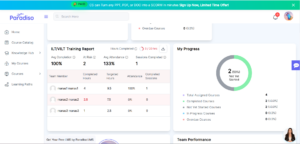
- We’ve introduced the ILT/VILT Training Report block on the dashboard to provide managers with better visibility into training progress.
- This block is visible to users with the Manager role and displays data for their reporting team members.
- The block becomes functional when an ILT activity with sessions is added to a course.
- Data is calculated based on total sessions, session hours, and attendance from completed sessions.
- The block displays the following key metrics:-
- Total Training Hours Completed
- Average Completion
- At Risk
- Average Attendance
- Sessions Completed
- Export Report
- A detailed table is also included with the following columns:-
- Team Member
- Completed Hours
- Targeted Hours
- Attendance
- Completed Session
- These enhancements improve visibility into team training performance.
2. MCP: Quiz Related Questions:
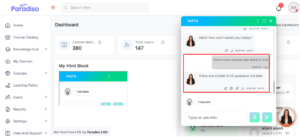
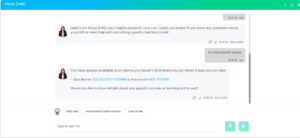
- We’ve successfully integrated MCP with the AI chatbot to enhance quiz-related interactions.
- Admins can now ask quiz-related questions across the LMS and receive accurate, context-based responses.
- On the user side, learners can query their quiz attempts and grades, and the chatbot provides responses based on their individual data.
- The chatbot ensures responses are always relevant and up to date.
- Additionally, role-based access control is enforced. If a user requests admin-level or restricted data, the chatbot will not provide a response.
- This ensures data security and controlled access.
- This ensures data security and controlled access. provide a response.
3. Manager Dashboard Update – Hide Statistics Section and Additional Changes:
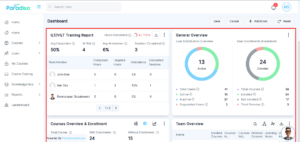
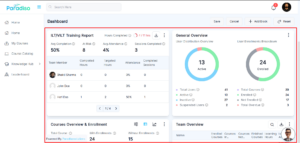
- The Manager Dashboard has been updated for both System Managers and User Profile Managers.
- When the Manager role is selected & configured via Customize Dashboard and reset by Admin/Client Admin, the selected dashboard layout is applied to all manager users (both System Managers and User Profile Managers).
- The Statistics section is now hidden for manager roles to provide a cleaner and more relevant dashboard experience.
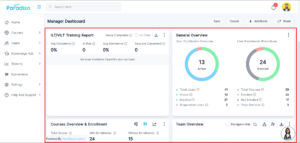
- System Manager –
- User Profile Manager –
4. Add Legacy Setting for Course Opening Behaviour:
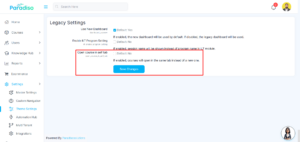
- A legacy setting has been added in Admin Settings.
- When the checkbox is enabled, the course from the Course Catalogue opens in the same tab.
- When the checkbox is disabled, the course opens in a new tab (existing behavior).
5. Email Self-Registration on Signup Page:
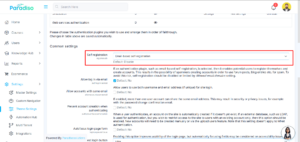
- We’ve improved the Email Self-Registration setting on the Signup page.
- Earlier, after every instance upgrade, this setting was automatically disabled.
- Necessary changes have been made to retain this setting after upgrades.
6. Quiz Performance Block on Manager Dashboard:
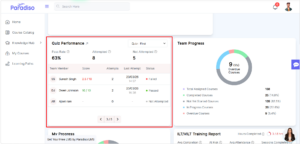
- A Quiz Performance Block has been added to the Manager Dashboard to display the quiz performance of team members.
- The block includes a dropdown to select a quiz activity from courses where team members are enrolled.
- The dropdown displays the course name followed by the quiz activities within that course.
- Only quiz activities can be selected; the course name acts as a label and is not selectable.
- Managers can select a quiz activity to view the quiz performance of their team members.
- The block displays the following statistics for the selected quiz:-
- Pass Rate: (Passed Learners / Attempted Learners) × 100
- Attempted: Number of assigned team members who have attempted the quiz at least once (including multiple attempts).
- Not Attempted: Number of assigned team members who have not started the quiz yet.
- The block also displays a table with the following details:-
- Team Members: Username along with the profile picture.
- Score: Total grade achieved by the learner out of the maximum possible grade.
- Attempts: Total number of quiz attempts.
- Last Attempted: Date and time of the most recent attempt.
- Status: Displays Passed, Failed, or Not Attempted
7. Updated Team Overview Block Column Order:
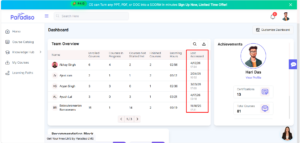
- The “Last Access” column in the Team Overview Block has been moved to the last position.
8. Added Export Option in Team Overview Block:
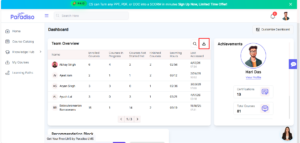
- An Export button has been added to the Team Overview Block on the Manager Dashboard.
- Managers can export team data in CSV format directly from this block.
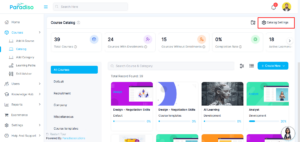
9. Removed Border from Catalog Settings Button:
- The border has been removed from the Catalog Settings button on the Course Catalog page.
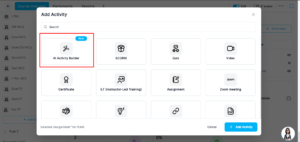
10. Removed Blue Border from AI Activity Builder:
- The blue border around the AI Activity Builder activity in the Add Activity popup has been removed.
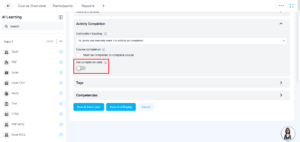
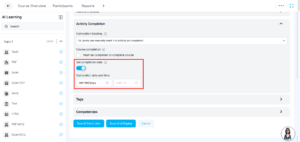
11. Displayed Completion Date and Time:
- The Completion Date and Time fields are now displayed in the Activity Completion tab.
12. “Add Activity” Button Update:
- The “Add Activity” button is hidden when a topic is collapsed.
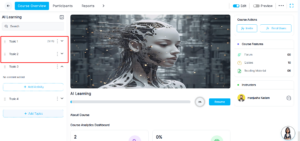
- The button style has been updated (height: 40px, border: 1.5px).
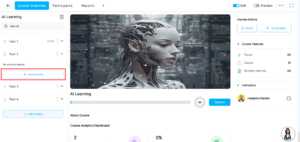
13. Added (+) Icon to “Add Topic” Button:
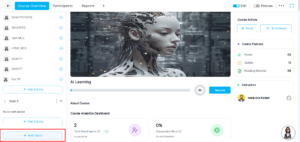
- A (+) icon has been added to the “Add Topic” button.
- The button is now fixed at the bottom of the page.
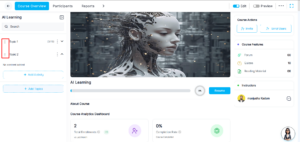
14. Updated Topic Vertical Icon:
- The vertical icon used for topics has been updated.
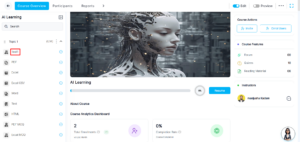
15. Updated Activity Text Color:
- The activity text color has been updated to #5A5A5A (grey).
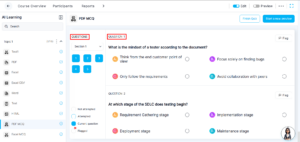
16. Updated Quiz Question Text Size:
- The text size for “QUESTION” and “QUESTION 1” on the quiz attempt page has been updated to 14px.
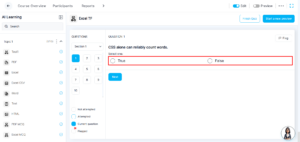
17. Removed Background from Quiz Options:
- The background styling has been removed from quiz options.
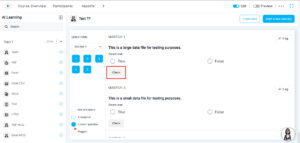
18. Updated “Check” Button Style in Quiz:
- The background has been removed.
- A grey border has been added to the “Check” button.
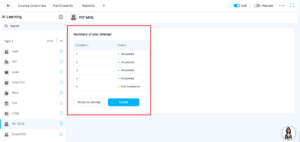
19. Updated Quiz Summary Attempt Layout:
- The Quiz Summary Attempt layout spacing has been updated.
- A 20px left margin and 24px top margin have been applied for better alignment and readability.
Summary:
- Enhanced ILT/VILT Training Report block with detailed metrics and export functionality.
- Integrated MCP with chatbot for quiz-related queries with role-based access control.
- Improved Manager Dashboard and Quiz Performance tracking.
- Added new settings and stability fixes.
- Implemented multiple UI/UX enhancements across LMS and quiz modules.