1. Custom Certificate – Edit Page Enhancements:
- We’ve enhanced the Edit Custom Certificate page to provide a more flexible and user-friendly certificate editing experience.
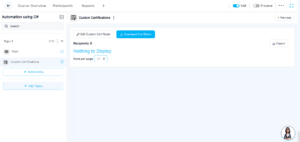
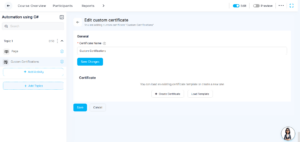
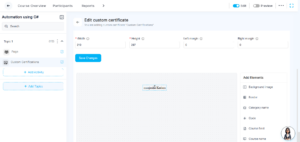
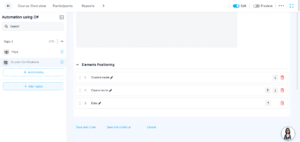
- The Custom Certificate activity can now be created directly from the course page. The Edit Custom Certificate interface has been improved with enhanced Add Elements functionality, better element positioning controls, and refined button interactions.
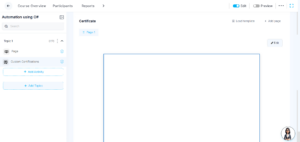
- Users can click the “Edit Custom Certificate” button to open the certificate editing page and modify the certificate as needed. Multiple elements can be added and positioned based on user requirements.
- The Elements table now allows users to configure properties such as width, height, left margin, and right margin for each element. After making the required changes, users can update the certificate using the “Save” option.
- Additionally, users can add multiple pages to the certificate activity using the “Add Page” feature, providing greater flexibility in certificate design.
2. MCP Integration with AI Chatbot:
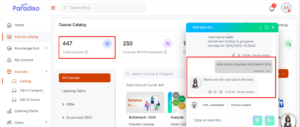
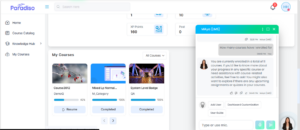
- We’ve integrated MCP functionality within the AI chatbot to provide more accurate, secure, and context-aware responses.
- When Admins ask questions related to specific topics, the chatbot provides accurate responses based on the admin’s queries.
- On the learner/user side, when users ask questions related to their own information, the chatbot returns responses specific to their individual data.
- The chatbot delivers updated and relevant answers while maintaining proper access control and data security.
- IIf a user attempts to access admin-level information or requests data beyond their assigned permissions, the chatbot does not provide a response, ensuring secure and role-based access management.
3. Team Overview Block Enhancement:
- We’ve enhanced the Team Overview block to improve team management and reporting visibility for Managers.
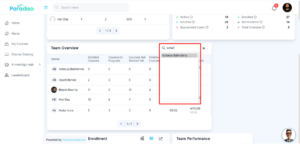
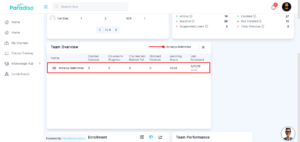
- For Admins and Client Admins, the Team Overview block now includes View Hierarchy and Assignment options. Admins can select a Manager and assign members/users under the selected Manager directly through the Assignment feature.
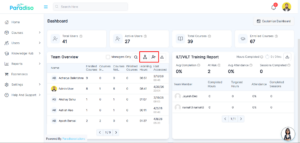

- Using the View Hierarchy option, Admins and Client Admins can view the reporting structure, including Managers and the users assigned under their hierarchy. An email option is also available, allowing Admins to send emails directly to users.
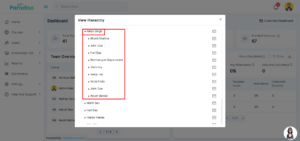
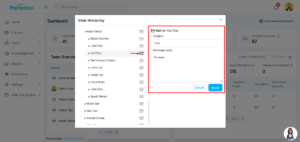
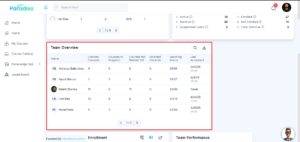
- When a user is assigned as a Manager, they can access the Team Overview block and view their team members’ learning data, including:
- User name with profile picture.
- Last accessed date.
- Enrolled courses.
- Courses in progress.
- Courses not started.
- Finished courses.
- Managers can also search for specific users using the search functionality provided within the block.
4. Team Performance Block – New Feature Added:
- We’ve introduced a new Team Performance block to provide Managers with a consolidated overview of their team’s learning performance.
- This block displays performance data for users assigned under the Manager in the Team Overview block.
- The Team Performance block includes the following metrics:-
- Total Members – Displays the total number of team members registered in the system under the Manager
- Active Members – Displays the number of team members who have accessed the platform within the last 30 days.
- Enrolled – Displays the number of team members currently enrolled in active courses.
- Completion Rate – Displays the average course completion percentage across all team members.
- Formula – (Total completed courses across all team members / Total courses assigned across all team members) × 100
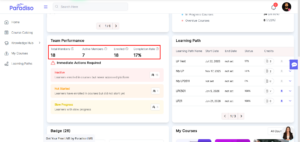
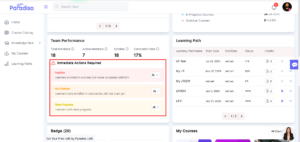
- Immediate Action Required (These actions appear only when the respective count is greater than zero):-
- Inactive – Displays the count of learners/users who are enrolled in a course but have not accessed the platform within the last 14 days.
- Not Started – Displays the count of learners/users who are enrolled in courses but have not started at least one course yet.
- Slow Progress – Displays the count of learners/users who are enrolled in more than two courses and have not completed at least two courses.
5. Team Progress Block – New Feature Added:
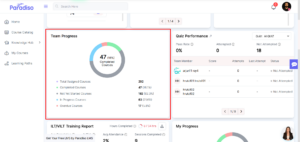
- We have introduced a new Team Progress block to provide Managers with a detailed overview of their team’s course progress.
- This block displays aggregated course progress data for users assigned under the Manager in the Team Overview block.
- The Team Progress block includes the following metrics:
- Total Assigned – Courses Displays the total number of courses assigned to team members.
- Completed Courses Displays the total number of courses completed by team members.
(Completed Courses / Total Assigned Courses) × 100 - Not Yet Started Courses – Displays the total number of assigned courses that have not yet been started by team members.
(Not Yet Started Courses / Total Assigned Courses) × 100 - In Progress Courses – Displays the total number of courses that have been started but not yet completed.
(In Progress Courses / Total Assigned Courses) × 100 - Overdue Courses – Displays the total number of courses that are either not started or in progress and have passed their due date without completion.
(Overdue Courses / Total Assigned Courses) × 100 - Important Calculation Logic:
- Total Assigned Courses = Completed + Not Yet Started + In Progress
- Overdue Courses are not an independent category
- Overdue is included within Not Yet Started or In Progress
- Overdue is shown separately for tracking and visibility purposes
- Graphical Representation:
- Data is displayed in a doughnut chart format
- Each category is represented with a different color
- On mouse hover, the chart displays count and percentage details
6. Google Meet and Zoho Integration – New Feature Added:
- We’ve introduced Google Meet and Zoho integrations to improve virtual collaboration and enterprise connectivity.
- Google Meet Integration:
Added to the Integration menu under the VC Tools tab.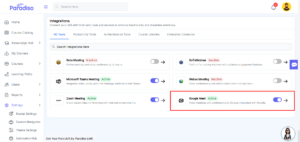
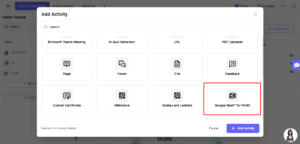
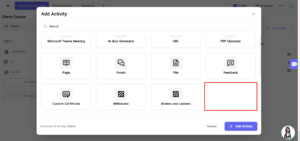
Added as an activity in the Add Activity popup with the Google Meet icon
- Activity Visibility Control:
Managed via: Master Settings → Plugin → Manage Activities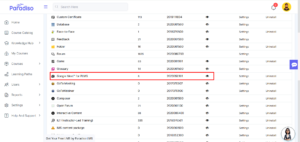
If enabled, the activity is visible in Add Activity
If disabled, the activity is hidden
- Zoho Integration:
Added to the Integration menu under the Enterprise Connector tab
Displayed with the Zoho icon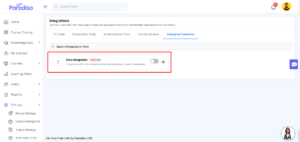
7. Role Switch Option Added for Manager in User Profile:
- We have introduced a Manager role switch option in the user profile. Along with the existing Admin and Student roles, users (Admin or Client Admin) can now switch to the Manager role directly from their profile.
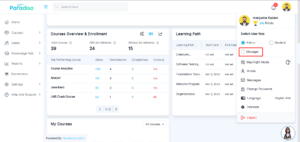
- When an Admin or Client Admin selects the Manager role:
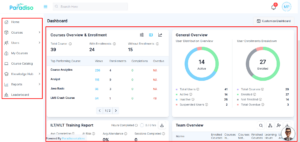
- The Manager left navigation menu is displayed
- Manager-specific dashboard blocks become visible
- This allows users to access the Manager view without a separate login.
8. Freemium Settings (Upgrade Handling for Existing Clients):
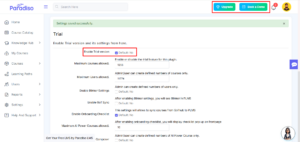
- We’ve implemented Freemium settings enhancements to improve upgrade handling for existing clients.
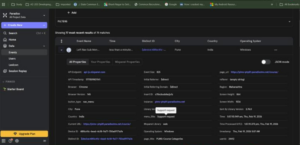
- Upgrade-related UI elements and promotional components are now hidden for applicable clients. Tracking tools such as Mixpanel and Google Tag Manager (GTM) remain inactive in these scenarios.
- Upgrade-related UI elements are not visible.
- Promotional components are hidden.
- Tracking tools (Mixpanel and GTM) remain inactive.
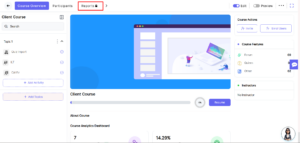
Upgrade and demo: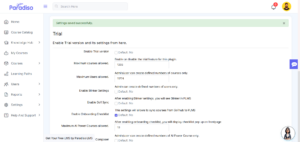
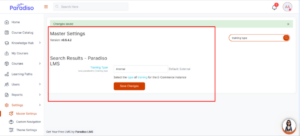
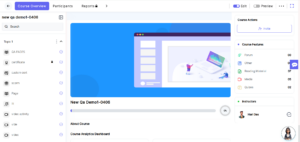
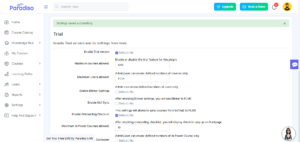
Sell course, manage listing, locks:
9. Description Checkbox Update:
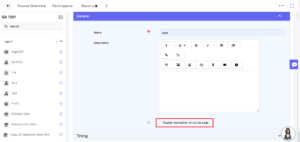
- The Description checkbox is unchecked by default.