
1. User Profile Enhancement:
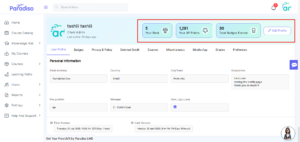
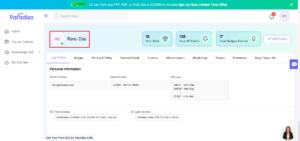
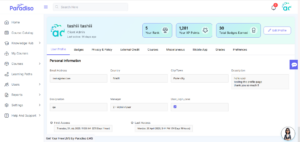
- We’ve enhanced the User Profile page to provide a more consistent and structured experience across all tabs.
- Highlighted headers are now fixed and remain visible across all profile tabs, ensuring better navigation and continuity.
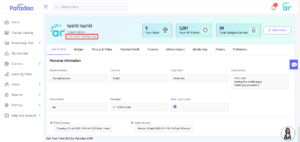
- The “Last Active” field is now role-based and visible only to Admin users, while it remains hidden for regular users to maintain appropriate access control.
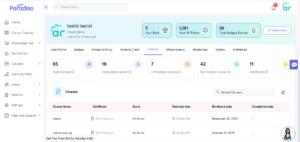
- Course-related statistics—such as Total Courses, Completed Courses, In Progress Courses, Not Started Courses, and Certificates—have been reorganized and are now displayed only within the Courses tab.
- These statistics are no longer shown across other tabs, reducing redundancy and improving clarity.
- These enhancements improve layout consistency and ensure better role-based visibility.
2. ILT Activity Session Page UI Updates:
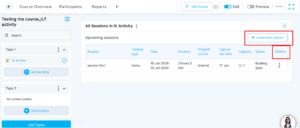
- We’ve refined the ILT Activity Session page to improve usability and clarity.
- The “Create New Session” button label has been updated for better understanding, while its functionality remains unchanged.
- Within the Sessions table, the “Options” column has been renamed to “Actions” for improved clarity.
All available actions are now grouped under a three-dot (⋮) menu, providing a cleaner and more organized interface. - These updates enhance usability and maintain a consistent UI pattern across the platform.
3. Competency Framework – AI-Based Quiz & Course Recommendation:
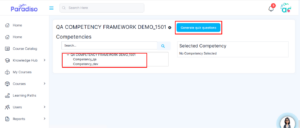
- We’ve introduced an AI-powered competency assessment feature to enhance skill evaluation and learning recommendations.
- Admins can now configure quizzes for competency skills by selecting the number of questions and question types.
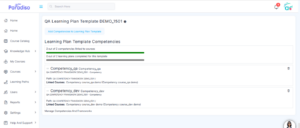
- Quizzes are generated dynamically based on the defined configuration. Upon completion, grading is processed automatically.
- Based on user performance, relevant courses are recommended to address identified skill gaps.
- This enhancement improves personalized learning and supports data-driven skill development.
4. Dashboard Key Stats Cards:
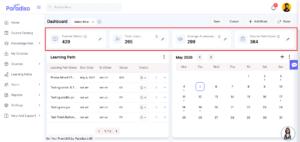
- We’ve introduced Key Stats Cards on the LMS Dashboard to provide quick insights into important metrics.
- These cards are available for Client Admins, and Admins.
- Client Admin
- Admin
- Each card displays key information such as users, enrollments, courses, assessments, and certifications, along with an icon, metric value, tooltip description, and edit option.
- A total of four stats cards are displayed, and any updates are reflected across all applicable roles.
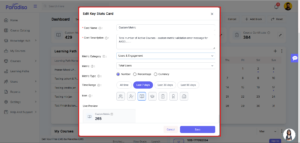
- Admins can configure cards using fields such as Card Name, Description, Metric Category, Metric Type, Time Range, and Icon selection, with a live preview available.
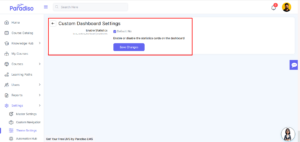
- Access to these cards is controlled via:
Master Settings → Appearance → Custom Dashboard Settings - This feature improves visibility into system performance and enhances decision-making.
5. AI Proctoring:
- We’ve introduced AI-based quiz proctoring to enhance assessment monitoring and integrity.
- This feature enables real-time detection of suspicious behavior during quiz attempts and provides detailed analytical reports for admins.
- AI Proctoring can be configured at the quiz level, with global setup requiring Azure AI credentials.
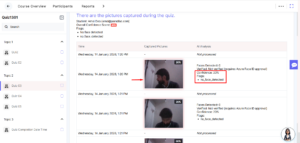
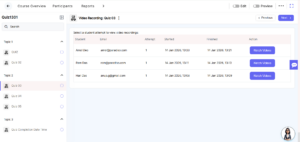
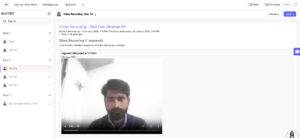
- Reports such as AI Proctoring Report and Video Recording Report are now available, displaying detected events and flags.
- Suspicious activities are highlighted using red markers for better visibility.
- Video recording is supported via FFmpeg, allowing admins to review recorded sessions.
- This enhancement strengthens assessment security and provides better monitoring capabilities.
- Quiz-level setting available.
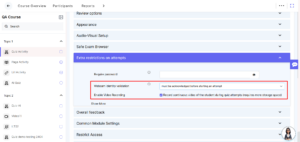
- Global setup required with Azure AI credentials.
Master Settings→ Plugins→ Proctoring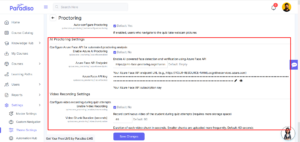
- AI Proctoring & Video Recording Report
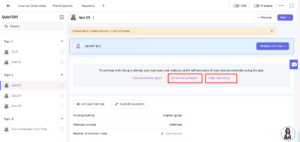
- AI Proctoring Report
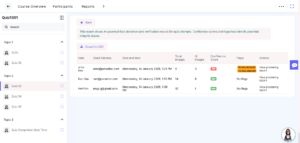
- Video Recording Report
- Azure Face API Endpoint and Key are required for configuring AI Proctoring.
- Moodle cron must be running to ensure proper processing of AI Proctoring data and reports.
6. Quiz Navigation – Section Enhancement:
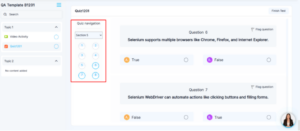
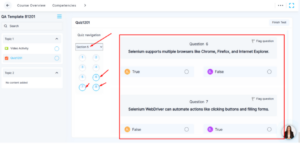
- We’ve enhanced quiz navigation by introducing a section selector for better usability.
- Users can now select specific sections within a quiz, with the selected section clearly highlighted.
- Only questions from the selected section are displayed, while others are hidden or de-emphasized.
- This improves focus and simplifies navigation during quiz attempts.
7. Duplicate Block Name Removal:
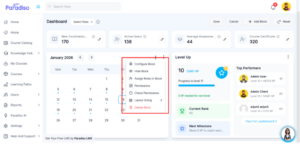
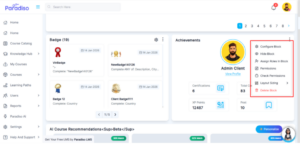
- We’ve resolved an issue where duplicate block names were displayed across dashboard blocks.
- Each block now displays its name only once, improving clarity and reducing visual clutter.e.
- This update enhances UI consistency across the dashboard.
8. Custom Dashboard:
- We’ve introduced a new Custom Dashboard feature with a toggle to switch between the new and legacy dashboard experiences.
- When enabled, users are redirected to the new Custom Dashboard. When disabled, the existing dashboard is displayed.
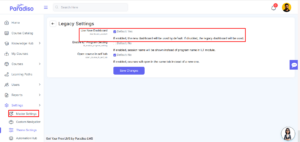
- A new configuration option has been added under Home Page Settings to control this behavior.
When both the settings are enabled, users are redirected to the custom dashboard on login.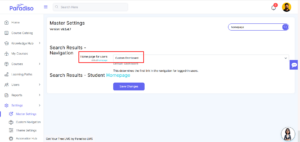
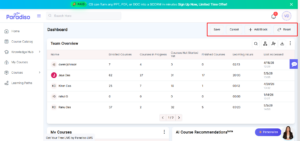
- Customize Dashboard mode allows role-based configuration:
- Admin: Can configure dashboards for all roles.
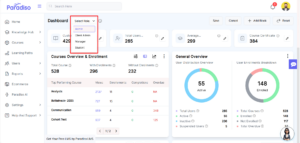
- Client Admin: Can configure for Client Admin, Manager, and Student.
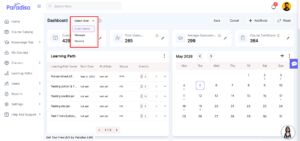
- Manager/Student: Can customize only their own dashboard
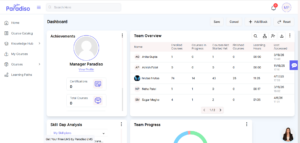
- Users can perform actions such as Save, Cancel, Add Block, and Reset.
- Reset behavior varies by role:
- Admin/Client Admin: Resets for all users.
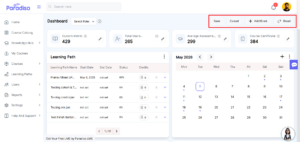
- Manager/Student: Resets to default.
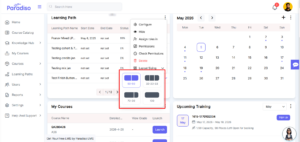
- Multiple layout options are available, including 33–33–33, 50–50, 100, and 70–30.
- This feature provides greater flexibility and personalization of the dashboard experience.
Summary:
- Focuses on enhancing overall system usability, personalization, and user experience through UI improvements and new feature additions.
- Improved User Profile with better structure, fixed headers, and role-based visibility.
- Enhanced ILT session UI for improved clarity and consistency.
- Introduced AI-based competency quizzes with personalized course recommendations.
- Added Dashboard Key Stats Cards for better visibility into LMS metrics.
- Launched AI Proctoring with monitoring, reporting, and video recording capabilities.
- Improved Quiz navigation with section-based filtering.
- Introduced Custom Dashboard with role-based customization and flexible layouts.
- Enhanced UI consistency by removing duplicate block names.