
1. Custom Certificate – Font UI Changes:
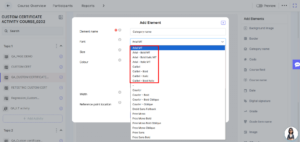
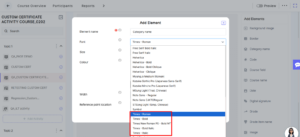
- We’ve introduced new font customization options in the Custom Certificate activity to give users more flexibility in designing certificates.
- The Custom Certificate activity is now available within the course module, allowing admins to create and manage certificates directly.
- Multiple font options have been added, including Arial, Times New Roman, and Calibri. Each font supports styles such as Regular, Bold, Italic, and Bold Italic, enabling better control over text presentation.
- These additions help create more professional and visually appealing certificates.
2. Custom Certificate – UI Enhancements:
- We’ve also improved the overall UI and usability of the Custom Certificate activity.
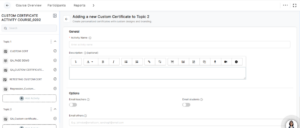
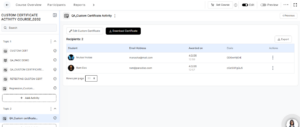
- The interface has been updated across the Creation page, Edit page, and Activity UI page. Field names, placeholders, toggle buttons, icons, and alignments have been refined to provide a cleaner and more intuitive experience.
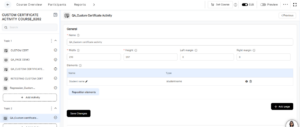
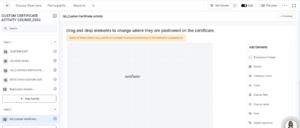
- On the Edit Custom Certificate page, users can easily modify certificates using the “Edit Custom Certificate” button. The Add Elements interface has been enhanced, allowing users to add and position multiple elements as needed.
- Users can configure properties such as width, height, and margins directly from the Elements table. After making changes, the certificate can be updated using the Save option.
- Additionally, users can now add multiple pages to a certificate using the “Add Page” feature, providing greater flexibility in certificate design.
3. AI Activity Builder (H5P / Interactive Video):
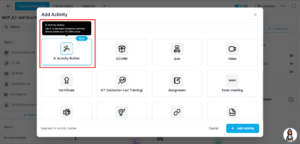
- We’ve introduced a new AI Activity Builder to simplify and enhance content creation.
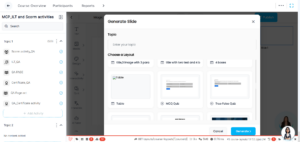
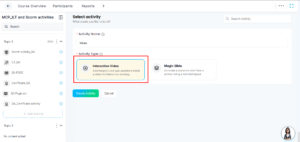
- This feature is available in the Activity Popup and allows client admins to create AI-powered learning content using Magic Slide and Interactive Video within the CS iFrame.
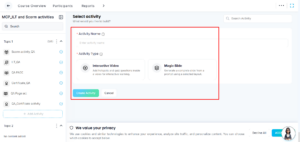
- With Magic Slide, admins can enter a topic title, choose a content format, and generate AI-based slide content. Once published, the content is automatically added as an LMS activity under the selected topic.
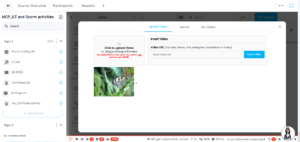
- Interactive Video enables admins to upload videos and configure interactive elements using the CS editor. After publishing, the video is added as an activity and appears in the activity list.
- This feature streamlines content creation and brings AI-driven capabilities into the learning experience.
4. Catalogue & Manage Users Settings:
- We’ve added quick-access settings to improve navigation in the Catalogue and Manage Users modules.
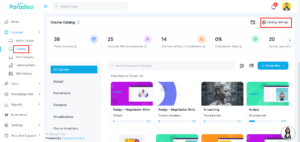
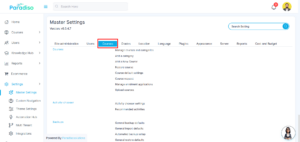
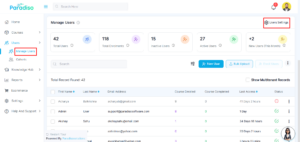
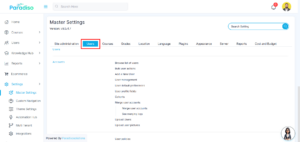
- Admins can now find Catalogue Settings and Manage Users Settings on the right-hand side of their respective pages.
- Clicking on these options redirects users directly to the relevant sections in Master Settings, reducing navigation steps and improving efficiency.Catalog Setting –
 Manage User Setting –
5. Dashboard Custom Metric Configuration:
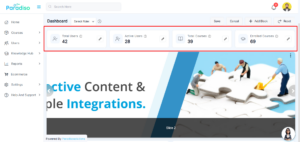
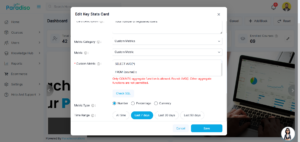
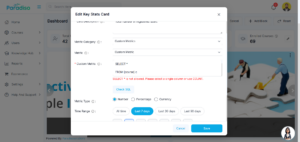
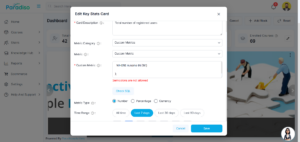
- A new Custom Metric feature has been introduced for Dashboard Key Stats Cards.
- This allows Admins and Client Admins to create dynamic metrics using secure SQL queries. These metrics are visible across Admin, and Client Admin.
- Strict validation rules ensure that only SELECT queries with COUNT() are allowed, maintaining system security. Invalid queries are automatically rejected.
6. Learner-Side Quiz Attempt Enhancements:
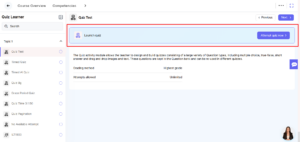
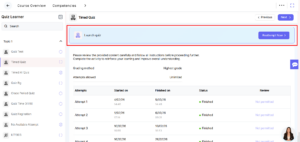
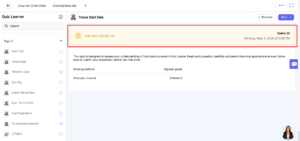
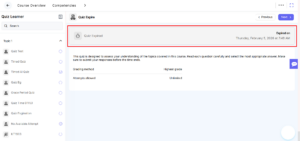
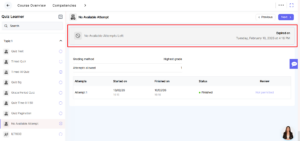
- We’ve significantly improved the Quiz Activity View and Quiz Attempt experience for learners.
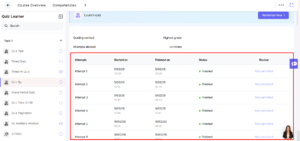
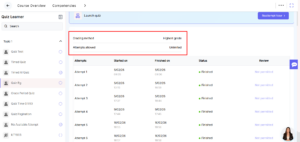
- Button labels have been updated for better clarity, and new status indicators such as Finished, In Progress, and Not Submitted have been added.
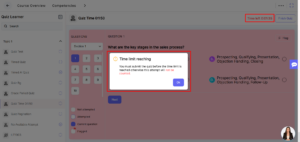
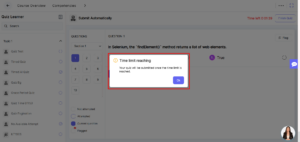
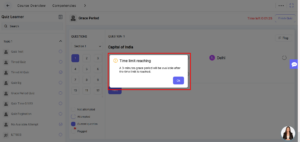
- Additional details like “Started On” and “Finished On” are now displayed. The quiz timer UI has been improved, including a confirmation popup when time is about to expire.
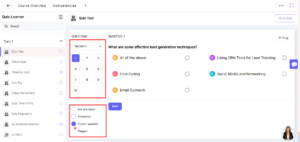
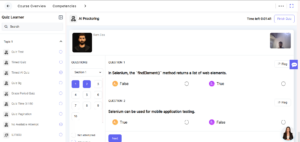
- Answer correction visuals and proctoring elements have also been refined, providing a clearer and more user-friendly quiz experience.
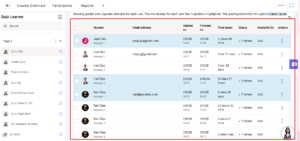
7. Quiz Report – UI & Statistical Enhancements:
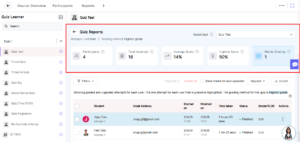
- The Quiz Report module has been enhanced with improved layout, spacing, and alignment.
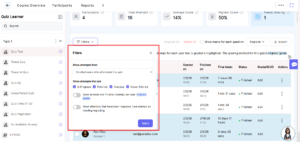
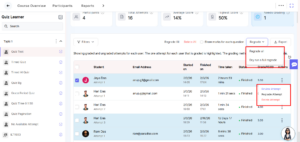
- Filters, export options, and dropdowns have been refined for better usability. Action buttons have also been updated with clearer visual distinctions.
- New statistical cards provide insights such as grading method, attempts allowed, participants, total attempts, average score, highest score, and items needing grading.
- These improvements offer better visibility into quiz performance and analytics.
8. Quiz Activity View Page Enhancements:
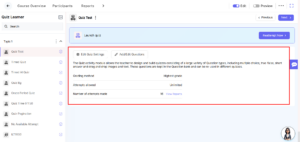
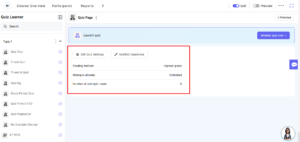
- The Quiz Activity View page has been updated to improve usability for admins.
- New options such as Edit Quiz Settings and Add/Edit Question are now easily accessible.
- Important details like grading method, attempts allowed, and attempts made are clearly displayed. A “View Reports” option is also available when data exists, enabling quick access to analytics.
Summary:
- This release introduces major enhancements across certificate management, AI-powered content creation, dashboard customization, and quiz functionality.
- We’ve improved UI consistency, simplified workflows, and added powerful features like AI Activity Builder and Custom Metrics.
- Overall, these updates provide a more efficient, flexible, and user-friendly experience for both admins and learners.