
The AI Quiz Generator allows instructors to automatically generate quiz questions using AI while creating a course. This activity is available in the Add Activity popup and, when selected, creates a quiz activity under Topic 1 and redirects the user to the AI Quiz Generator form (if the API key is configured).
How to Add an AI Quiz Generator Activity
Navigation Steps (For Instructors / Course Creators)
-
Log in to PLMS.
-
Navigate to Courses from the left navigation menu.
-
Open the course where you want to add the activity.
-
Click on Add Activity.
-
From the activity list, select AI Quiz Generator.
System Behavior Based on API Key Configuration
Case 1: API Key Is Not Configured
-
When AI Quiz Generator is selected:
-
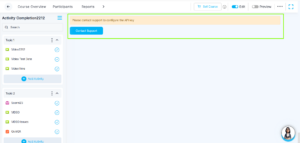
An error message is displayed:
“Please contact support to configure the API key.”
-
A Contact Support button is shown.
-
No activity is created in the course.
-
The user is not redirected to the AI Quiz Generator form.
-
-
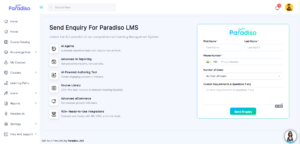
Clicking the Contact Support button opens the Send Enquiry form.
Case 2: API Key Is Configured
-
When AI Quiz Generator is selected:
-
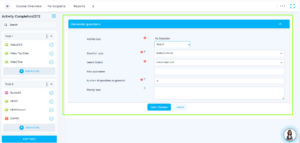
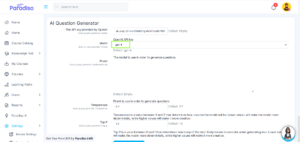
The user is redirected to the AI Quiz Generator Form.
-
The instructor can continue creating quiz questions using AI.
-
Activity Placement
-
The AI Quiz Generator activity is always created under Topic 1 by default.
-
This behavior does not affect or modify any existing activities in the course.
How to Configure the AI API Key (Admin Only)
This section is for administrators and support reference.
Navigation Steps
-
Log in as Admin.
-
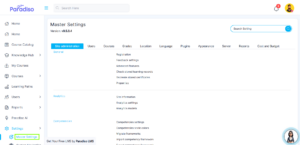
Go to Master Settings.
-
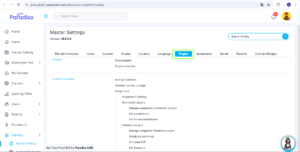
Click on Plugins.
-
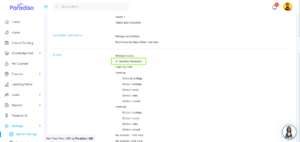
Search for AI Question Generator.
-
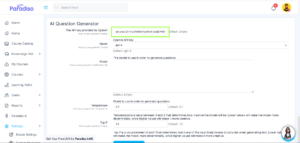
Click on AI Question Generator to open the settings.
-
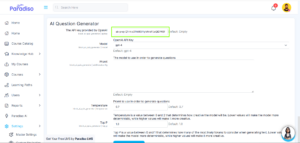
Enter the API Key.
-
Select the model GPT-4.
-
Click Save.