
To insert any quizzes into the courses, navigate to the left panel and open the Quiz drop-down menu. You will see multiple quiz formats available, including Multiple Choice Questions (MCQ), True or False, Fill in the Gaps, Drag-and-Drop, Drag-and-Drop Sorting, and Vocabulary Test.
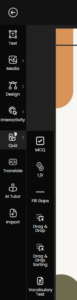
To add any type of Quiz, select them from the list.
For example, if you choose a MCQ, a default Multiple Choice Question will automatically appear on your slide.
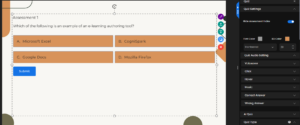
In the right panel, under the Quiz section, you will find several editing options, including Quiz Settings, AI Quiz, Quiz Type, Appearance, and Animation. Each of these categories contains a drop-down menu with additional customization options.
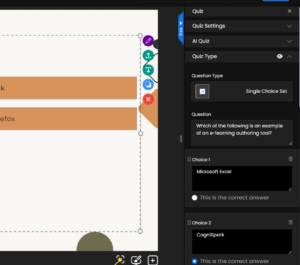
Inside the Quiz Type drop-down. The first option available is MCQ (Multiple Choice Question), which represents a single-choice test. Under this section, you can manually enter your question along with the answer choices. To mark the correct answer, simply select the corresponding radio button next to the option. The selected choice will then be saved as the correct answer.
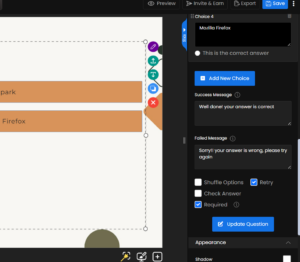
After the quiz options, you can see the default success and failure messages are provided, you can edit it as required.
The other options are to
- Shuffle – Shuffles the answer choices.
- Retry – Allows learners to reattempt the question if they answer incorrectly.
- Check Answer – Lets learners check their answer before proceeding to the next slide.
- Require – Ensures that the quiz must be completed before moving to the next slide.
After making all edits, click Update Question to apply and save the changes.
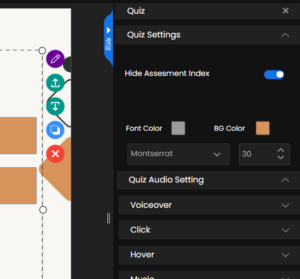
Once you navigate to Quiz Settings by clicking on the drop down. The initial option is Hide Assessment Index, which you can enable using the toggle to hide the assessment index displayed above your quiz. You can also customize the appearance by changing the font color, adjusting the background color behind the text, selecting your preferred font, and setting the font size.
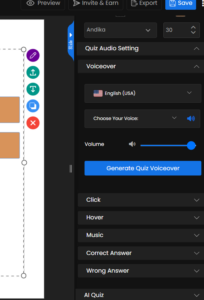
Next is Quiz Audio Settings
In Voiceover,
You can select the desired language and spokesperson. Click Generate Audio to create an automated narration of the question and its options.
Then for every Click, hover, correct and wrong answer
- You can enable the toggle.
- Choose from the available sound effects.
- Adjust the volume as needed.
- You may also upload a custom audio file.
- Once enabled, it will play whenever learners Click, hover, select correct or wrong answer.
Background Music
- Upload your preferred background music.
- Enable the Loop option if you want the music to play continuously during the quiz.
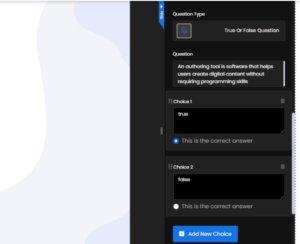
Similarly , if you can add a True/ False, Once your edits are complete, click Update Question to save the changes.
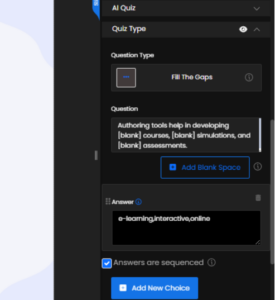
You can add Fill the Gaps quiz type, you can manually enter your question and insert blanks wherever needed. To do this, click the Add Blank Space button, and a blank field will automatically appear within the text. Below, you can enter the correct answers in the required sequence and enable the Answer in Sequence option to ensure learners fill the blanks in the proper order. Once complete, click Update Question to save your changes.
You can also select Fill the Gaps Drag and Drop quiz type, the question type identifies it as a drag-and-drop format. You can manually enter your question and insert blank spaces by clicking the Add Blank Space button, which will generate blank fields in the text. Since this is a drag-and-drop activity, you must also create the answer choices that will appear below the question. Then, list the correct answers in sequence, separated by commas, to match the blanks accurately. Be sure to enable the Answer in Sequence option and click Update Question to save your changes.
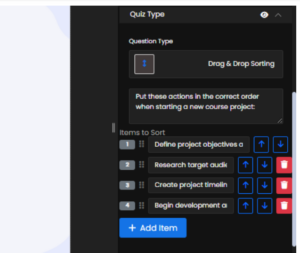
In the Drag-and-Drop Sorting drop-down, you can enter your question and list the answers in the correct sequence. Additional items can be added as needed. Once done, click Update Question to save your edits. During the quiz, learners can sort the items by dragging them up or down. Correctly placed items will be marked as correct, while items in the wrong order will be marked as incorrect.
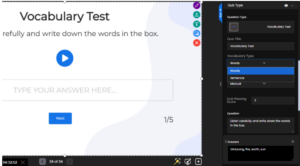
Another option is Vocabulary Test question type, you can begin by editing the quiz title as per your requirement. In Vocabulary Type, you can choose whether the answers should be in single word or full sentences.
You will also find the Quiz Type option, where you can select either Manual or AI-Generated:
- Manual: You will need to type the questions and answers yourself.
- AI-Generated: The system will create the quiz for you.
When creating questions manually, enter the question text and the correct answers in sequence. Then, you can use the Generate Audio option. The system will generate audio clips based on the number of answer options provided (a minimum of two options is required).
Once done, click Update Question to save your settings.
During the quiz, the learner will listen to the audio, type what they heard, and submit their response. If the answer is correct, they can proceed to the next question.