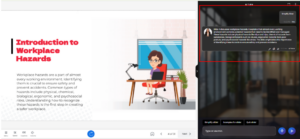
AI Tutor is to enhance learner engagement and comprehension by providing an interactive, slide-specific assistant that answers questions, clarifies concepts, and guides learners through easy-to-use action buttons. This feature ensures personalized learning support, making courses more intuitive, accessible, and effective for all users.
Click on the AI Tutor option from the Course Menu on the left side to add the tutor inside the course.
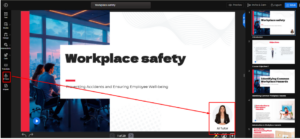
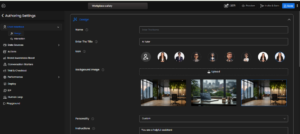
This opens the AI Tutor Setup Page, where you can configure the tutor. A dedicated Settings Menu will appear on the left side to manage the tutor’s preferences and options.
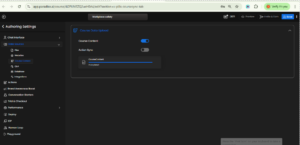
Select Data Sources and then choose Course Content to open the training page. Turn ON the toggle for course content to start training the tutor with course data. Once the upload and training are complete, enable the Action Sync buttons to activate simplified learner actions such as Simplify Slide, Explain More, and Quiz Me, making the learning experience more interactive and personalized.
The user can view the training data from the File menu and download it from there.
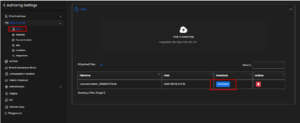
From the Design menu in the chat interface, users can add their own customized loaders that appear while fetching replies to questions. By default, four loaders are provided.
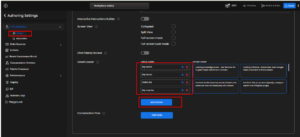
After completing the basic required settings, click the Save button, then use the Authoring Tool back button to return to the course and exit the tutor configuration.
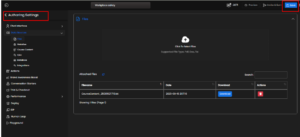
Click the course preview link to access the tutor. Here, you can ask questions related to any slide.