

Docs category: Mobile


Sharing files with LMS Mobile with iOS
Mobile app functionalities and Offline compability.
Contents
1.2 Features and functionalities
2 Offline player compatibility
Mobile Functionalities
If you have a PLMS site, you can now access all your courses and studies directly on your mobile devices with our free app. With the Mobile App, you can now access all these features at a touch of a button:
Activities
- File
- Choice
- Feedback
- Assignments
- Workshop
- Lessons
- Book
- Page
- Glossary
- Wiki
- URL
- Video
- Certificates
Features and functionalities
- Responsive
- Offline Player
- Calendar
- Events notification
- Mobile notifications
- Private Messages
- Notifications and Messages History
- Personal Notes
- Add user to phone contacts
- Calling user from App
- User’s location
- Private file Area
- Files download
- Audio Recording
- Video Recording
- Activity Completion
- Badges
- Grades and grading
- Forums compatibility
- Reminders
- IMS compatibility
- Site notes visibility
- Chats compatibility
- Surveys
- LTI
- Course Search
- Self enrollment
- Guest method
- Scorm player
- Learning plans
- Corporate Branding
- Sign up to courses via PayPal
Offline player compatibility
View course activities and download materials for offline use. Work through Books and IMS Content packages directly in the app. The downloading status of resources is preserved even when changing sections or pages. this is the list of what can be done using offline mobile:
| Feature | Compatibility |
| Book | Yes |
| File | Yes |
| Folder | Yes |
| IMS | No |
| Label | Yes |
| Page | Yes |
| URL | No |
| Assignment | No |
| Workshop | No |
| Chat | No |
| Choice | Yes |
| Database | Yes |
| External Tool LTI | No |
| Feedback | Yes |
| Forum | Yes |
| Glossary | Yes |
| Quiz | No |
| Wiki | Yes |
| Lesson | No |
| Scorm | Yes |
| Survey | Yes |
| Note | No |
| Users | Yes |
| Grades | No |
| Completion | Yes |
| Final Grades | No |
| Notifications | No |
| Calendar | Yes |
| Private Files | No |
| Upload media | No |
No
Mobile App Basics
Our application will allow in an easy way, at any time and in any place, the development of the activities assigned in your LMS
Next, you will find the guides that will show you how simple is to use it:
Contents
Download the app
IOS
If you require to use the IOS app for your apple devices, you can download it following the next steps:
Launch the App store
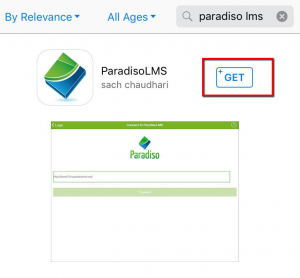
On the app search box, search for Paradiso LMS

Once the app appears, click on the button “Get” at the right side of the app
Then you can click on the install button that will show up, wait for the installation
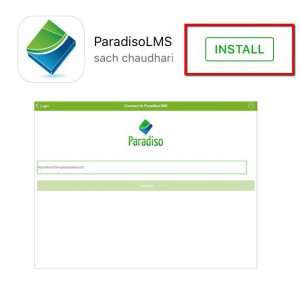
The button will change the status for installed, now you are ready to start using the app.
Android
If you require to use the Android app:
Open the Play Store app in your Android device
On the search box that is placed on the top, search for Paradiso LMS
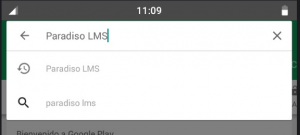
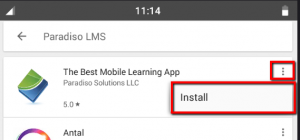
On the results page, you will see the LMS app, click on the 3 points icon, and click on install
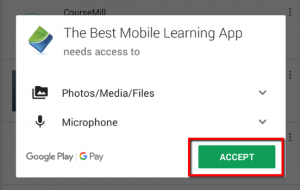
A pop up will appear. Click on accept.
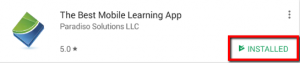
The installation will start automatically, after it finishes loading the app will be ready to use
How to Login
To login to our Paradiso LMS app, you can follow the next steps:
Open the app in your mobile device.

The app will ask for the site url. Fill the information and click in connect
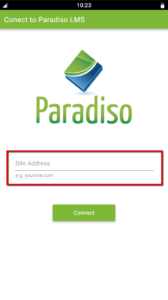
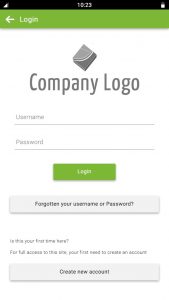
Once the app reaches your LMS site, you are able to log in using your username and password.
Recover Password
In case you forget your password and you are in the need of recovering it, just follow the next steps:
In the login screen of your lms, click on the button Forgotten your username or Password?

Select either if you are going to use your email or username to recover your password
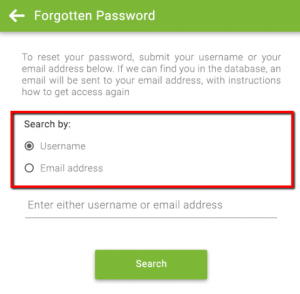
Fill the information based on the option selected before, and click on search
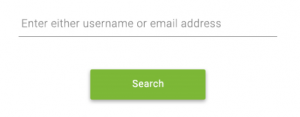
If the system is able to find your information on the database, a message will be sent to your registered email inbox.
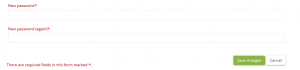
Click on the link attached. It will send you to a new page, this page will ask for a new password. Select your new password and click on “save changes”
Create A New Account
There will be cases when an account haven’t been assigned to you. If this is your case, you can create your own account to access the lms using the mobile app.
Inside the LMS login screen, click on the button Create a new account

Fill the formulary. All the fields with a red asterisk means it is required to create the account
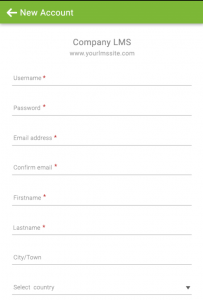
Click on Create my new account. A message will be send to your email confirming the account had been created successfully

Sync Offline Content
There will be some moments where you will not have Internet access and you will have to take a courses. Fortunately, the mobile app will allow you to sync and download some of the course content and use it without Internet. For that you must:
In “My courses” page, click on the course you want to sync
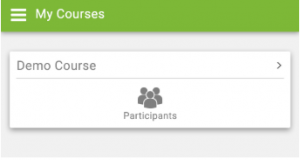
Select the topic that contains the activities available to download
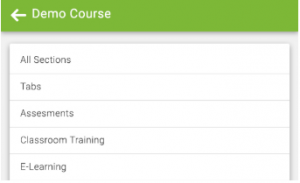
At the right side of the activities, you will find two icons:
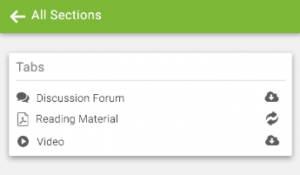
- Use
 to download the content
 - Once the content is downloaded, and you need to sync and update the content, use the sync button

LMS Mobile additional features
LMS Mobile additional features
| LMS Mobile additional features | |
|---|---|
| Type | Local plugin |
| Set | N/A |
| Downloads | http://paradisolms.net/plugins/view.php?plugin=local_mobile |
| Issues | https://tracker.paradisolms.net/browse/CONTRIB/component/13930 |
| Discussion | https://paradisolms.net/mod/forum/view.php?id=7798 |
| Maintainer(s) | Juan Leyva |
The LMS Mobile additional features plugin provides new features and web services for the LMS Mobile app which are currently only available in the latest LMS version.
This plugin is officially developed and maintained by LMS HQ
Contents
How it works
Once installed the plugin creates a new service “LMS Mobile additional features”. The Mobile app checks if this service is enabled. If not, the Mobile app falls backs to the standard core Mobile app service.
Please, open LMS Mobile features to check what new features are added to your site depending on your LMS version.
Features
- Support for LMS sites prior to 3.2 using SSO authentication methods (Shibboleth, CAS and Google OAuth 2)
- Support for sites using MNet authentication (LMS Network authentication)
- Support for push notifications in LMS sites prior to version 2.6
Enable authentication for sites using SSO methods (like Shibboleth and CAS)
VERY IMPORTANT NOTE: If SSO is not working for your (or it is failing randomly), you’d need to disable the “Auto login guest” option “autologinguests”. This setting may not be compatible with the SSO via app in some sites (it should work fine in LMS 3.2 onwards).
SSO and MNet authentication is not supported in the Windows 8 and Windows Phone 8 apps
Once the plugin is installed, you need to go to Site administration > Plugins > Local plugins > LMS Mobile additional features
There you can choose the “Type of login”:
- Via the app
- Is the default login, the user must introduce his credentials in the app
- Via a browser window
- A new browser instance is open in the mobile device pointing to the login form in the LMS site (which may again redirect to external identity providers if required). The user must introduce his credentials there. This is the option that must be selected for sites using SSO methods (or for sites that wants to force the user to authenticate in the site, not in the app)
When using the “Via a browser window” option, you can optionally specify an URL scheme to be used by the system to open the Mobile app. By default, the URL scheme used to open the app will be the one indicated by the own app during the SSO process. If you’ve developed a custom app using its own URL scheme and you want to allow only SSO logins via your app, you can indicate there an URL scheme. The site will detect that setting and will use it instead of the value indicated by the app.
Configuring the app from your site
- Disable app functionalities for your site. If there’s a feature you don’t want to make available via the app you can disable it here.
- Rename app text strings.
- Add new items in the app’s main menu (the side menu).
- Replace the Change site option with a “Log out” one to force the users to enter their credentials on their next access.
Installation
- Unpack the zip file into the local/ directory. A new directory will be created called local/mobile.
- Go to Site administration > Notifications to complete the plugin installation.
- Go to Site administration > Mobile app > Mobile settings and enable web services for mobile devices (Remember to save the changes)
- Go to Site administration > Plugins > Web services > External services, edit “LMS Mobile additional features” and check the “Enabled” field, then save changes.
- Go to Site administration > Users > Permissions > Define roles, edit the Authenticated user role and allow the capability lms/webservice:createtoken.
Note: You need to have upgraded the LMS Mobile app to version 1.4.4.
If you are currently using the LMS Mobile app, you will need to log out of all your sites in order for the app to detect the new service.
Admin users, please read
This plugin installs a new service in your LMS installation, the automatic token creation for this type of services is forbidden for admin users. This means that admin users will not be able to use the Mobile app.
This can be solved easily, administrators must create a token manually in LMS (Plugins > Web Services > Manage tokens) for the local_mobile service. Note: Be sure to toggle the default “LMS mobile web services” setting to “LMS mobile additional features service” before creating the token.
LMS Mobile FAQ
LMS Mobile FAQ
Contents
- 1 Students
- 1.1 How can I get the LMS Mobile app?
- 1.2 I can’t get the app to work. What do I do?
- 1.3 What permissions does the app require?
- 1.4 I can’t see my course on the app. What do I do?
- 1.5 Why can’t I upload my assignment on the app?
- 1.6 Why can’t I sometimes access the app or submit anything to it?
- 1.7 Is there a space limit on my files?
- 1.8 Who should I contact for help with the app?
- 1.9 When are activities completed offline synchronized?
- 1.10 Why the site is asking for my username and password when an activity is opened in the browser?
- 2 Teachers
- 2.1 How can I enable videos in my course to be downloaded?
- 2.2 Video subtitles are not working
- 2.3 Which course format is it best to use?
- 2.4 How do I make YouTube links open automatically in the app?
- 2.5 Why can’t my students see their courses?
- 2.6 I can’t mark assignments in the app?
- 2.7 What communications tools can I use in the app to engage with my learners?
- 2.8 My protected Vimeo videos are not playing in the app
- 2.9 ReCaptcha doesn’t work on my site
- 2.10 I use a LMS plugin but the app says it is not supported
- 2.11 I have problems playing SCORM packages
- 2.12 My quizzes or lessons are not working offline
- 2.13 Maths notation is not displaying correctly in the app
- 3 Administrators
- 3.1 I can connect with my iPhone but not with my Android phone
- 3.2 I can’t get the app to work. What can I do?
- 3.3 I cannot access with old users, but I can with recently created ones!
- 3.4 I can’t view the courses tab as an administrator
- 3.5 My LMS site uses a SSO auth method (Shibboleth, CAS, Google OAuth, etc) and the app is not working
- 3.6 SSO is not working with my custom auth plugin
- 3.7 I am having problems requesting an airnotifier access key
- 3.8 Push notifications are not working
- 3.9 Error messages
- 3.9.1 ‘Can not find data record in database table external_functions’
- 3.9.2 ‘Cannot connect: Verify that you have typed correctly the URL and that your site uses LMS 2.4 or later’
- 3.9.3 ‘We lost connection; you need to reconnect. Your token is now invalid.’ on my custom version of LMS Mobile
- 3.9.4 ‘No permission to create web service token for the service local_mobile’ when attempting to log in as an admin
- 3.9.5 ‘Invalid response value detected’ when accessing the site
- 3.9.6 ‘Invalid response value detected’ when accessing My Courses or Course Overview
- 3.9.7 ‘A required parameter (username) was missing’
- 3.9.8 ‘Invalid json in request: No error’
- 3.9.9 “Cannot get course contents”
- 3.10 I think I found a bug with the app. Where can I report it?
- 3.11 How can I get the app in my language?
- 4 Any further questions?
Students
How can I get the LMS Mobile app?
The LMS Mobile app is available for free from Google Play and the Apple Store. See LMS Mobile downloads for links. You can also install the app directly from your mobile device by searching for ‘LMS Mobile’ with author/owner ‘LMS Pty Ltd’.
I can’t get the app to work. What do I do?
The LMS Mobile app will ONLY work with LMS sites that have been set up to allow it. Please talk to your LMS administrator if you have any problems connecting.
What permissions does the app require?
The app requires the following permissions:
- Record audio – for uploading to your LMS site
- Read and modify the contents of your SD card – for content to be downloaded to your SD Card for offline access.
- Network access – to be able to connect with your LMS site and check if you are connected, and if not to switch to offline mode.
- Run at startup – to receive local notifications even when the app is running in the background.
- Prevent phone from sleeping – to receive push notifications anytime.
I can’t see my course on the app. What do I do?
Check with your course tutor that you are correctly enrolled.
Why can’t I upload my assignment on the app?
Check with your LMS site administrator.
Why can’t I sometimes access the app or submit anything to it?
This could be because of interruptions in your internet connection. Wait a while and try again. If you continue to have problems, contact your LMS site administrator.
Is there a space limit on my files?
Assignments will have a size limit which you can see. For other space limit questions, check with your LMS site administrator.
Who should I contact for help with the app?
Your LMS site administrator can assist you in getting the app to work correctly.
When are activities completed offline synchronized?
See LMS Mobile synchronization.
Why the site is asking for my username and password when an activity is opened in the browser?
Auto-login from the app is only supported in sites using LMS 3.2 onwards. Also, for security reasons, between auto-logins you must wait 6 minutes (this should not be a problem because most of the browsers will keep your LMS session open).
Teachers
How can I enable videos in my course to be downloaded?
See the section ‘Media download for offline usage’ in Creating LMS Mobile friendly courses.
Video subtitles are not working
This may happen in old Android versions (Android < 4.4), in modern Android and iOS versions they should work fine.
Which course format is it best to use?
Topics or weekly course format is best suited to mobile devices.
How do I make YouTube links open automatically in the app?
Add YouTube links as a URL resource.
Why can’t my students see their courses?
If you or an administrator have correctly enrolled them in a course, they can see it in their mobile app. If they are correctly enrolled but can still not see their course, ask them to check with your LMS site administrator.
I can’t mark assignments in the app?
Grading assignments is on the roadmap and will be available shortly.
What communications tools can I use in the app to engage with my learners?
See Mobile app notifications. Chat, forums and messaging are all supported by the app.
My protected Vimeo videos are not playing in the app
Vimeo protected videos should work on LMS 3.3.4 onwards, please note that you need to enable this admin setting “Allow frame embedding” (allowframembedding admin setting).
For older versions, see this forum discussion with a workaround: https://paradisolms.net/mod/forum/discuss.php?d=327342
ReCaptcha doesn’t work on my site
You need to enable this admin setting “Allow frame embedding” (allowframembedding admin setting).
I use a LMS plugin but the app says it is not supported
You should contact the plugin developer and point him to this documentation: https://docs.paradisolms.net/dev/LMS_Mobile_Remote_addons where it is explained how to add support to plugins in the Mobile app.
There is a list of LMS plugins supported by the app here: https://paradisolms.net/plugins/browse.php?list=award&id=6
I have problems playing SCORM packages
Please refer to LMS Mobile SCORM player.
My quizzes or lessons are not working offline
You need to edit the quiz or lesson activity settings and enable the “Allow lesson/quiz to be attempted offline using the mobile app” configuration option.
Maths notation is not displaying correctly in the app
The app doesn’t yet support MathJax (see MOBILE-1611). Instead, the TeX notation filter should be enabled.
Administrators
I can connect with my iPhone but not with my Android phone
This usually happens when the site is using https and the certificate is not correctly configured or it is using an old protocol, please use these pages to check this certificate: https://www.geocerts.com/ssl_checker and https://www.ssllabs.com/ssltest/analyze.html
I can’t get the app to work. What can I do?
Assuming you have enabled mobile services on your site, please check:
- If your site uses an SSL certificate, it must be a trusted certificate, not self-signed. Please use these tools or a similar one to check that your certificate is fine: SSL Checker and SSL Server Test. All the checks must be ok, including the “Certificate Chain Complete”. Otherwise the app might work on iOS but not on Android.
- Debugging is disabled (in Site administration > Development > Debugging)
- The ADOdb debug option is disabled if you are using the external database auth or enrollment plugin (in Plugins > Authentication > External database and in Plugins > Enrollment > External database).
- SHA-1 https certificates are not supported anymore in Chrome, this means that the Android version of the app won’t work for your site. If your site doesn’t work in desktop Chrome or Chromium it won’t work in the Android app. See https://blog.chromium.org/2014/09/gradually-sunsetting-sha-1.html for more information
- If you are using IIS check that Anonymous access is not disabled for the /webservice directory.
If you still have a problem, please post in the LMS for mobile forum.
I cannot access with old users, but I can with recently created ones!
Please, do a “Purge all caches” via the LMS administration settings, this will solve the problem.
I can’t view the courses tab as an administrator
The LMS Mobile app only displays courses you are enrolled in. If you want to view a course as an admin, you need to enroll in it.
My LMS site uses a SSO auth method (Shibboleth, CAS, Google OAuth, etc) and the app is not working
See the section ‘Mobile authentication’ in the LMS Mobile guide for admins for details of how to configure it.
If configured the app is still not connecting: If your site uses an SSL certificate, it must be a trusted certificate, not self-signed. Please use this tool or a similar one to check that your certificate is fine: SSL Checker. All the checks must be OK, including the “Certificate Chain Complete”.
SSO is not working with my custom auth plugin
SSO should work in any plugin if the plugin handles correctly the $SESSION->wantsurl, this is the way SSO works when it is launched via the app:
- It launchs this URL https://yourlms/local/mobile/launch.php?service=local_mobile&passport=abc in the device browser (LMS 3.2 onwards the URL is /tool/mobile instead local/mobile)
- If the user is not logged in, the browser will redirect the user to the login page
- If the auth plugin used implements correctly the handling of the wantsurl session var, once the user has logged in, the browser should redirect back to the https://yourlms/local/mobile/launch.php?service=local_mobile&passport=abc URL that will launch the mobile app via the custom URL protocol
Custom auth plugins may be failing in the last step,not redirecting back to local/mobile, this will happen only if the plugin does not support correctly the $SESSION->wantsurl.
The SAML plugin works correctly but some modifications of that plugin may not work if important lines are changed.
I am having problems requesting an airnotifier access key
If you have registered your site but are still unable to request an access key, please fill in the Airnotifier access key manual request form. (If your site is hosted so you can’t obtain your siteidentifier, enter “cannot obtain” in the field.) Your site registration will be checked and you will be sent an access key in a few days if everything is correct.
Push notifications are not working
Please check Mobile app notifications#Troubleshooting
Error messages
‘Can not find data record in database table external_functions’
This error usually happens due to a bad configuration or setting value in your LMS site, please check:
- The user quota global setting should be an integer. For more details, see the discussion How to enable LMS Mobile App for all accounts.
- The usermaxuploadfilesize should be an integer, please try to decrease the size. It can be configured in Site Administration > Security > Site Policies > Maximum uploaded file size. The default value (Site upload limit) depends on the PHP configuration, you might have to change the value of upload_max_filesize and post_max_size in your php.ini file.
- The user “lang” field in the database is set to a correct value and existing language installed in the site. Some times the lang field is set via external systems to incorrect values or pointing to a language pack that was uninstalled. Please, note that to fix this you need direct access to the database and your ‘user’ and ‘course’ table.
‘Cannot connect: Verify that you have typed correctly the URL and that your site uses LMS 2.4 or later’
Please check:
- Mobile services are enabled for the site.
- The user is entering the correct URL for the site (see FAQ above)
- For https sites, the certificate is valid (see FAQ above)
‘We lost connection; you need to reconnect. Your token is now invalid.’ on my custom version of LMS Mobile
Please check:
- You have followed all the steps listed in LMS Mobile Developing a plugin tutorial
- You have enabled the lms/webservice:createtoken capability for the authenticated user
‘No permission to create web service token for the service local_mobile’ when attempting to log in as an admin
You need to create a token for the admin account (only) as follows:
- Go to Site administration > Plugins > Web services > Manage tokens
- Click Add
- Enter the admin username and select ‘LMS Mobile additional features service’ (i.e. do NOT leave it as ‘LMS Mobile web service’)
- Click the ‘Save changes’ button.
‘Invalid response value detected’ when accessing the site
The user quota global setting should be an integer. For more details, see the discussion How to enable LMS Mobile App for all accounts.
‘Invalid response value detected’ when accessing My Courses or Course Overview
This usually happens when a course uses a language that isn’t installed in the site. Please make sure that all courses use valid languages. This can be easily checked in the database, table “course”, there is a column named “lang”.
‘A required parameter (username) was missing’
This may happen if your site implements HTTP redirects; the request is redirected by the browser not passing the POST parameters.
Unfortunately, this is something we cannot control in the Mobile app (it can’t be handled via JavaScript). For further information, see http://stackoverflow.com/questions/228225/prevent-redirection-of-xmlhttprequest and http://stackoverflow.com/questions/4168784/ajax-redirection-handling
The solution is to change the HTTP redirect and use an HTML page with a meta tag or JavaScript redirect.
‘Invalid json in request: No error’
There is a bug in LMS 3.3 that can cause this error. Please update to LMS 3.3.2.
“Cannot get course contents”
This usually happens when the course is using a course format plugin that was uninstalled from the server or that was not properly installed.
Please, reinstall again the course format plugin.
I think I found a bug with the app. Where can I report it?
- Log in to the LMS Mobile tracker (you’ll need to create a tracker account if you’ve not done so previously)
- Check whether the issue has already been reported by doing a search
- If not, report the bug by clicking the ‘Create Issue’ link at the top right of the page, selecting ‘LMS Mobile’ as the project
- Add a detailed description, then click the Create button
- Attach the following files to the issue by selecting ‘Attach Files’ in the ‘More actions’ dropdown menu:
- ‘Device information’ – this can be found in the app (Settings -> Development -> Device info, you can send yourself this information by email using the email button at the bottom)
- App Log (Settings -> Development -> Show Log, again you can send yourself this information by email)
How can I get the app in my language?
The LMS Mobile app is currently being translated into many languages. If it is not yet available in your language, please contribute a translation! See Translating LMS Mobile for details of what to do.
Any further questions?
Please post in the LMS for mobile forum on paradisolms.net.
LMS Desktop
LMS Desktop
Contents
What is LMS Desktop?

Course overview in LMS Desktop
LMS Desktop is our solution to accessing your LMS courses on desktop and/or Surface tablets.
With LMS Desktop you can experience all these popular (and more) functionalities that are found in LMS Mobile, on your desktop or surface tablets:
- View course activities and download materials offline
- Quickly find and contact other people in your courses or organisation
- Attempt quizzes, post in forums, play SCORM packages, edit wiki pages and more – on and offline
- Upload images, audio, videos and other files from your desktop or tablet
- View deadlines filtered by dates or course subjects
- Receive instant notifications for messages, forum posts, calendar events and deadlines
- Track your learning progress or grades

Assignment grading in LMS Desktop
How do I get LMS desktop?
Go to LMS downloads: LMS Desktop.
Using LMS Desktop
As for the LMS Mobile app, LMS Desktop will ONLY work with LMS sites that have been set up to allow it. Site admins, please see the LMS Mobile guide for admins.
Teachers, for info on improving your courses for access via LMS Desktop, please see Creating LMS Mobile friendly courses.
How will LMS Desktop get updated to the latest release?
As with LMS Mobile, the desktop version will be updated by LMS HQ every two months.
Why has LMS released LMS Desktop?
LMS Desktop is another step that LMS is taking to make online learning more accessible – for students, educators and other users – who are utilising various operating systems and devices.
Feedback has shown that LMS users in the K-12, higher education and workplace sectors would like the option of accessing their courses through desktops, laptops or tablets, which are the devices often provided by their institutions or organisations.”
Making LMS Desktop available in Windows operating system is also important, as many of our users are also studying and learning in this environment.
Where can I get support for LMS Desktop?
If you have any questions or feedback about LMS Desktop, please join the discussions in the LMS for mobile forum.
See also
LMS Mobile SCORM player
LMS Mobile SCORM player
Contents
Features
The LMS Mobile SCORM player enables the playing of SCORM 1.2 packages online and offline.
When a user loses connectivity, offline mode is enabled automatically and all interactions that are tracked by the SCORM package are saved.
When a user is online again, the offline attempt is synchronised back to the LMS site, either merging it with other incomplete attempts on the site or saving it as a new attempt.
Requirements
The LMS Mobile SCORM player requires LMS 3.0 onwards. In Site administration > Plugins > Activity Modules > SCORM Package the setting ‘Protect package downloads’ should be disabled (default setting).
The LMS Mobile SCORM player may be used on sites running LMS 2.6 to LMS 2.9 if the LMS Mobile additional features plugin is installed.
If the playing of SCORM packages offline is not desired, the setting ‘Protect package downloads’ may be enabled. If the LMS Mobile additional features plugin is being used, the setting can be found in Site administration > Plugins > Local plugins > LMS Mobile additional features.
The ZIP file containing the SCORM contents should not be Windows specific. If your SCORM package contains directories using the inverted path separator “” they won’t work in Android.
Technical details
The LMS Mobile SCORM player provides support for:
- SCORM 1.2 packages
- Objectives, interactions and prerequisites
- SCO navigation via nav.event
- Uploaded packages, remote zip packages and zip packages in any type of repository supported by LMS
The LMS Mobile SCORM player does not currently support:
- Remote imsmanifest.xml packages or file system repository unzipped SCORMS
- Opening of packages outside the app e.g. in a new browser window
- JavaScript pop-ups via window.open (Mobile device limitation)
Tips for LMS Mobile friendly SCORM packages
- Try to reduce the size of the images and use mobile-compatible formats e.g. png
- Try to reduce the size of videos and use mobile-compatible formats e.g. mp4
- Avoid using Flash or FLV
- Avoid using images, files or media on remote sites
- Avoid using pop-ups
- Avoid using advanced HTML5 features, as they may not be supported by old devices such as iOS 4 or Android < 4.4
- Avoid having a left navigation menu as part of the SCORM package, as this reduces the space available for the package content
LMS Mobile features
LMS Mobile features
-
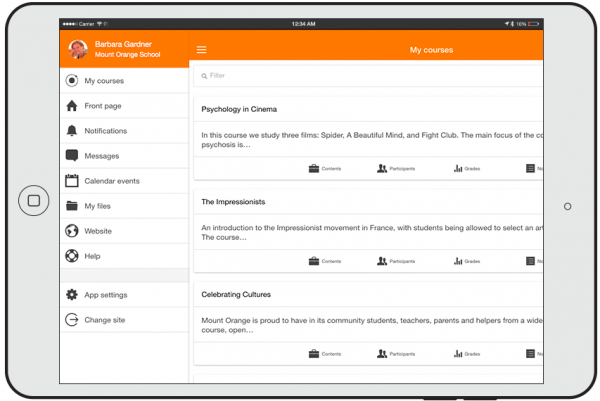
See your courses at glance
Your courses are listed with easy access to contents, participants, grades and notes. A useful filter field lets you find a particular course quickly. If your token expires during a session, you’re prompted to re-enter your password and continue.
-
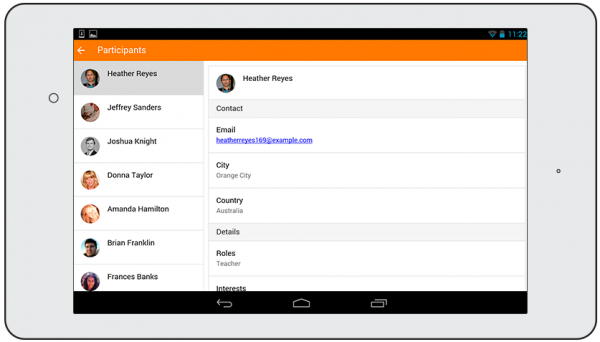
Connect with course participants
Infinite scrolling improves access to the participant view, with the complete user profile now displayed and available from every page.


-
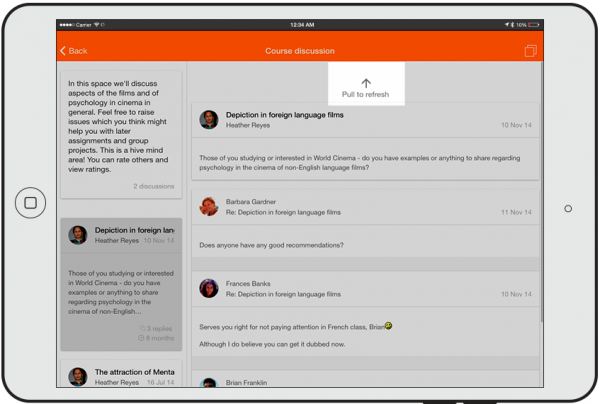
Pull to refresh
Most screens will allow you to pull to refresh, improving the real-time participation experience.
-
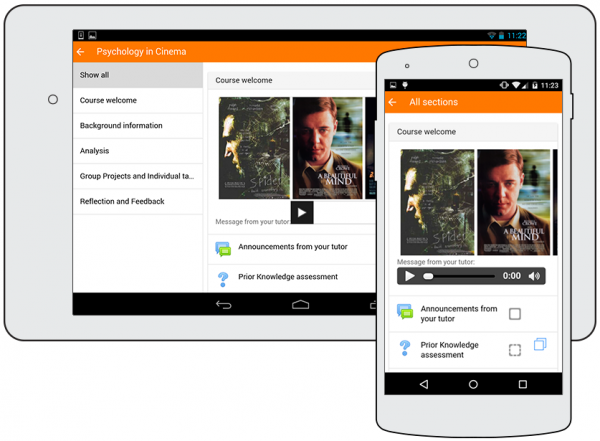
Orientation and resolution support
The app displays in portrait or landscape view, whatever your screen resolution.


-
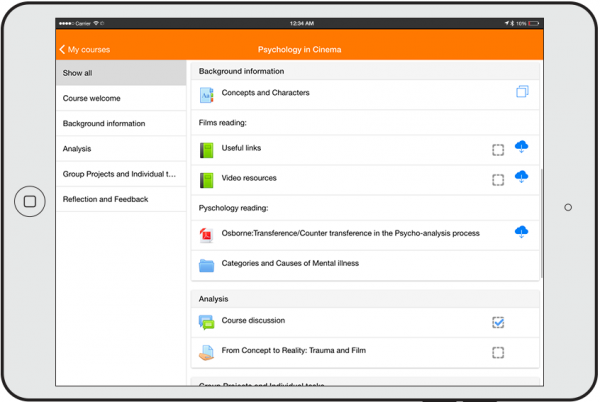
Easily access course content
View course activities and download materials for offline use. Work through Books and IMS Content packages directly in the app. The downloading status of resources is preserved even when changing sections or pages.
-
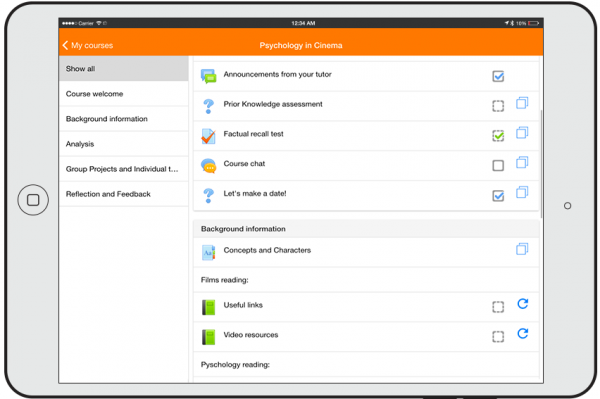
Activity completion
Track progress from your device with Activity completion. Automatic completion is registered, and students can also manually mark a task complete on their mobile.


-
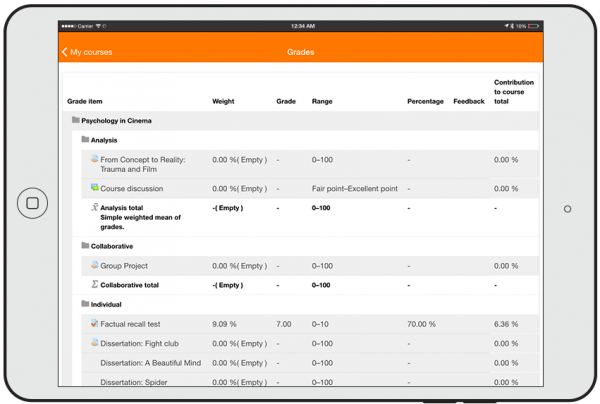
Grades and grading
A Grades link for each course gives fingertip access to the gradebook, and teachers can view assignment submissions on the move.
-
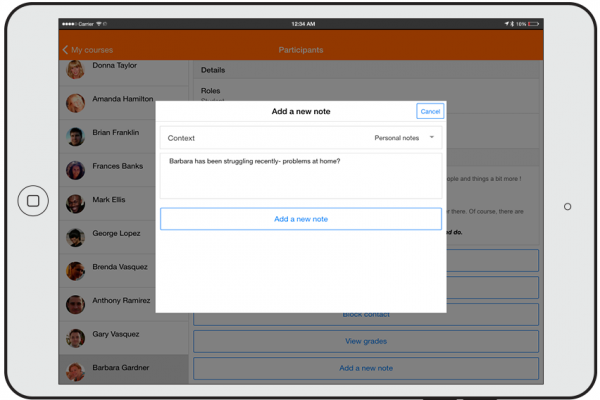
Notes
Teachers can view site, course and personal notes about their students and add their own notes.


-
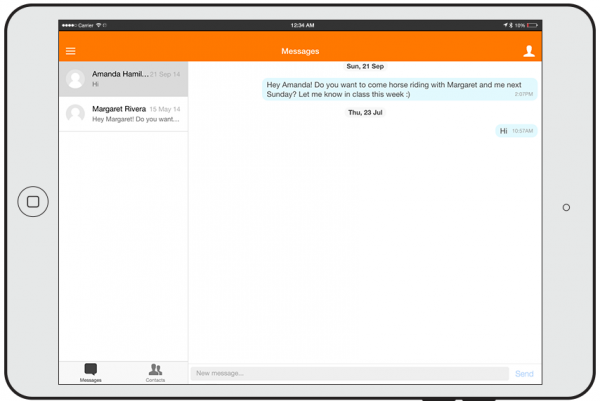
Message participants
Send and view private messages to colleagues and students from the Messages link in the side tab.
-
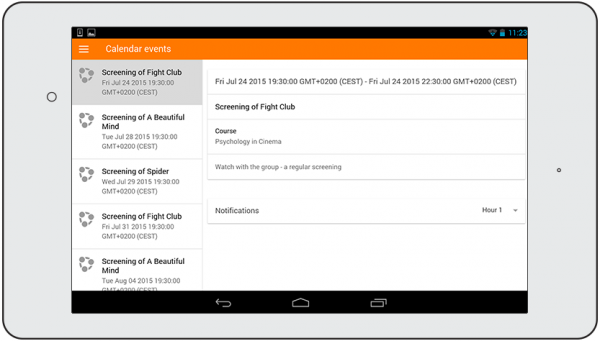
Keep up to date with calendar events
Site, course and user events can be viewed in the calendar.Calendar events can now be viewed offline and infinite scrolling is available.


-
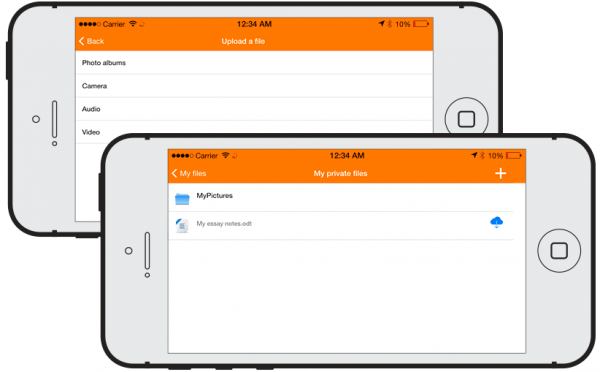
View and upload to your Private files
Check the contents of your private files and upload media to them on the go. You’re now allowed up to 50MB storage (depending on your SD card).
-
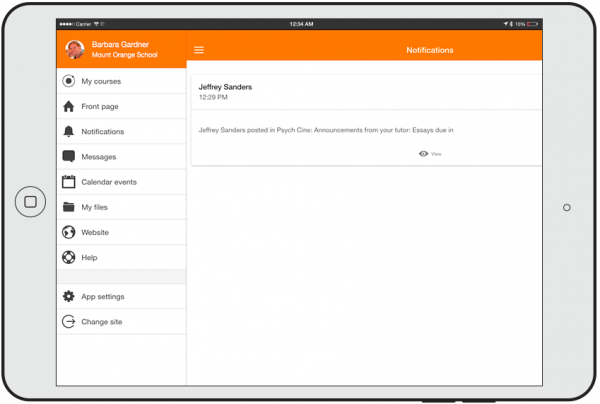
Notifications
Keep up to date with notifications. The app supports both local (calendar events) and push (messages, forum posts, submitted assignments etc) notifications. See Mobile app notifications for more details. Infinite scrolling is available and local notifications have multi-site support.


-
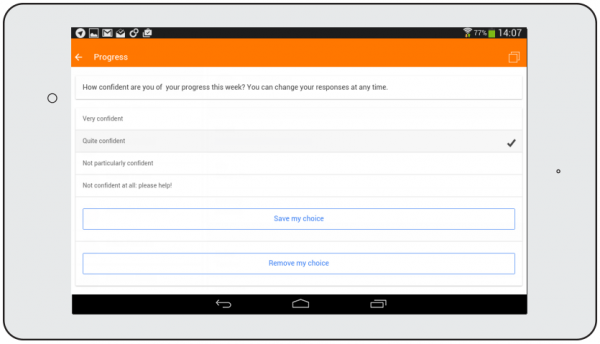
Make choices
The app supports students making and removing choices.
-
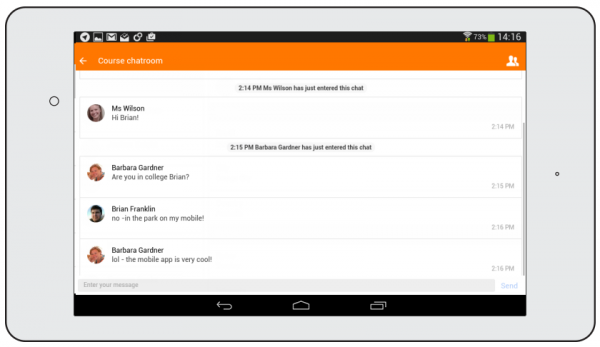
Engage in chat, on the move
Participate in a course Chat activity.


-
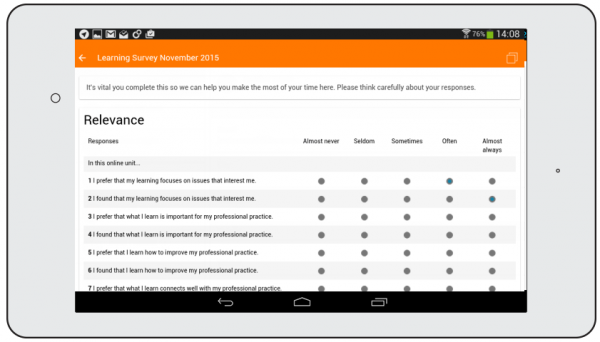
Feed back to teachers with a survey
Surveys may now be taken using the app.
-
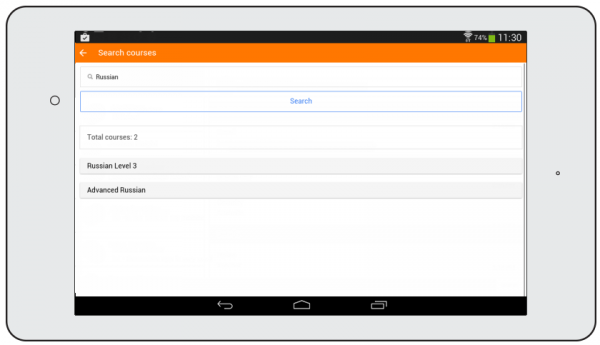
Search the list of courses
App users can search courses to find one they wish to take.


-

Enrol yourself from your smartphone
Found a course you like? Enrol immediately via the app.
-
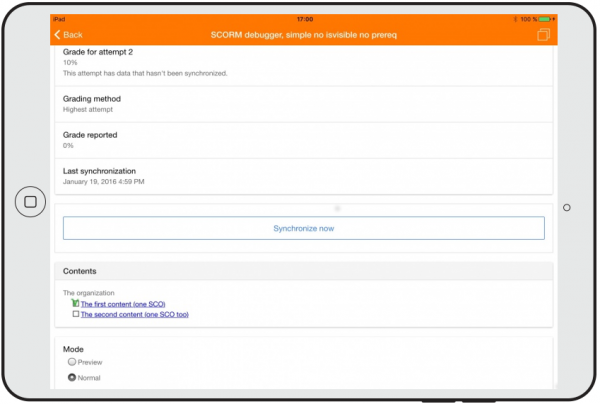
Play SCORM packages on and off-line
The LMS Mobile SCORM player tracks interactions and synchronises when you’re back online.


-
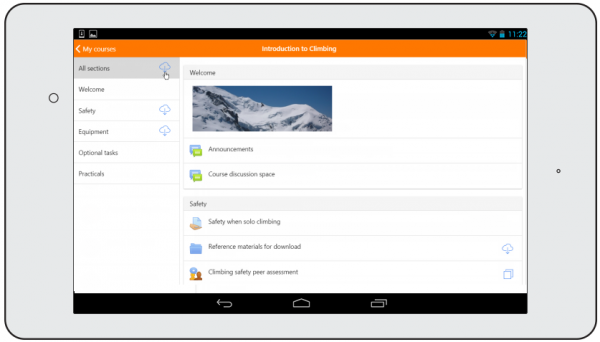
Download all course sections
Easily download all sections to view offline.
-
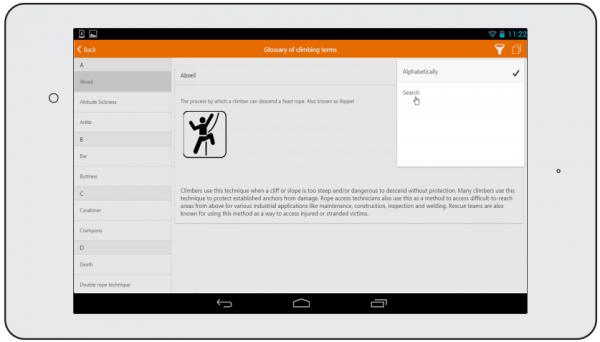
Browse glossary entries
Search for and browse glossary entries.


-
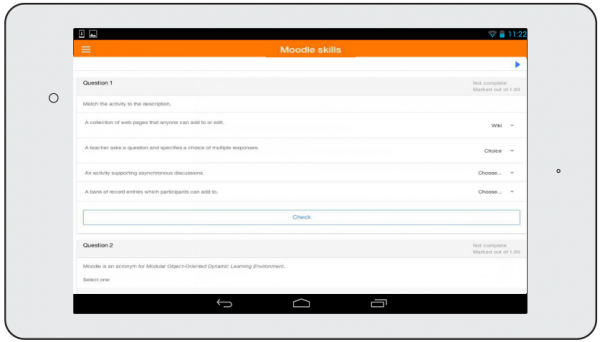
Take quizzes on your mobile
Quizzes may now be completed on the move. Find out more about the LMS Mobile quiz.
-
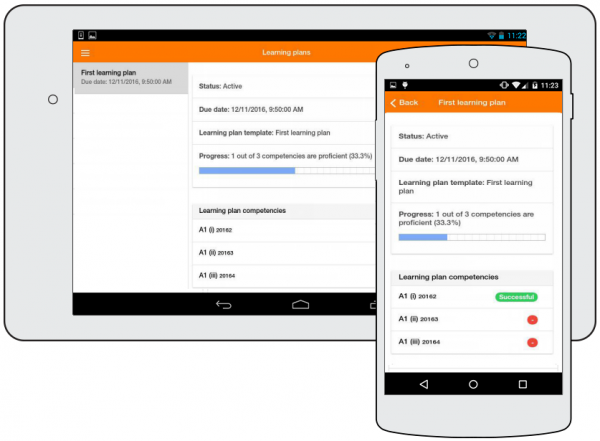
Learning plans
Learning plans may be viewed and progress checked from the mobile.


-
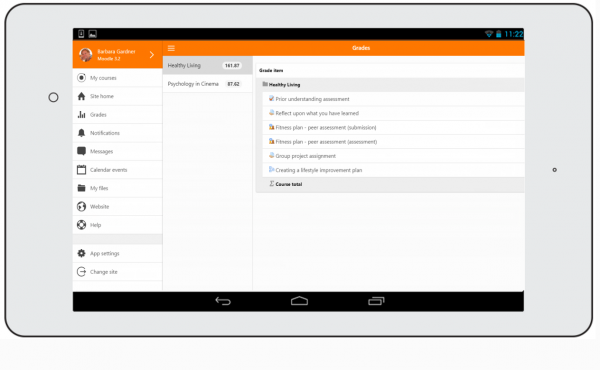
Students: See your course grades easily
A new Grades link allows you to quickly view course grades.
-
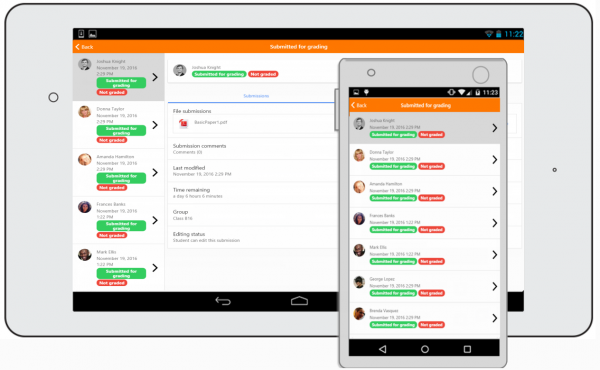
Teachers: Grade assignments
Assignments may be graded on the move, from the app and may be graded offline


-
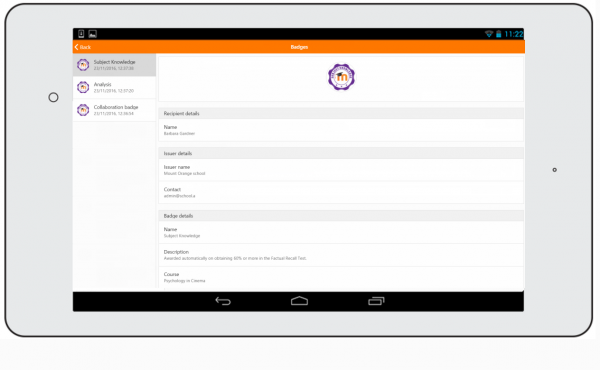
View badges from your profile
Badges are now visible from a link in the user profile
-
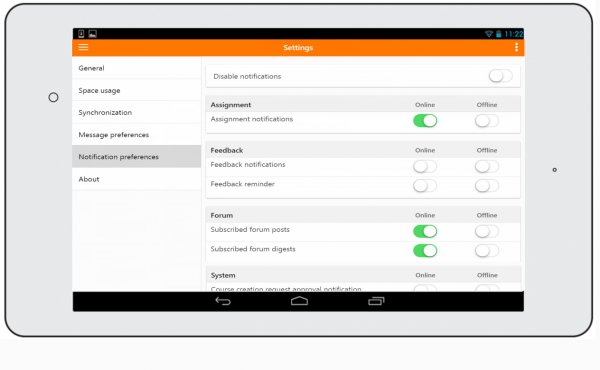
Notifications & Messaging preferences
New preferences screen lets you decide how to be alerted


-
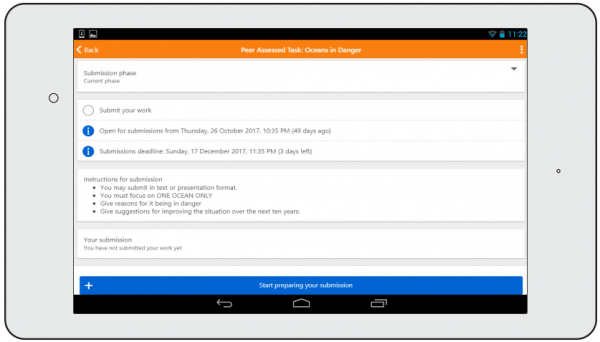
Submit to workshops from the app
Students can now do workshop activities from their mobile or tablet.
-
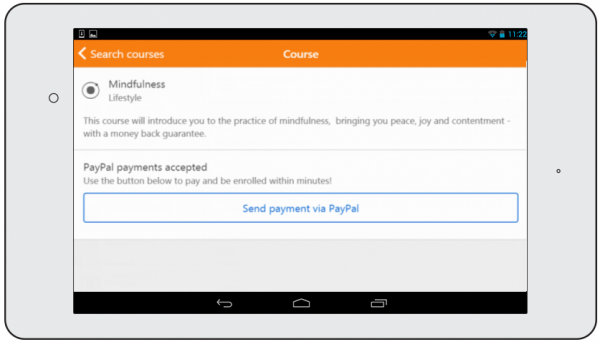
Sign up to courses via PayPal
PayPal enrollment is now supported in the app.


Features summary
- Responsive design for phone and tablets
- Upload a picture into your private file area
- Record an audio file and upload it into your private file area
- Record a video and upload it into your private file area
- Send a private message to a course participant (can be done offline)
- Take a personal note about a course participant (can be done offline)
- Add a course participant to your phone contact
- Call a course participant touching the phone number
- Locate a course participant address on Google map
- Download and view some course resources
- Quick access to your course contents
- View calendar events
- Reminder notifications for calendar events
- Mobile Push notifications
- Remote layout/style customization (see below)
- View all your past private messages and notifications
- Browse and download your private and course files
- View forum discussions
- Private messaging between users
- Calendar integration with warning reminders as local notifications
- Upload any type of file from your device to your LMS private files area
- View site, course and personal users notes
- Support for sites using CAS or Shibboleth as auth methods
- View your activity and course total grades in a course
- Course search
- Self-enrollment in courses (including via PayPal)
- Access courses with guest access enrollment method enabled
- Follow app-specific activity links (see Creating LMS Mobile friendly courses for details)
- Browse glossary entries
- Browse your learning plans
- View competencies of students in your course
- Support for all the course modules (activities and resources) except the Workshop module
- Attempt quizzes
- SCORM player
- Make assignment submissions and review submissions, comments, feedback and grades
- Use a rich text editor when creating forum posts, attempting quizzes with essay questions, creating wiki pages or submitting assignments (only in Android 4.4 onwards)
- Submit to workshop activities
Activities & Resources Support

Comparison of features in different versions

Languages
Over 15 languages are currently supported: Arabic, Basque, Catalan, Chinese, Czech, Dutch, English, French, German, Hebrew, Hungarian, Italian, Japanese, Mexican Spanish, Portuguese, Russian, Spanish, Swedish.
See also
- LMS Mobile offline features – Presentation in the LMSMoot UK 2016
- LMS Mobile release notes in the dev docs