Capabilities/tool/customlang:edit
- This allows a user to modify the words and phrases used in a LMS site via Settings > Site Administration > Language > Language customisation.
- The default Manager role has this capability set to allow.

1 Language pack installation and uninstallation
1.1 Language packs and manual download
2 Parent language packs and child language packs
3 Manual language pack installation
5 Language pack failure to update
6 LMS cannot connect to download.paradisolms.net
8 Can I personalize language strings per theme?
8.1 Changing the look of a course
8.2 Changing the behavior of a course
10 Can I make a language pack for kids?
11 Why has my language pack suddenly forgotten some translations?
12 Why do I have a language pack named xx_old’ that I never installed?
Installing a language pack
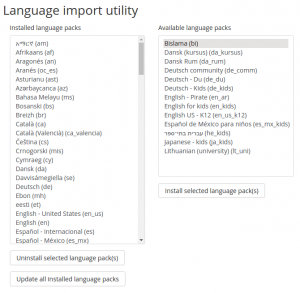
Over 100 language packs are available for an administrator to install on your LMS site in ‘Language packs’ in the Site administration. Simply select the languages you require from the list of available language packs and click on the “Install selected language pack” button.
Multiple language packs may be selected for install by holding down the Apple or Ctrl key whilst clicking on the language packs.
Installing many (20+) language packs has almost 0 impacts on LMS performance.
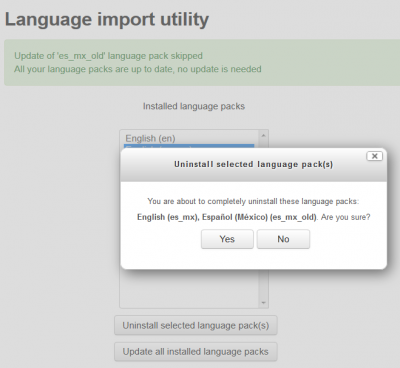
Multiple language packs may be uninstalled, once selected, by clicking the ‘Uninstall selected language packs” button.
Language packs are a work-in-progress since new language strings are added for new features in each new version of LMS. Lang packs can be manually downloaded. The page also lists the percentage of language strings translated in each language pack.
Certain language packs (a child language pack) contain only the modified language strings from their parent language, rather than a complete set. Thus, it is necessary to install the parent language pack too. These language packs are:
Note: If your site uses a child language pack (see the list above), if you use the Multi-language content filter, you need to be very careful about how to use it.
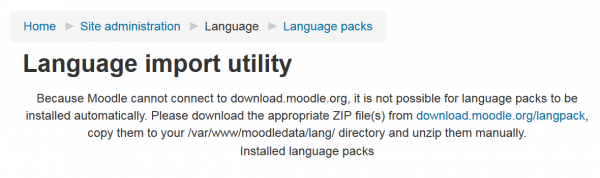
In general, the easiest way to install additional language packs is from within LMS. However, it is also possible to install a language pack manually by downloading the zip file and unzipping it to a directory called lang in your lmsdata directory.
All installed language packs are updated as a scheduled task. By default, the task is run daily.
(Failed to connect to 2400:cb00:2048:1::6814:ef: Network is unreachable)
$options['CURLOPT_IPRESOLVE'] = CURL_IPRESOLVE_V4;
This can happen if:
A standard LMS comes with an English language pack only. It is installed in lmsdata/lang/en.
The English language terms (or ‘strings’) for the main (core) LMS features such as administration, roles etc, are stored in lang/en. Language files relating to modules, blocks, and other plugins are stored with the files of that particular plugin. So if you wanted to see the language strings for the badges block, for example, you would look in blocks/badges/lang/en. If you wanted to see the language files for the workshop module, you would look in mod/workshop/lang/en.
If you install another language pack, you will then get a folder such as lang/fr which would have French translations of LMS terms. Unlike with English, other language packs such as lang/fr will contain all translations along with the main core terms so you would find see for example the badges strings in lang/fr/block_badges.php and the workshop strings in lang/fr/workshop.php.
These files (which all end in .php) contain short phrases, often called “strings”. Strings may contain a placeholder (between the curly brackets below). This placeholder is replaced with the chosen words from the language pack when the string is displayed. The term between the square brackets is called the ‘string identifier’ or the ‘string name’. Examples:
$string['addnewcourse'] = 'Add a new course';
$string['hidesection'] = 'Hide section {$a}';
If a string hasn’t been translated, then LMS will use the parent language or the original English version. Thus, you might see an LMS site where some terms have been translated into a language but others still display in English.
Not directly, but you can use new local (child) language packs to achieve different courses behaviors/looks
You can have a course with a different theme ‘and’ a different child language pack. You will then have personalized language strings in the only course that uses that particular theme.
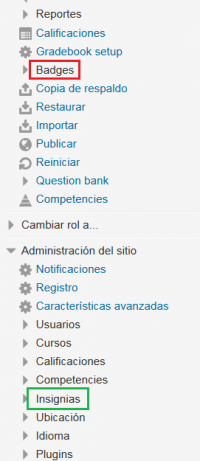
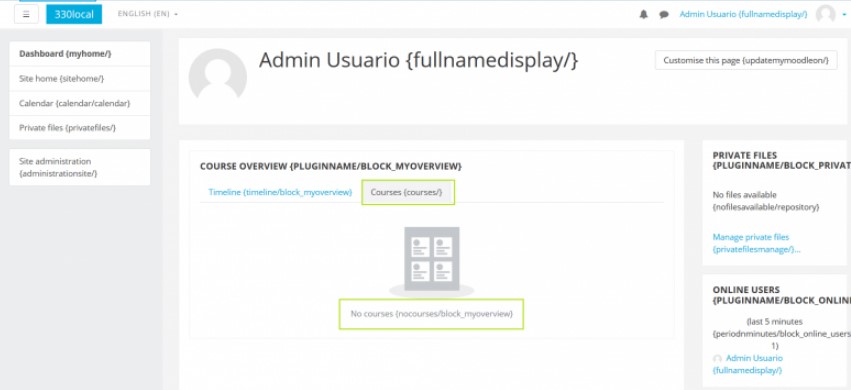
See the following image showing (Insignias) a properly translated Spanish language string (green rectangle) and an untranslated English language string (red rectangle) for ‘Badges’ plus a mixture of translated and untranslated strings with a language pack that should have 100% of the core strings translated.
If you try to update your language packs you will get a message indicating ‘Update of ‘xxxx_old’ language pack skipped.
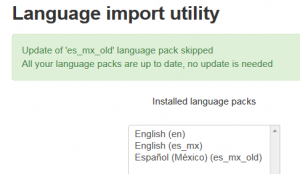
Read the following section for the cause and the fix.
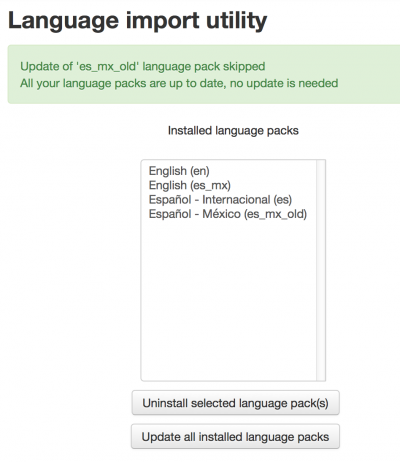
Sometimes you may find (see image below) that your server has, in addition to your usual language packs (eg, en, es_mx), an odd-named language pack with an _old name ending (eg, es_mx_old), that -obviously- cannot be updated.
2 Finding the component and string identifier
2.1 Using the obtained information in order to change the intended strings
4 Local customization highlighting
6 How to backup and restore a customized language pack
7 Sharing a language customization
9 Changing the font size and color of a language string
10 LMS Mobile language strings customization
Words or phrases (in any language) used on the site may be easily changed by an administrator using the language customization feature. For example, you may want to change the word “Course” to “Unit”.
?strings=1
&strings=1
(depending on whether there is already a parameter).
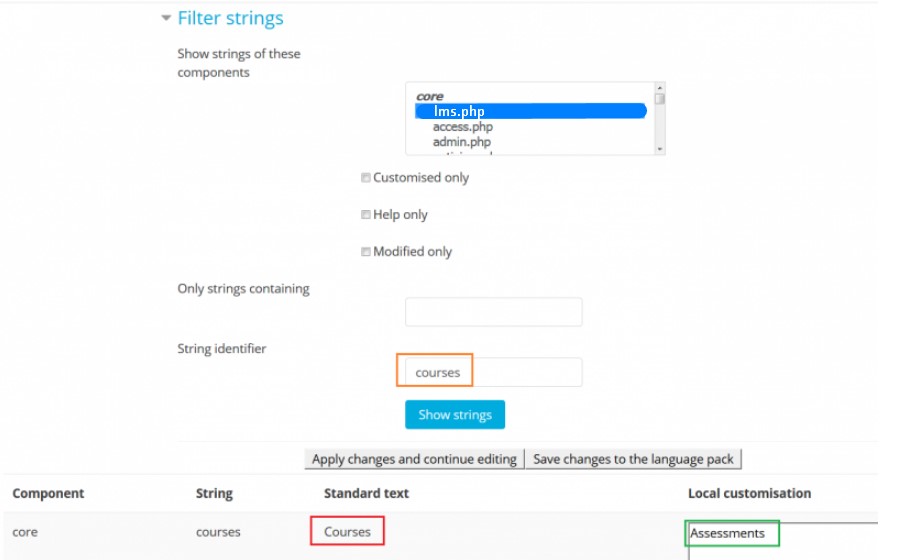
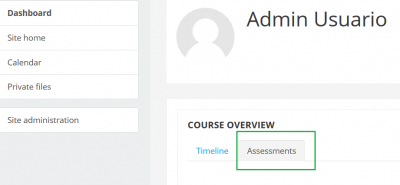
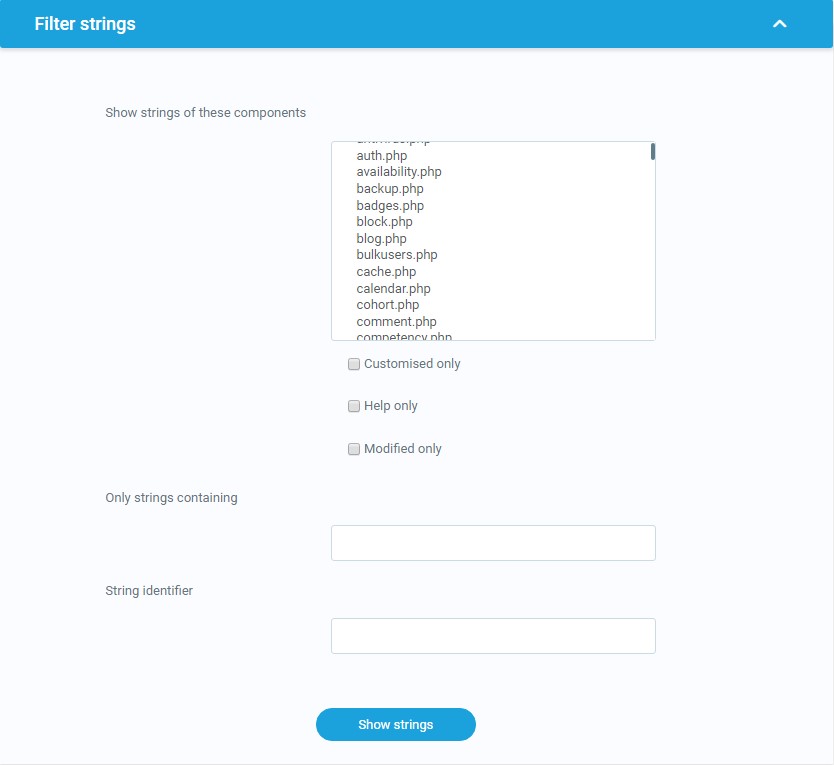
Language filter
LMS is translated into many languages. The translations are distributed as language packages (or just lang packs) that are maintained by kind volunteers, community contributors, and LMS Partners.
LMS site administrators can customize any language pack to fit their individual needs. Editing the language pack files directly is not recommended, since any changes would be silently overwritten during the next upgrade. Instead, you should use the language customisation feature, which automatically creates a local language pack that holds all your changes from the official pack.
Local language packs have the same structure as official ones. They are saved in your LMS data directory in lmsdata/lang/xx_local/ folder where ‘xx’ is the code of the language. You have to have the official language pack installed before you can customise it. A local language pack should contain just strings you have customised – there is no need to create a copy of a whole official language pack.
When displaying a string, LMS first looks at whether a local customisation exists in lmsdata/lang/xx_local/component_file.php. If so, it is used. If not, the string from the official language pack is used. (If the string has not been translated yet, the original English version is displayed). Please note that the strings are cached for better performance so if you modify a file directly in your xx_local pack then you will have to purge LMS caches afterwards. Caches are purged automatically when using the language customisation feature.
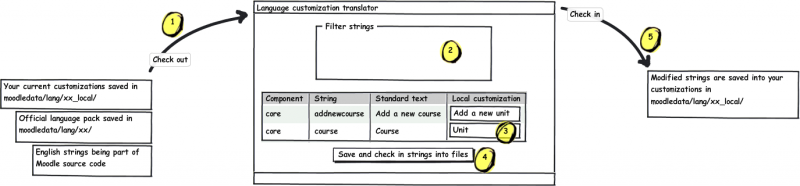
Workflow of the language customisation (click to enlarge)
This is handy when you have made customisations of your language pack and you want to install these changes on another server.
If you customised a language pack xx, the only folder you need to back up is $CFG->dataroot/lang/xx_local. All others without the _local suffix are standard packages that can be installed and uninstalled via the admin tool.
Once the folder is restored on another server, you will have to manually purge caches from the admin interface to allow the in-built string manager to re-read the *_local folders and start using them.
In either case, contact the parent language pack maintainer listed in the translation credits and/or our translation coordinator, Koen, translation@paradisolms.net.
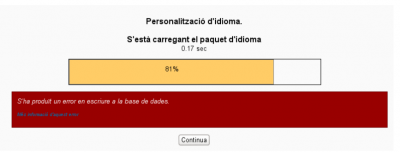
If you encounter a database error when you try to customise a language pack, then it may be due to a recent plugin that corrupted the database. You are advised to check all plugins recently added to your site, and check whether removing a plugin prevents this error. If that is the case, please contact the maintainer for the involved plugin and report the error. Most cases seen in 2013 were fixed by the maintainers of those plugins. One case seen in 2014 was related to the Essential (additional) theme and language packs other than English; it was caused by a a bug with the notification language handling, and was fixed with a plugin update.
Or, you can execute a database query on your server in order to track down the plugin causing the problem.
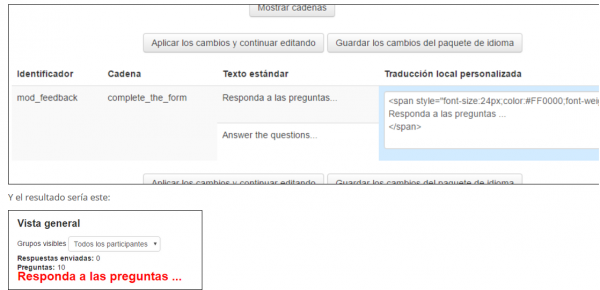
You can use language customization to change the font size and colour for any (core or additional plugin) LMS string.
See the following example taken from a Spanish forum user who wanted to have a distinct large red coloured text for the ‘Answer the questions…’ prompt in the feedback activity:
See Custom language strings in the LMS Mobile guide for admins.