Multi-language content filter

Multi-language content filter

Displaying text in multiple languages

The multi-language content filter enables resources to be created in multiple languages. When turned on, it looks for <span lang=”xx” class=”multilang”> tags which indicate that a text contains multiple languages. Then it selects and outputs the text in the user’s language (as set in their browser or in their preferences).

Enabling the multi-language content filter

An admin can enable the multi-language content filter as follows:

  1. Go to Site administration > Plugins > Filters > Manage filters and in the dropdown menu for multi-language content select ‘On’.
  2. If headings are to be shown in multiple languages too, select ‘Content and headings’ in the ‘Apply to’ column. Note that this may affect site performance.

How to use in a course

To use this feature first create your content in multiple languages (in the same resource). Then enclose each language block (aka multilang block) in the following tags:

      <span lang="XX" class="multilang">your_content_here</span>
      <span lang="YY" class="multilang">your_content_in_other_language_here</span>

It is essential to be in the code editing mode (press [<>] in the HTML editor), when you enter these tags for them to work. Only spaces, tabs and enters can be used between the individual languages in the multilang block.

Note: If your site uses a child language pack (see Language packs for the list), then the first span tag must be the parent language. Otherwise, when a user using the child language views the text, it will not be in the correct language for them (as reported in MDL-55197). For example, if your site uses en_us then the en span tag (as parent language) must be first i.e.

<span lang="en" class="multilang">your_content_in English</span>
      <span lang="de" class="multilang">your_content_in_German_here</span>

How to use for assignment submission agreements

  1. With the filter enabled, go to Site administration > Plugins > Activity modules > Assignment > Assignment settings.
  2. In the submission statement, add (for example)
      <span lang="en" class="multilang">This assignment is my own work, except where I have acknowledged the use of the works of other people.</span>
<span lang="fr" class="multilang">Ce devoir est le fruit de mon travail personnel, sauf aux endroits où l'utilisation d'oeuvre d'autres auteurs est clairement indiquée.</span> 

How it works internally

  1. Filter first looks for multilang blocks in the text
  2. For each multilang block:
    • If there are texts in the currently active language, print them
    • Else, if there exists texts in the current parent language, print them
    • Else, print the first language found in the text
  3. Text outside of multilang blocks will be shown always

Common problems

  1. The multi-lang filter is not enabled. It can be enabled in ‘Manage filters’ in the Site administration’.
  2. Headings aren’t displaying correctly – the multi-lang filter should be set to apply to content and headings in ‘Manage filters’ in the Site administration’.
  3. Extra characters between language span tags – editor might add <br /> or other tags, please review the html in source view
  4. If the course setting is “force” some language, you won’t be able to change the displayed language.
  5. Extra spaces in language span tag
  6. The multi-lang filter does not work with the course short name! A course’s short name is meant as a unique course identifier, so it does not use the multi-lang filter.

The ‘Restriction by language’ additional plugin

Language filters are great, but sometimes they can make your resources and activities very complex.

The Restriction by language availability condition is an additional plugin that makes it easy to show an English resource only to English users and an activity in French only to French speaking students.

The Multi-Language Content (v2) additional plugin and Multi-Language Content text editor plugins

There is also an alternative multi-language content filter available called Multi-language Content (v2). This filter uses very simple non-HTML tags to mark multi-language blocks (makes it easier to create multi-language content), and can be used together with the Multi-Language Content Atto plugin or the Multi-Language Content TinyMCE plugin to make it even easier to create multi-language content directly on the text editor without using the HTML view mode.

The Multi-Lingual Content additional plugin

This filter is a more flexible version of multilang filter. One of three possible choices can be selected by the filter admin setting: HTML syntax, Non HTML syntax or Both. If the non html syntax is chosen language block looks like: {mlang en}English{mlang}{mlang bg}Bulgarian{mlang}. In case of Html syntax, language block is a sequence of identical html tags with lang=”XX” attributes span or div or any other.

Any questions?

Please post in the Languages forum on paradisolms.net.

See also

Videofile

Videofile

Videofile is a LMS 2.5+ resource plugin intended to provide teachers with easy handling of cross-browser compatible videos using Video.js. It supports multilanguage captions.

Use

  • In most cases it should be enough to add .mp4 video files, which will then play in an html5 player on most browsers and in a flash player in older browsers.
  • You can add alternative formats in order to be sure it can play regardless of which browser is being used (usually .mp4, .ogv and .webm covers it).
  • As of 2013, the most widely supported video format on the web is .mp4 with the h.264 CODEC. It’ll play in Flash based media players as well as in html5 players in iOS and Android.
  • There are several good free open source video converters, such as handbrake.

Video Width and Height

  • You are advised to use the native size of your recorded video, or a multiple of its original measurements, keeping the width/height ratio.
  • Common video sizes are 640 by 480, 800 by 600, 1024 by 768, …
  • If you set Width and Height in such a way that they do not match the source video width/height ratio, the frame for the video will be padded with grey space (either at the top and bottom or left and right), which does not look nice.
  • You can change the video width and height after uploading the video file.
  • When the user watches the video, there is an option at the bottom right corner to show it in full screen mode.

Responsive themes

Please check the responsive mode checkbox and the video player will be resized according to the window/screen size. In this mode, the width and height fields are used to specify the video player proportions.

Captions

  • Videofile and Video.js also support WebVTT captions.
  • You can add several files in order to provide multilingual captions.
  • You can check the validity of your WebVTT captions with the http://quuz.org/webvtt/ validator created by Anne van Kesteren.

Captions file naming

  • The file names, without extensions, will be used for the video caption option titles.
  • If the files are named according to ISO 6392 (e.g. eng.vtt fra.vtt tlh.vtt and swe.vtt) the options will be shown as the corresponding full language names according to the user’s language preferences (e.g. English, French, Klingon and Swedish, assuming the user’s preferred language is set to English).
  • If you include a caption file with a name different from ISO 6392 (e.g. martian.vtt) , the caption language name will be shown enclosed in double square brackets.

Captions available

  • Captions work well with the following Windows browsers: Firefox, Chrome, Safari, IE10.
  • Captions work well with the following Mac browsers: Firefox, Chrome, Safari
  • Captions work well in Ubuntu Linux using Firefox.

Captions not available

  • Captions are not available in iPads with iOS6 using Safari.

Example of multilanguage captions files

This is a very simple English language caption file:

Eng vtt.png

This is a very simple Spanish language caption file:

Spa vtt.png

This is a very simple Italian language caption file:

Ita vtt.png

Captions file format

Notice the sintax of all three previous files:

  • The firs line must be WEBVTT
  • It must be all capital letters
  • The next line states the timing for the first caption
  • 00:00::01.00 –> 00:00:10.000
  • THAT means that the subtitle will start showing at 01 seconds into the video,
  • This caption will stay on screen until 10 seconds into the video.
  • The next line is the text of the caption to be shown
  • A blank line follows
  • A new line with another timing follows
  • The next line is the text of the caption to be shown
  • A blank line follows
  • The file is plain text

You can use a captions editing program
or you can use notepad, wordpad or any word processor
BUT YOU MUST REMEMBER TO SAVE IT AS PLAIN TEXT.

Poster image

Videofile and Video.js also support a poster image that displays before the video is started.

Download

You can download this add-on from https://paradisolms.net/plugins/pluginversions.php?plugin=mod_videofile

See also

Language settings

Contents

1 Language selection priority

2 User preference

3 Course administration settings

4 Site administration settings

4.1 Language autodetect

4.2 Default language

4.3 Display language menu

4.4 Languages in the language menu

4.5 Cache language menu

4.6 Cache all language strings

4.7 Sitewide locale

4.8 Excel encoding

Language selection priority

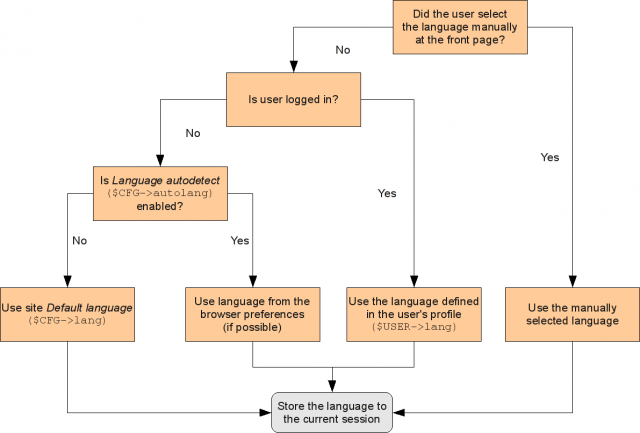
This figure shows LMS priority when selecting languages and should help you understand the relationship of the various settings for Site, Course, and User.

LMS language selection priority

User preference

A user can set their preferred language via Preferences in the user menu (top right).

This list will show all installed language packs unless the site administrator has limited these in Settings> Site administration > Languages > Language settings > Languages on language menu in which case it will show only that list.

Course administration settings

A manager or instructor can force the language of their course in Course settings > Edit settings > Appearance > Force language.

This list will show all installed language packs unless the site administrator has limited these in Settings > Site administration > Languages > Language settings > Languages on language menu in which case it will show only that list.

The capability lms/site:forcelanguage may be allowed by the admin for users who need to override this language (for example, when testing problems in a course in a language they do not know.)

Site administration settings

Default language settings for a site are in Settings > Site administration > Language > Language settings.

Note that some settings on this page will only operate on the language packs already installed in the site, so you may need to install languages packs first.

Language autodetect

By default, LMS detects a user’s language from their browser setting. However, language auto-detection may be disabled so that the default site language is used instead.

Default language

This sets the default language for the site. All newly created user accounts will inherit this language as their default, unless you explicitly assign a user another one during account creation.

Changing this default does not change the default language of already existing users. See the FAQ ‘When I change to a new default language, users still have the old language.’ in Language FAQ for suggestions of what to do about it.

This setting can be overridden by the user’s preferred language or by using the language menu.

If a preferred language is set in your browser then this will override the default site language (unless language auto-detection is disabled).

You can enable localised error messages for database connection problems by add the following line to your config.php file:

$CFG->lang="yourlangcode";

Display language menu

This sets whether the language menu is displayed at the top of each page. If this is turned off, the only place where a user can change the language setting is via user menu > Preferences > User Account > Preferred language 

Note: the location or even the presence or absence of this language menu is theme dependent. In the default theme, it appears in the top bar on the upper left of the screen, to the right of any theme custom menu items. In older themes, it may only display on the login page and the front page.

Languages in the language menu

If you want to limit the number of languages users and instructors can select from, enter a reduced list here. This should be in the form of the language codes separated by commas, for instance, en_us,es_mx,fr,fr_ca.

This list controls the possible options that will be available both on the Course level with the Force language setting and in User Profiles with the Preferred language setting.

If your site uses a child language that relies in a parent language, you can edit ‘Languages on language menu’ in Settings > Site Administration > Language > Language settings, and remove the parent language; eg, if you are in Canada and you want your users to use Canadian French but not the original French language.

Cache language menu

The cache is automatically refreshed when you install or delete a language pack via the in-built language packs management tool. If you install a new language pack manually, you have to use Purge all caches feature to refresh the cached list.

Cache all language strings

Caches all the language strings into compiled files in the data directory.

If you are translating LMS or changing strings in the LMS source code then you may want to switch this off. Otherwise always leave this enabled for normal, production sites. Turning it off will force the server to go to disk to read all the language strings for each user session, which will impact performance.

Sitewide locale

Choose a sitewide locale – this will override the format and language of dates for all language packs (though names of days in calendar are not affected). You need to have this locale data installed on your operating system (eg for linux en_US.UTF-8 or es_ES.UTF-8).

In most cases this field should be left blank unless you are sure what you are doing, as LMS will use the locale of the server.

Excel encoding

Leave as default (Unicode) unless you have a particular reason for wanting Latin encoding.

Language FAQ

1 General

1.1 Which is the official language of LMS?

1.2 What do codes like “en” and “en_us” or “es” and “es_mx” and “es_ve” mean??

1.3 I found a mistake or typo in a language pack. Or my language is only partial, much of it is still English. What do I do?

2 Default Language

2.1 Where can I set the default language for the site?

2.2 When I change to a new default language, users still have the old language.

2.3 When I log in, the language switches to English. Why?

2.4 I’ve set a default site language, but the LMS calendar is in English. Why?

2.5 How can I disable (hide) the language drop-down menu on the site front page?

3 Language Customisation and Multi-language

3.1 How can I change a word or phrase used in LMS?

3.2 How can I find where a language string is located?

3.3 Why are my changes not saved in my LMSCloud site?

3.4 Why are my changes not saved if I edit a language pack with the LMS language pack editor?

3.5 How can I provide course content in more than one language?

3.6 How can I provide course headings in more than one language?

3.7 Are there any shortcuts for editing a language?

3.8 Is it possible to customize language strings per theme?

4 Is it possible to change the logo according to the language selected, similar to multi-language content?

5 Other Language Questions

5.1 Will installing several language packs decrease my server performance?

5.2 What is this Pirate version of English doing on my site?

5.3 Lang pack download failed with ‘HTTP response code: HTTP/1.1 404 Not Found’ after a new release

5.4 Why do the characters for my language (not English) show up as hollow squares?

5.5 Are there statistics for language packs downloads?

5.6 Is it possible to streamline the translation of an LMS course?

6 See also

7 Any further questions?

  • General

    Which is the official language for LMS?

    The “official” language for LMS is actually the Australian English (hey mate!), which is 100% the same as UK English. The default language on a new installation of LMS, unless you change it, will be this version of English, denoted by the language code “en”.

    What do codes like “en” and “en_us” or “es” and “es_mx” and “es_ve” mean??

    These are the language codes for each language. There is a standard for these, see ISO language code list.

    The second part, “_us” or “_mx” and “_ve” for example, represent localisations of the main language for a particular country or dialect. Typically these will include variant spellings and other preferred local terminology and phrasing. So “es_mx” has spellings and idioms (and a very important Decimal separator) used in Mexican Spanish which are distinct from international Spanish. The es_ve has small differences from the international Spanish that are of significance to LMS users in Venezuela.

    “en_us” is the English – United States language pack; “en” is Australian English, which is practically the same as British English.

    I found a mistake or typo in a language pack. Or my language is only partial, much of it is still English. What do I do?

    Language packs have maintainers and LMS has its own language translation toolkit, known as AMOS. Other than some core languages maintained by LMS HQ, most languages are maintained by volunteer maintainers.

    Default Language

    Where can I set the default language for the site?

    Site Administration > Language > Language settings

    Note you can only choose to set as default a Language pack that is already installed. If the language you want is not on the list, you will need to install the language pack first.

    When I change to a new default language, users still have the old language.

    Correct. When you change to a new site default language, this does not update the language setting in the profile for already existing users. It only sets a new default for new user accounts you create from now on.

    To do updates for already existing users, you can:

    • Tell users how to change it themselves in their user profiles by setting their Preferences > Preferred language
    • Use the Upload users tool to do a mass update from a csv file changing the lang field
    • If you have access to the database, you can change this with a simple query.

    When I log in, the language switches to English. Why?

    • For logged-in users, the language is set to the one they have set as their preferred language (Preferences > User account > Preferred language).
    • For logged-out visitors (before they log in) the situation depends on whether the language auto-detection is enabled. They can either get the language their browser claims to be the requested one, or the site default language.

    I’ve set a default site language, but the LMS calendar is in English. Why?

    If your LMS calendar is not translated, then the string ‘locale’ (for *nix servers) or the string ‘localewin’ (for Windows servers) in the ‘langconfig.php’ file is wrong (or your server is not configured to support the language). There are quite a few languages that are not supported by Windows servers and the localewin server cannot be set. In that case, you have to run your LMS on a *nix server to make the translation of your LMS calendar work.

    How can I disable (hide) the language drop-down menu on the site front page?

    Go to Site administration > Language > Language settings and un-tick the ‘Display language menu’ checkbox.

    Because it is a customization, LMS will not erase the xx_local language files in LMSdata with an upgrade. LMS will upgrade any language folders it finds in the lms/lang folder.

    Language Customisation and Multi-language

    How can I change a word or phrase used in LMS?

    In Administration > Site Administration > Language > Language customisation.

    See Language customization for details.

    How can I find where a language string is located?

    See the section ‘Finding the component and string identifier’ in Language customization.

    Why are my changes not saved in my LMSCloud site?

    Unfortunately customizing language strings is not supported in LMSCloud. (The same string cache is used for all sites and is read-only.)

    Why are my changes not saved if I edit a language pack with the LMS language pack editor?

    This could be caused by the caching on the server. Language strings are cached into server memory for performance reasons and when you save changes, they may not be immediately picked up. First, refresh your own browser cache to refresh the pages from the site. Then if the strings are still not there, an administrator can purge the cache of the server.

    How can I provide course content in more than one language?

    Labels, web pages, activity descriptions etc. may be provided in more than one language using the Multi-language content filter.

    Another option is to create activities in different languages and restrict access to them using the Restriction by language plugin.

    How can I provide course headings in more than one language?

    Set the multi-language content filter to apply to content AND headings in Site administration > Plugins > Filters > Manage filters.

    Are there any shortcuts for editing a language?

    Yes, but be careful. You can make use of the customize language process. Basically,y copy the PHP files that contain the strings you want to change to the lmsdata/lang/local folder. For example, copy the /lang/en/lms.php file to someplace. Edit the file with a search and replace with whole word and case sensitive turned on, change Teacher to Instructor and Teachers to Instructors, do the same for teacher and teachers. Now copy that saved copy of the lms.php file to the lmsdata/lang/en_local folder. Be careful not to change the String name.

    Is it possible to customize language strings per theme?

    Not by default, as when strings are customized, they are customized for the whole site. However, it is possible to make a new language pack based on your main language and apply that pack to the course which has the theme.

    Is it possible to change the logo according to the language selected, similar to multi-language content?

    Yes.

    Other Language Questions

    Will installing several language packs decrease my server performance?

    Installing many (20+) language packs have almost 0 impacts on LMS performance. A copy of the language packs installed is stored in your site’s local /lmsdata directory. Also, actively used language strings are cached in memory by your server as well to help performance, so as long as your server has sufficient RAM there will be no impact from having many language packs installed.

    What is this Pirate version of English doing on my site?

    It has become something of a custom in the LMS community over the years to observe ‘Talk Like a Pirate Day’ (September 19th) by temporarily changing the language of a site to allow the English – Pirate (en_ar) language pack.

    Lang pack download failed with ‘HTTP response code: HTTP/1.1 404 Not Found’ after a new release

    After we branch for a new release, LMS will try and download the new version of lang packs, however for a while development is on-sync and no new language string differences will be introduced between the two branches. During this period, AMOS is not branched and so LMS will fail to download new language packs.

    This is expected and it will be resolved once AMOS is opened up for new changes in the new version.

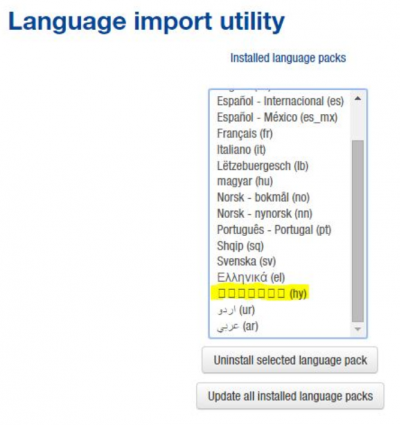
    Why do the characters for my language (not English) show up as hollow squares?

    Language pack name not displayed.png

    This problem may be caused by a missing/wrong character set or using a font that does not support the character map needed.

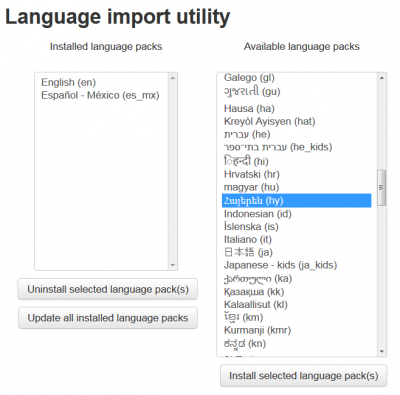
    Language pack name is displayed.png

    Are there statistics for language packs downloads?

    Yes. There are download stats for the past 60 days at LMS downloads stats. See under Languages a long list of the different packs that have been downloaded:
    Language packs downloads stats.png

    Is it possible to streamline the translation of an LMS course?

    Kind of. Ask your admin about a request for this.

Converting files to UTF-8

Some files, like LMS import and export files and custom language packs or language files from third-party modules, need to be converted or treated as UTF-8 before they may be used with LMS.

*nix like computers (including Mac OS X)

Generally, this may be done with the iconv command on Unix, Linux or a Mac.

iconv -f original_charset -t utf-8 originalfile > newfile

see also the windows explanation – the script there is one for *nix computers but used in a cygwin environment

Windows computers

For Windows, there are four methods of performing the conversion.

Method 1

  • Open the flat file in PSPad (a freeware editor): http://www.pspad.com (some other editors people use: TextPad or NotePad++ or Crimson Editor, but there are many others. Windows built-in editors Notepad and Wordpad are often giving problems)
  • Click on Format, UTF-8
  • Save the file

Method 2

Download the Windows version of the iconv program. Download the “Complete package, except source” and run the setup program. The executable is located in the bin folder. Run from the command prompt (Start -> Run -> cmd) and follow the instructions as above.

Method 3

The conversion may also be done by using Cygwin, a Linux-like environment for Windows, and executing the iconv command in that environment. Here is an example of a working solution on Windows with Cygwin:

  • Create a text file, named ToUtf8.txt
  • Fill it with the following code
#!/bin/bash
FROM=iso-8859-1
TO=UTF-8
ICONV="iconv -f $FROM -t $TO"
# Convert
find ToUTF/ -type f -name "*" | while read fn; do
cp ${fn} ${fn}.bak
$ICONV < ${fn}.bak > ${fn}
rm ${fn}.bak
done

Two things should be changed for your local situation:

  1. FROM is the originating encoding (the one your original files are in)
  2. ToUTF is the foldername where the files that need to be converted are in. This folder may contain subfolders. Make sure you have a backup!
  • Start Cygwin.
  • With the cd foldername, cd.., ls commands, go to the folder on your windows machine where the ToUtf8.txt script and the ToUTF8 folder are in.
  • Execute the script by typing sh ToUtf8.txt and your files will be converted.

Method 4

The default Unicode format for Microsoft Excel and Wordpad is UTF-16.
These files can be converted to UTF-8 using GNU Emacs 22.1

  • Open the file with Emacs
  • Enter the command
    C-x RET c utf-8 RET
  • You will then be asked what command you want this encoding to apply to
  • Enter the command
    C-x C-w

    then enter a new file name

  • The file you have saved will be UTF-8

Saving files directly as UTF-8

Most text editors these days can handle UTF-8, although you might have to tell them explicitly to do this when loading and saving files. (The notable exception to this is probably Notepad on Windows.)

Windows

You may save a file using Notepad (sometimes called “Editor”) as UTF-8 but not with Wordpad.

  1. Open Notepad
  2. File – Save as -> there you see 3 fields set the last one called “encoding” to UTF-8

Mac OS X

The built-in text edit application has a ‘Plain text encoding’ option in the Save as… dialogue.

Linux

The standard Gnome Text Editor defaults to UTF-8 and has character set options when loading and saving.

Capabilities/lms/site:langeditmaster

Capabilities/lms/site:langeditmaster

Jump to: navigation, search

  • This allows a user to edit master language packs i.e. those saved in lmsdata/lang/.
  • This capability is intended for language maintainers only. It may only be applied as a system role.
  • By default, the admin role has this capability set to prevent.

See also

Capabilities/lms/site:forcelanguage

Capabilities/lms/site:forcelanguage