

The PDF Uploader makes it easy to upload PDF files which cannot be downloaded, printed or copied by the users.
The multiple PDF files can be uploaded by the user which will be presented as a link. You can open any file by clicking on its link. It will be open in a new tab. User cannot be able to download it by any means. The print option has also been disabled.
If you have uploaded only one PDF file then by clicking on the resource name it will directly open in the new tab.
The pdf files will only be available in a read-only format.
A pdf uploader can be used to upload documents, forms, images, questions papers, or any sort of reports (pdf format) for the users to view the document in a new tab.
The above characteristics make pdf uploader one of the safest and convenient feature in our LMS.
Contents
1 Setting up a PDF Uploader Activity
Once the activity is added, you can proceed to set up the course with the settings you need for it. You will find:
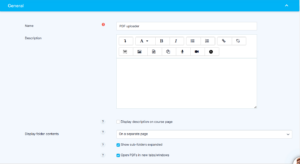
1.1 General
Name:
Required field to put the name of the activity.
Description:
Optional text that can describe the purpose or instructions of the PDF upload activity.
You may also choose to display the description on the course page.
Display description on course page:
Enable this option if you want the description to appear directly on the course page beneath the activity link.
Display folder contents:
If enabled, the contents (PDF files) stored within this activity will be visible to learners.
On a separate page:
Choose this option if you want the folder contents to open on a new page instead of directly on the course page.
Show sub-folders expanded:
If your PDF folder includes sub-folders, enabling this option will automatically expand and display all sub-folder contents.
Open PDFs in new tabs/windows:
When enabled, learners opening a PDF file will have it open in a new browser tab or window for easier navigation.
1.2 PDF
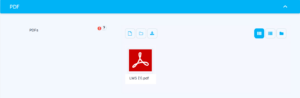
Upload PDF:
This section shows all the PDF files uploaded by the instructor. Learners can view or download the PDFs directly from this screen.
PDF Thumbnail & Filename:
Each uploaded PDF is displayed with a thumbnail icon and its file name underneath (e.g., LMS (1).pdf).
Clicking the file opens the PDF in a new tab/window if this setting is enabled.
View Modes:
Learners will be able to upload files in PDF format only through this activity.
Learners can switch between different viewing layouts using the icons on the top right:
-
Grid View: Displays PDFs as large thumbnails (default in the screenshot).
-
List View: Shows files in a vertical list with details.
-
Folder View: Displays PDFs inside folders if the instructor has organized them.
Action Icons (Instructor Only):
Depending on permissions, instructors may see:
-
Add PDF – Upload a new PDF file.
-
Add Folder – Create folders to organize multiple files.
-
Download All – Download all PDFs in a ZIP file.
PDF Navigation:
Learners can browse through all PDF files and folders using the selected view mode.
If folders exist, selecting “Folder View” will display sub-folders and their contents.
Open PDFs in New Tab:
If enabled by the instructor, clicking a PDF automatically opens it in a separate tab/window.
1.3 Common module settings
Availability:
Depending on whether you choose Show or Hide, learners will be able to see or not see the PDF uploader.
ID Number:
sed to identify the activity for grade calculation or custom reporting.
1.4 Restrict access
Here, you can add restrictions that control when or how learners can access this activity.
Examples include:
-
Must complete another activity before accessing
-
Date-based restrictions
-
Grade-based restrictions
-
User profile restrictions (if enabled)
Multiple restrictions can be combined as needed.
1.5 Activity completion
Completion tracking:
Specifies how the activity will be marked complete.
Require submission:
If enabled, learners must upload a PDF to complete the activity.
Expect completed on:
The date by which the activity is expected to be completed (informational only).
1.6 Tags
Add any relevant tags associated with this activity.
Tags help with searching and content categorization.
1.7 Competencies
From the competencies assigned to the course, you can select which apply to this activity.
You may also define what happens once the learner completes the PDF upload:
-
Attach evidence
-
Send for review
-
Mark competency as achieved