

1. Certificate activity UI Enhancements :-
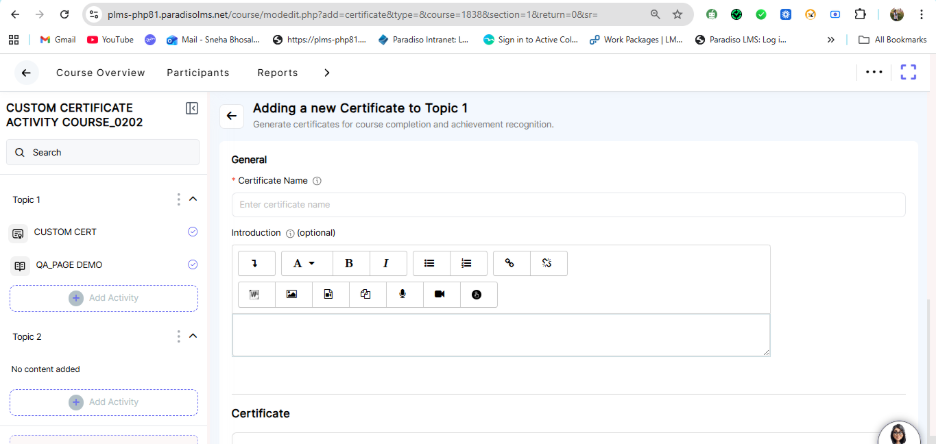
- The admin user adds a certificate activity to the course.
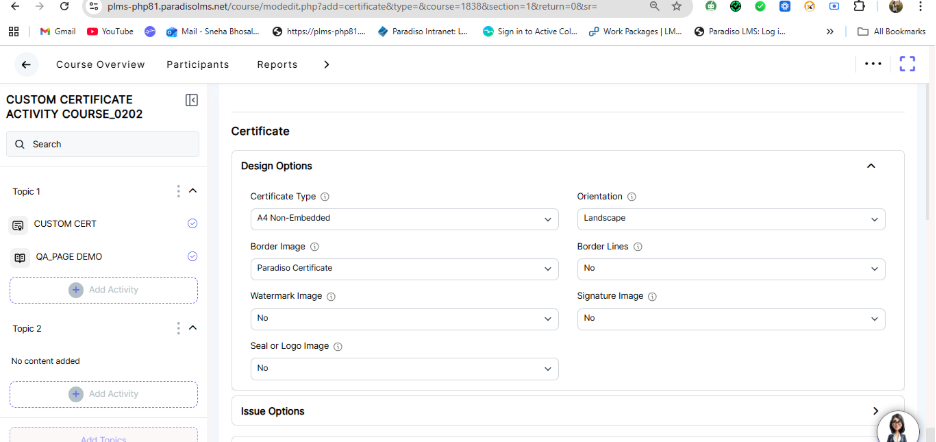
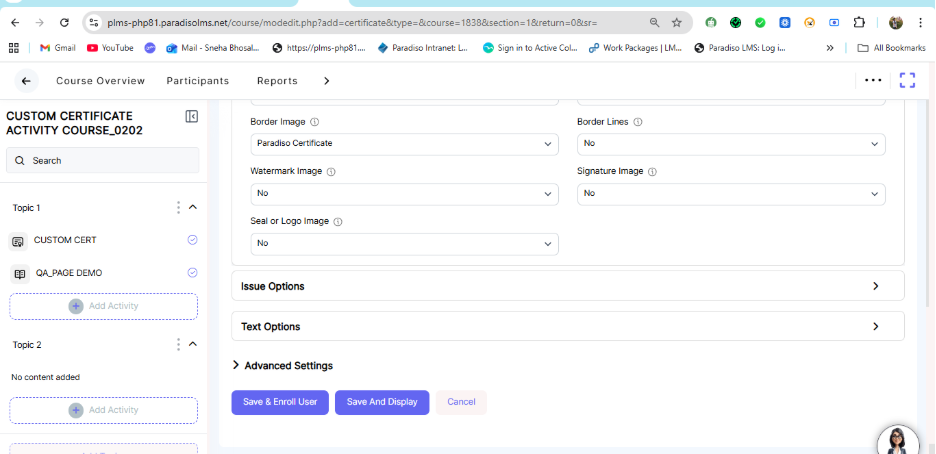
- As part of this activity, the following UI enhancements have been implemented:
- Updated activity label on the activity creation page
- Improved field names and placeholder text
- Enhanced dropdown menus and their arrow indicators
- Updated fields within the dropdown menus
2. User Profile Enhancement UI Design :-
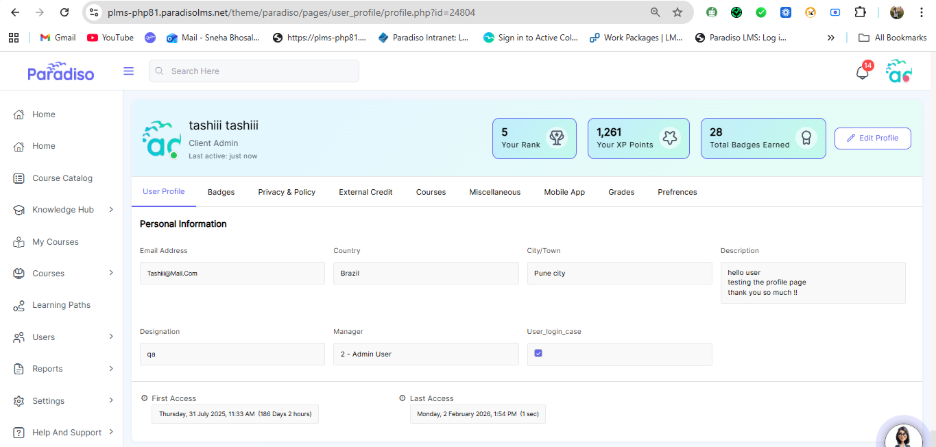
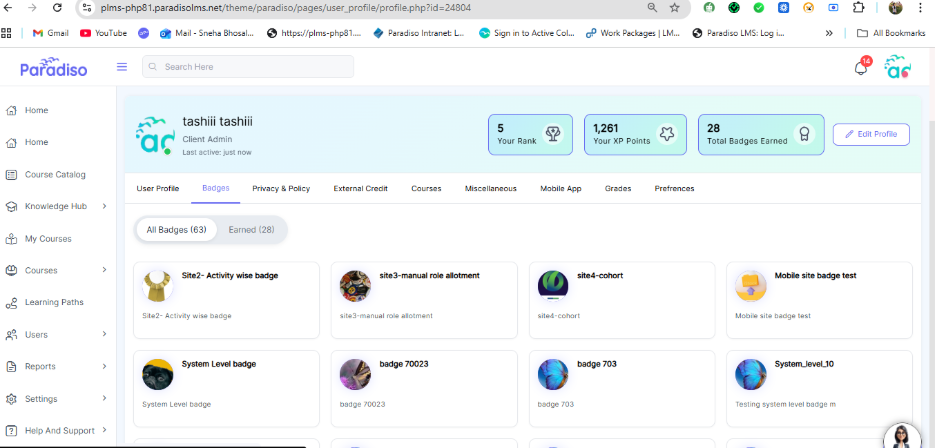
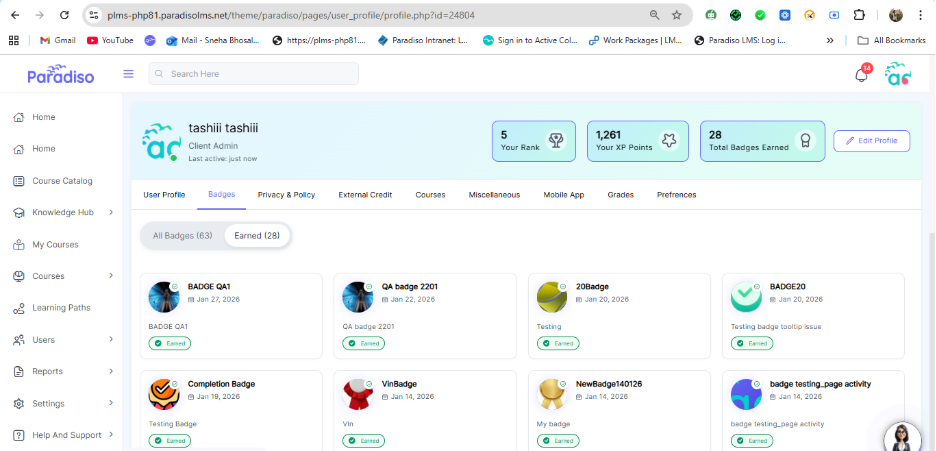
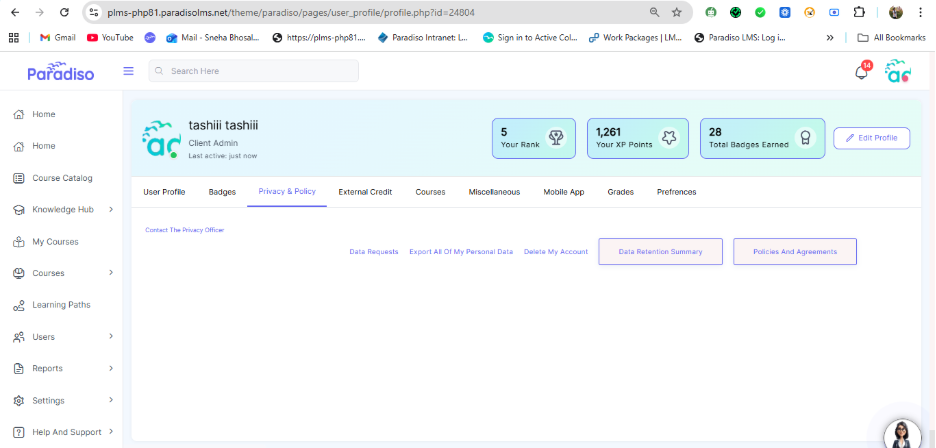
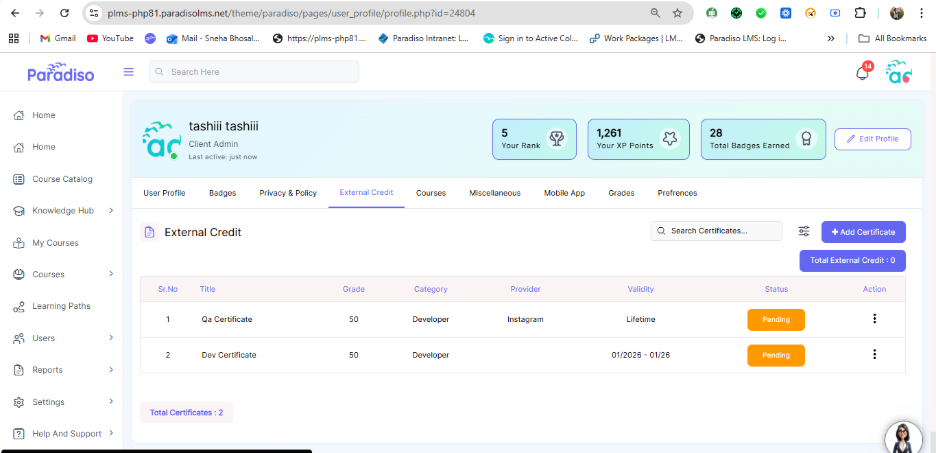
- The following UI enhancements have been implemented on the User Profile page tabs:
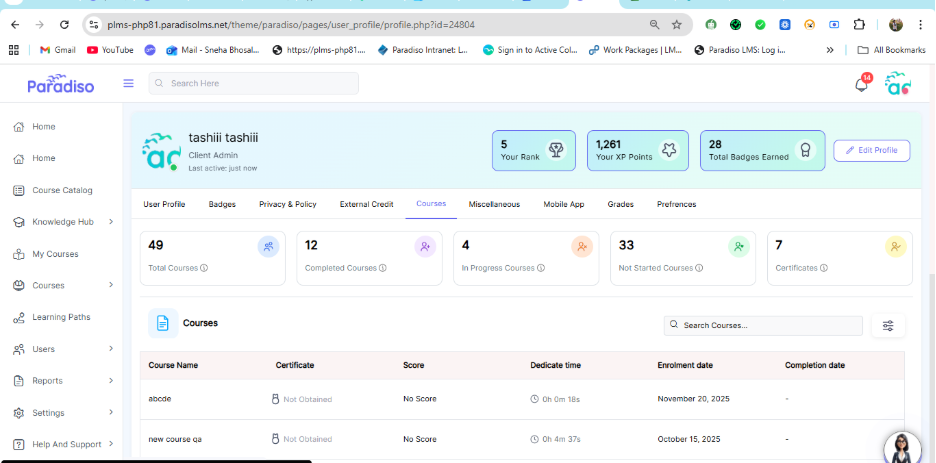
- The user name with profile picture, user rank, XP points, total badges earned, and the Edit Profile menu are displayed consistently across all tabs.
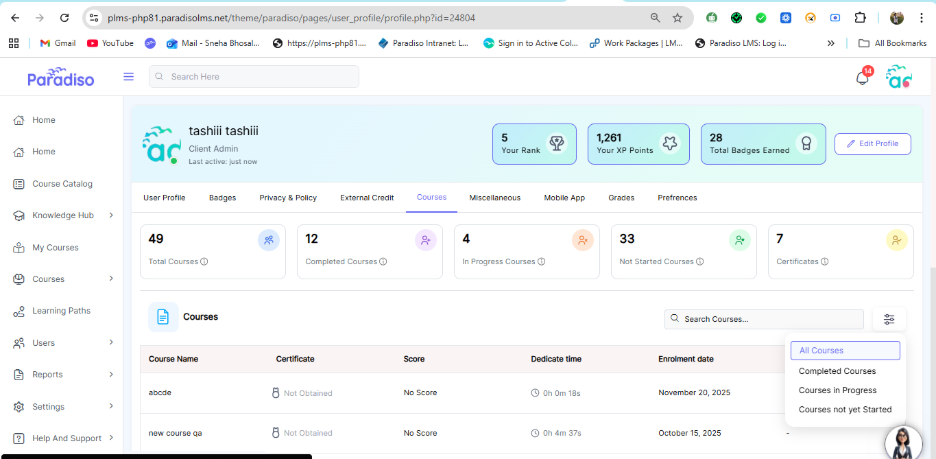
- Statistics within the Courses tab are displayed only on that tab and are not visible on other tabs.
- UI elements have been updated, including field names, placeholder text, icons, and alignments.
- User Profile Tabs Implemented:
- User Profile:
- Badges:
- Privacy and Policy:
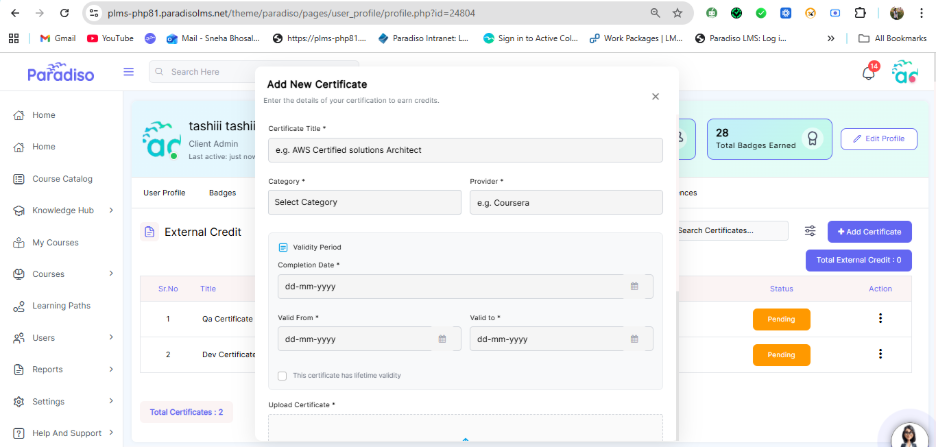
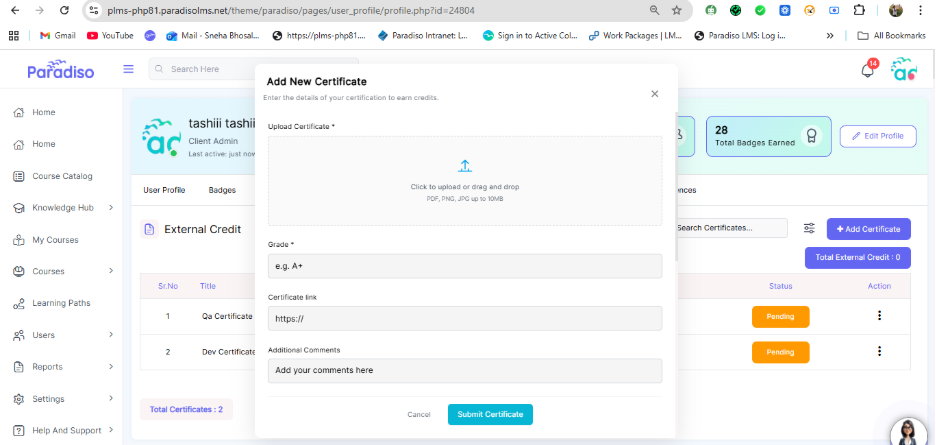
- External Credit:
- Courses:
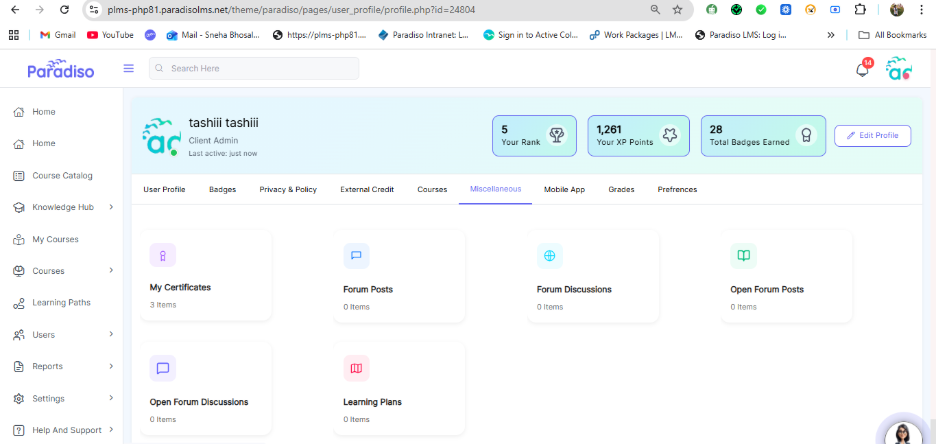
- Miscellaneous:
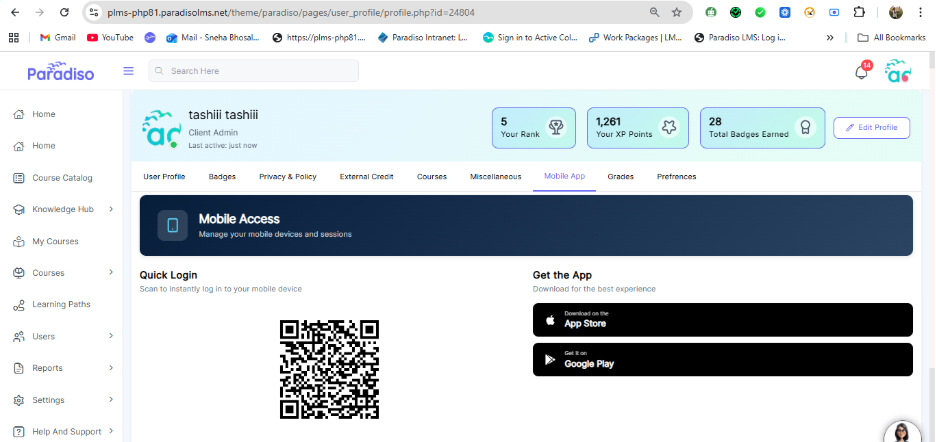
- Mobile App:
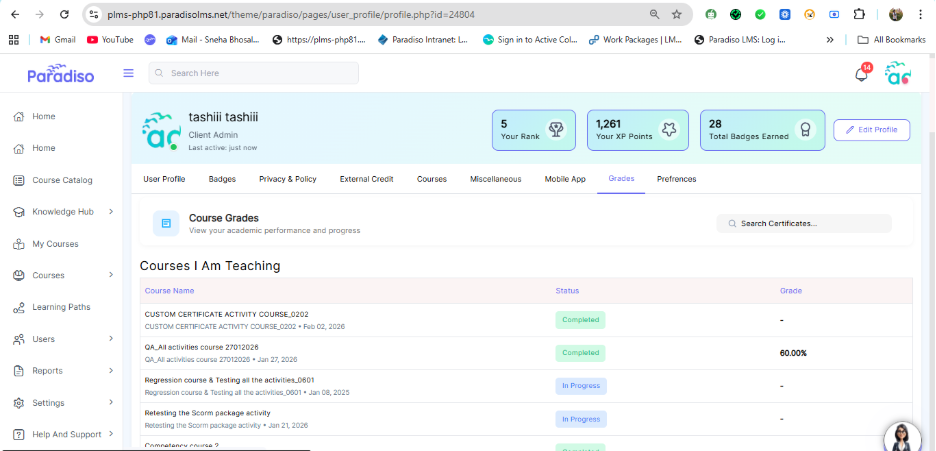
- Grades:
3. ILT Enhancement :-
Overview
- The ILT enhancement focuses only on UI/UX improvements.
- No existing functionality has been modified, removed, or impacted.
- All changes are visual and organizational to improve usability and clarity.
Configuration Setting:
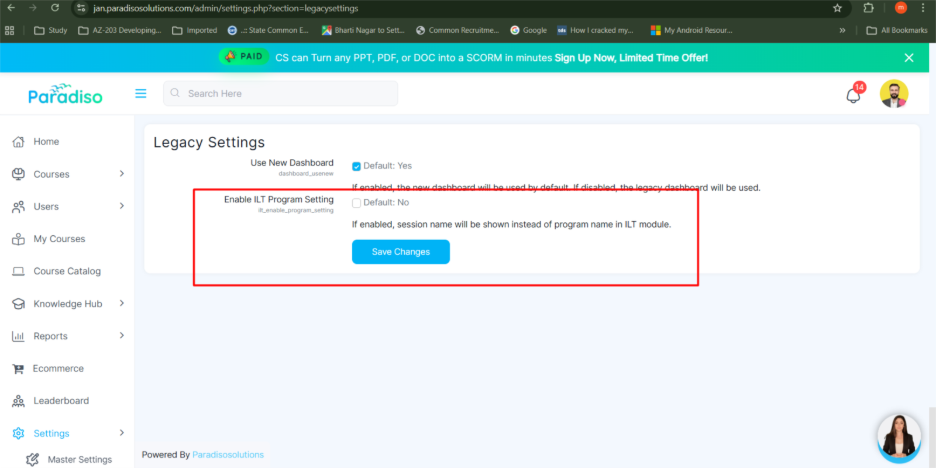
- A new setting has been introduced under Legacy Settings to control the enhancement behavior.
- Setting Name: Enable ILT Program Setting
- Key: ilt_enable_program_setting
- Default Value: No
- Behavior:
- When enabled, the session name is displayed instead of the program name in the ILT module.
- When disabled, the system follows the existing name.
4. Course Page UI/UX Enhancement with Previous/Next Buttons, Activity Icons, and Titles :-
- The Course Page UI/UX has been enhanced to improve navigation and overall user experience. The Next and Previous buttons have been updated to provide better navigation control on each activity page.
- The Next button is displayed with the primary theme color for better visibility. On the last activity, the Next button is not displayed, ensuring correct navigation behavior.
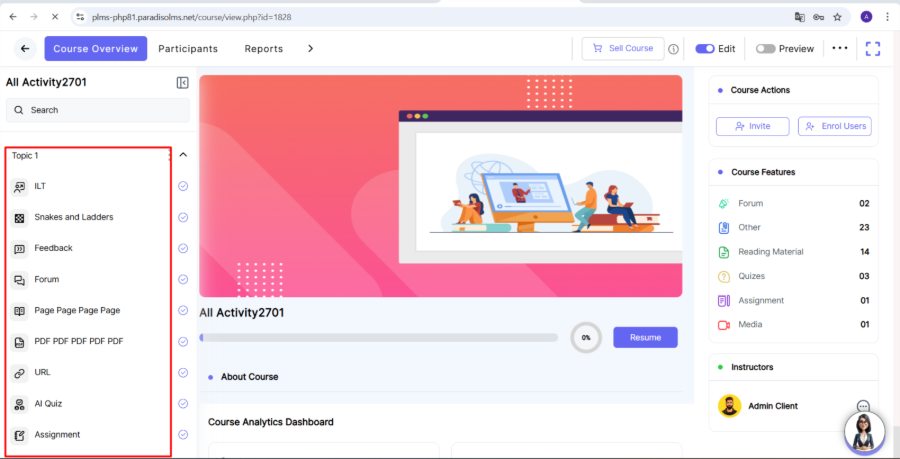
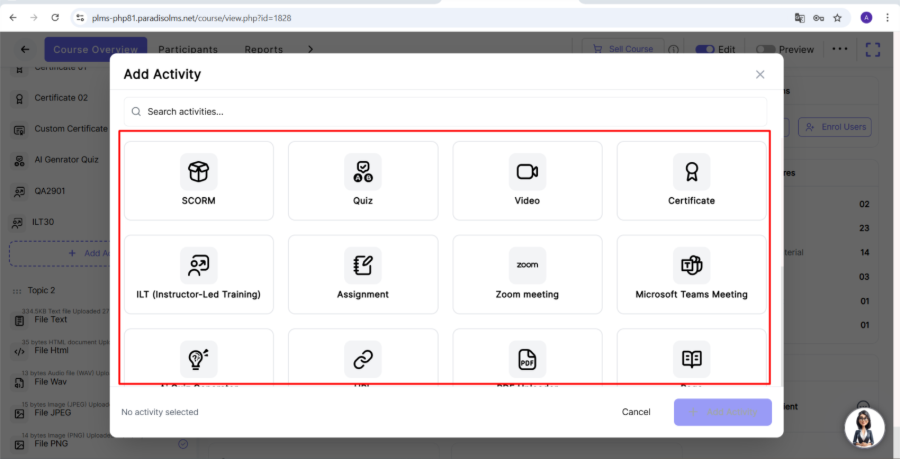
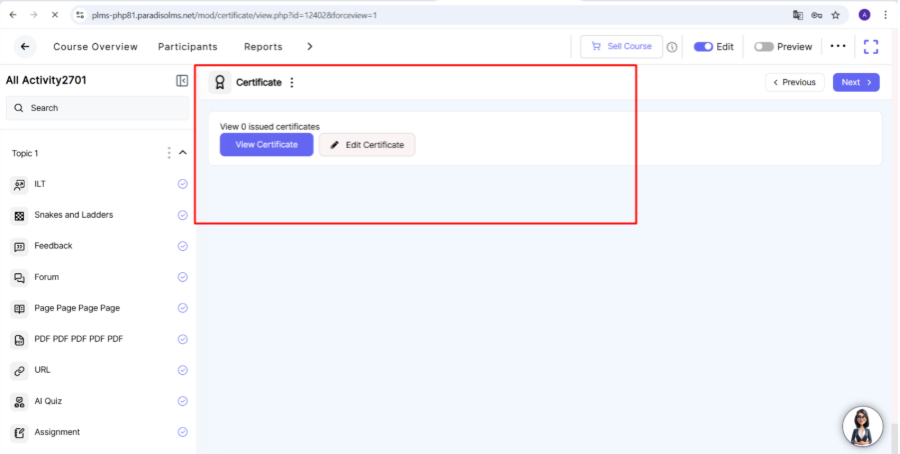
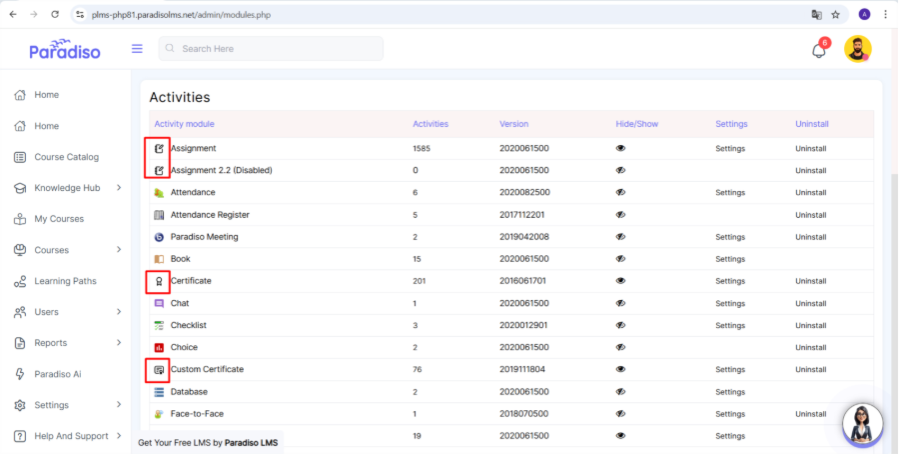
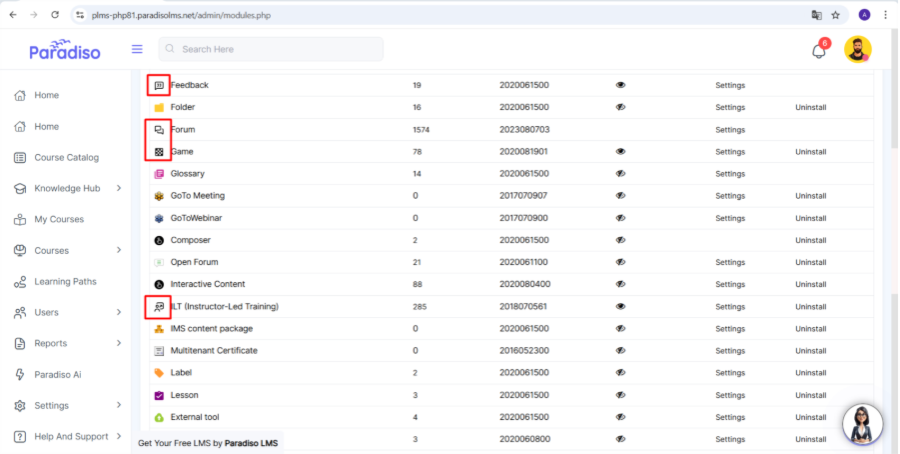
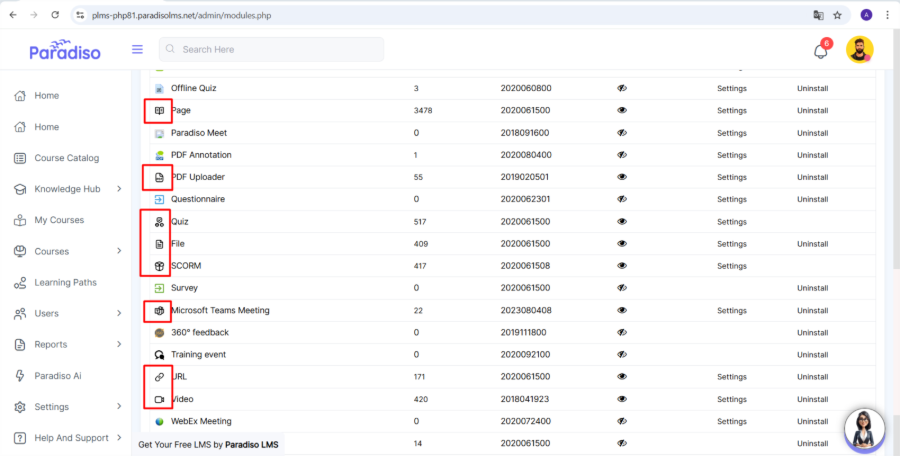
- Activity icons and title names have been updated for all activity types to ensure a consistent and modern appearance.
- The updated icons are reflected across the following areas:
- Left navigation panel:
- Add activity popup:
- After activity creation flow:
- Master settings:
5. Course Overview – Student Stats Enhancement :-
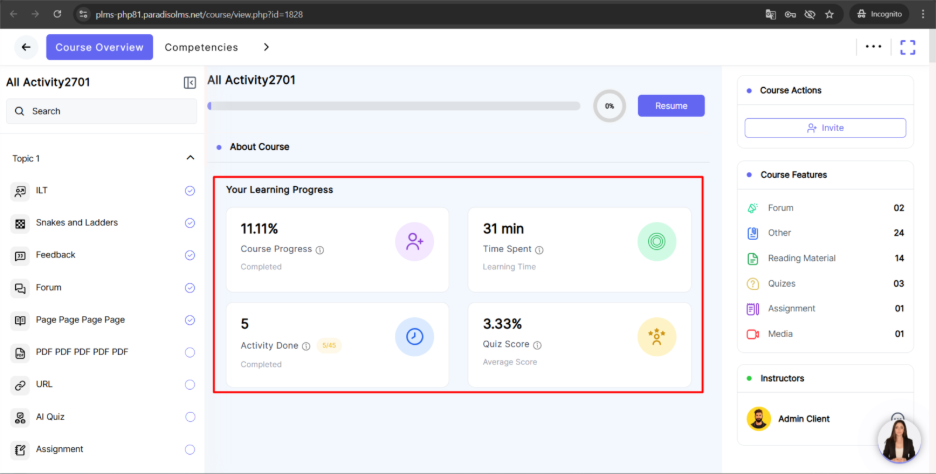
- This enhancement has been implemented on the Course Overview page to provide students with quick and clear insights into their course learning progress. These details are visible only to students.
- Student Stats Details
- The following statistics are displayed on the Course Overview page:
- Course Progress
Displays the percentage of total course activities completed by the learner.
- Time Spent
Displays the total time spent by the learner on the course.
- Activity Done
Displays the total number of course activities completed by the learner.
- Quiz Score
Displays the average quiz score percentage, calculated based on the total grade achieved by the learner.
6. Enrollment UI Enhancement :-
- The course enrollment option UI has been enhanced to improve clarity and usability for students.
7. Quiz Reports Added to Main Reports Section :-
- The Quiz Reports have been added from the Quiz activity (Grade section) to the Main Reports section to improve accessibility.
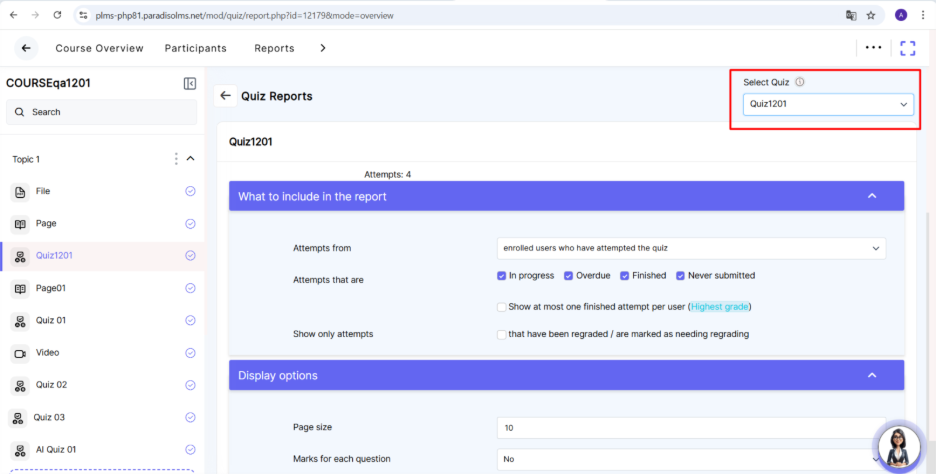
- A dedicated Quiz Report tab has been added under the Main Reports section. When users click on the Quiz Report tab, the Quiz Report page opens, allowing users to view detailed quiz performance data.
Enhancement Details:
- Quiz Reports are now accessible under the Main Reports section.
- A new Quiz Report tab has been introduced.
- A Quiz selector dropdown has been added, enabling users to select different quizzes and view their respective reports.
8. AI Proctoring Report Details Flag Updated :-
- The AI Proctoring Report displays all quiz attempts that were monitored using AI proctoring. For each attempt, administrators can view AI-detected events and flags associated with the quiz attempt.
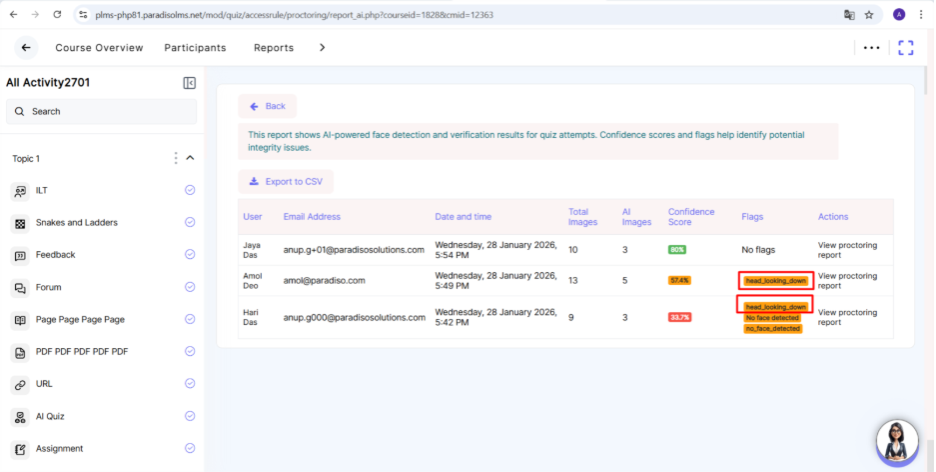
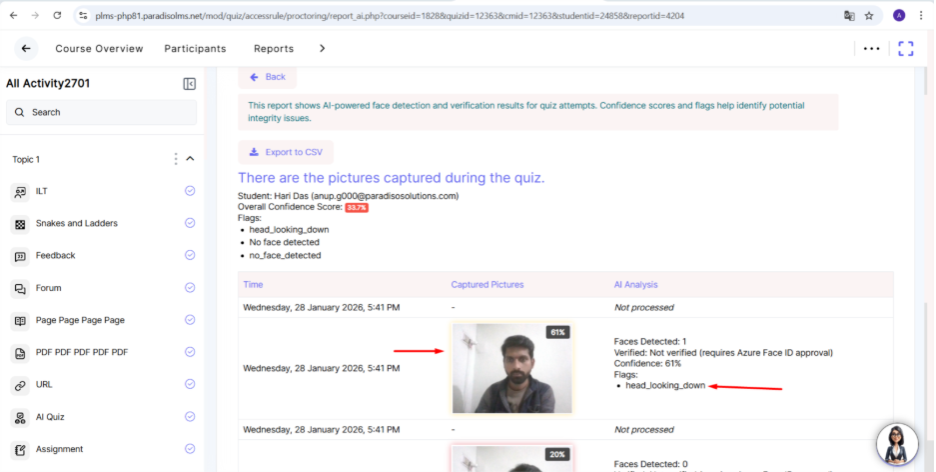
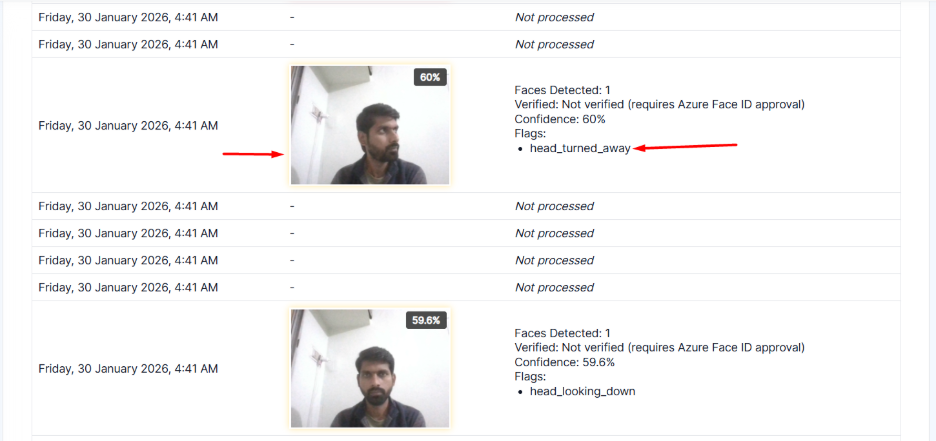
- As part of this enhancement, the head_looking_down and head_turned_away flags have been updated.
- When viewing an individual proctoring report:
- Yellow markers indicate detected suspicious activities flagged as head_looking_down or head_turned_away during the quiz attempt.
Acknowledged.
Love this post! I completely agree with your point of view. I learned something new today, thank you! I found m98 game very complementary to this article. Wonderful work!
This really caught my attention. Your writing style makes it easy to understand. I completely agree with your point of view. For further reading, betao bet is a great place to start. Thanks for putting this together.