About Automation Hub:
- This feature is helpful to get multiple users to add up in the rule.
- Automation Hub is used to enroll users into courses, cohorts, tenants, and learning path based on the rules that we define.
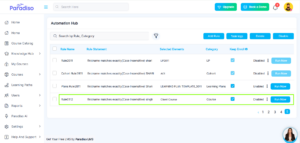
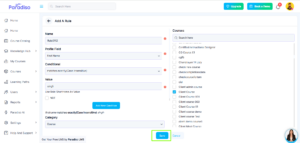
- A rule contains the rule name, profile field, condition, value & category.
- Every field has different values. The name is nothing but the name of the rule in the text. Profile field contains the drop-down list as city/town, country, email, first name, last name, username, etc. Choose any one condition from the drop-down list.
- The value is nothing but the text that the user wants.
- Category fileds contains the drop-down list as Course, Tenant, Learning Path, Cohorts , Role, Learning plans.
What does Keep Enroll mean?
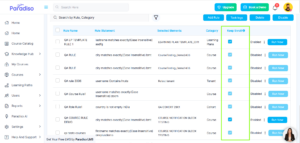
- If the keep enrollment is checked for the rule, the enrollment of the user who was enrolled by a rule will remain unaffected even if the value of the value of the user profile filed is modifiec.
- If the keep enrollment is unchecked for the rule and a user’s enrollment is done by the rule, any change to the user profile field value will result in unenrollment & unenroll the users who do not match the current rule.
How to Enable/Disable rule:
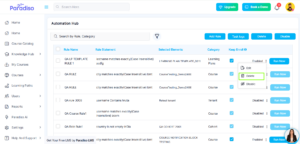
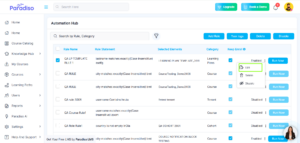
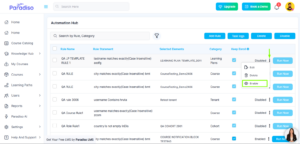
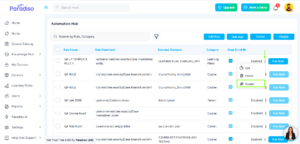
- Enable/Disable Rule: Click on the 3 dots of a rule and select Enable/Disable to enable/disable the rule.
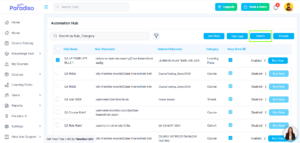
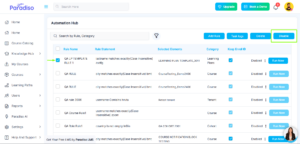
- Disable Rule: Select a rule and click on disable button to disable the rule.
- Enable/Disable Rule is temporarily so that enrollments can be managed.
How to Create a Rule:
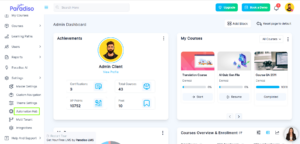
- Step 1: Go to the Settings from the left-side navigation bar and click on Automation Hub.
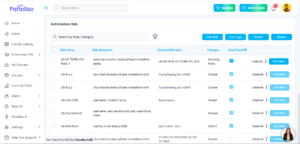
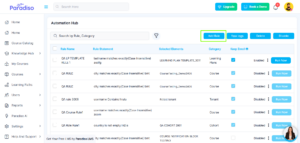
- Step 2: Click on the Add Rule button.
- Step 3: Provide the name for the rule and select the profile field from the drop-down.
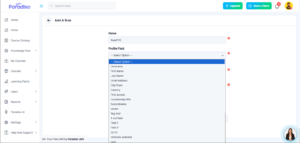
- Step 4: Select the condition from the drop-down & then add the value as per the rule.
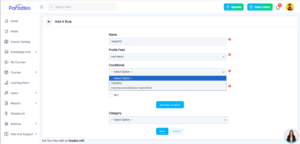
- Step 5: Select the category from the drop-down & then click on save button.
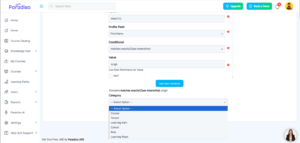
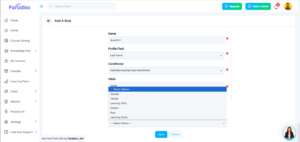
- Step 6: On the pop-up select the courses, tenant, learning path, cohort, role & learning plans as per the category.
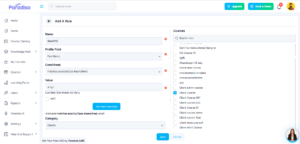
- Step 7: .
- Step 8: The created rule is added on Automation Hub page.