
Contents
1 Team Overview Block
2 Overview
3 Scope
4 Admin / Client Admin Workflow
5 Manager Selection Criteria
6 Manager Assignment Rules
7 Manager Removal Condition
8 Exclusion Criteria
9 Assigning a Manager via User Profile
10 Manager Workflow
11 Functional Validation
Team Overview Block
The Team Overview Block enables administrators and managers to efficiently manage team structures, monitor user progress, and streamline communication within the organization.
Overview
This feature provides:
- Manager-based hierarchy management
- Assignment of users under specific managers
- Visualization of reporting structure
- Direct email communication with users
- Monitoring of team members’ learning progress
- Tracking of learning hours for each user
- Export option for downloading team data
- Quick and efficient user search
It enhances visibility, control, and collaboration across organizational teams.
Scope
The Team Overview Block includes:
- Hierarchy View for Admin/Client Admin & Manager
- User Assignment under selected Managers
- Email Communication functionality
- Manager access to assigned team members
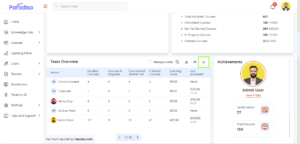
- Learning data display, including:
- User Name with Profile Picture
- Enrolled Courses
- Courses In Progress
- Courses Not Started Yet
- Completed Courses
- Learning Hours
- Last Accessed Date
- Search functionality within the block
- Export option for Admin/Client Admin and Manager
Admin / Client Admin Workflow
- Log in as Admin/Client Admin
- Navigate to Dashboard → Team Overview Block
- Click Assignment
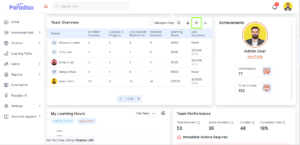
- Select a Manager from the dropdown
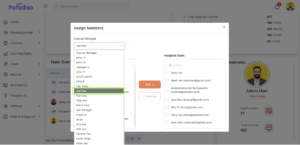
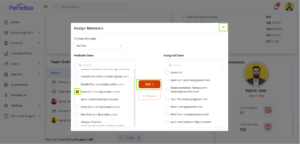
- Search and select users, then click Add
- Click Close (X) to exit the popup
- Click View Hierarchy to verify the reporting structure
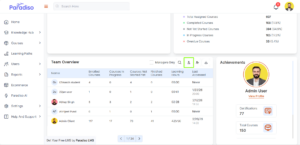
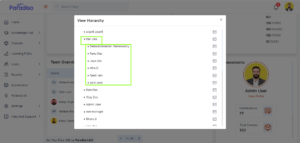
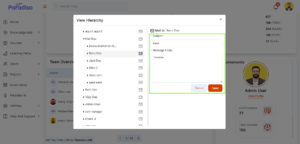
- Use Email option:
- Enter Subject and Message
- Click Send
- Use Export option to download team data
Manager Selection Criteria
- User has Manager role assigned in Master Settings, OR
- User is assigned as Manager in another user’s profile
Manager Assignment Rules
- Multiple users can be assigned under a single Manager
- Assigned users are mapped under the selected Manager
Manager Removal Condition
- If all assigned users are removed, the Manager is removed from dropdown
- Exception: If Manager role exists in Master Settings
Exclusion Criteria
- User does not have Manager role in Master Settings AND
- User is not assigned as a Manager in any profile
Assigning a Manager via User Profile
- Log in as Admin/Client Admin
- Navigate to user profile
- Click Edit Profile
- Locate Manager field
- Select required Manager
- Click Update Profile
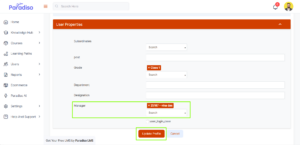
Manager Workflow
- Log in as Manager
- Navigate to Dashboard → Team Overview Block
- View assigned team members
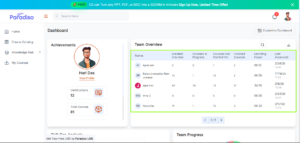
User Information Displayed:
- Profile Picture and Name
- Enrolled Courses
- Courses In Progress
- Courses Not Started Yet
- Completed Courses
- Learning Hours
- Last Accessed Date and Time
Managers can use the Search box to find specific users and export the data.
Functional Validation
1. Role-Based Access
- Admin/Client Admin: Can access Assignment, Hierarchy, and Export features
- Manager: Can view assigned team members and export data
- User Profile Manager: Cannot access Assignment and Hierarchy features
2. Assignment Functionality
- Admin assigns users under a Manager
- Users are mapped under selected Manager
- Manager can view assigned users
3. Hierarchy View
- Displays Managers with assigned users
- Shows reporting structure clearly
4. Email Functionality
- Admin can send emails from the block
- Requires Subject and Message
- Email is delivered to selected users
5. Search Functionality
- Valid search → Displays results
- Invalid search → “No Records Found”
6. Export Functionality
- Export option allows Admin/Client Admin and Manager to download team data