- Managing an LMS course
- Instructor quick guide
- Courses
- Editing text
- Activities
- Resources
- Blocks
- Questions
- Course enrollment</a
- Grouping users
- Grades
- Reusing activities
- Course Enroll Confirmation Methods
About Course Enroll Confirmation:
- The enrolment plugin “enrol on approval” adds an approval step into the course enrolment process.
- Users will be informed by mail as soon as their course application has been approved/ rejected and Defer (On Hold.).
Steps for Course Enroll Confirmation Method:
-
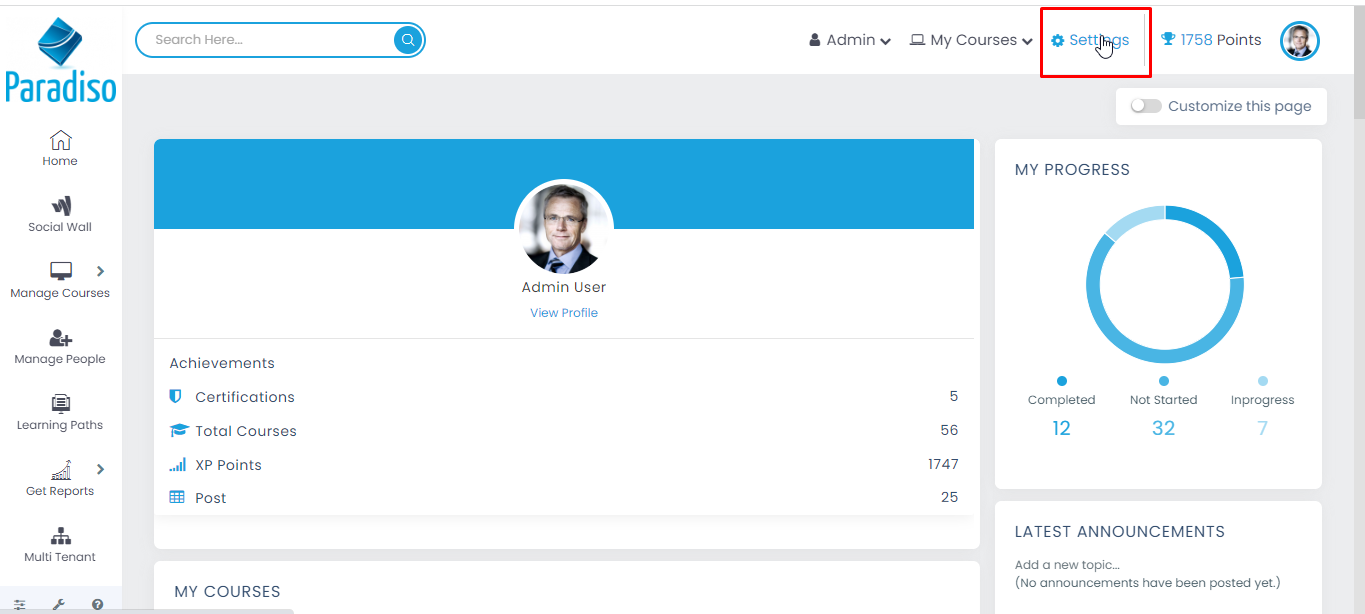
- Step 1: Click on Settings to enable the course enroll plugin.
-
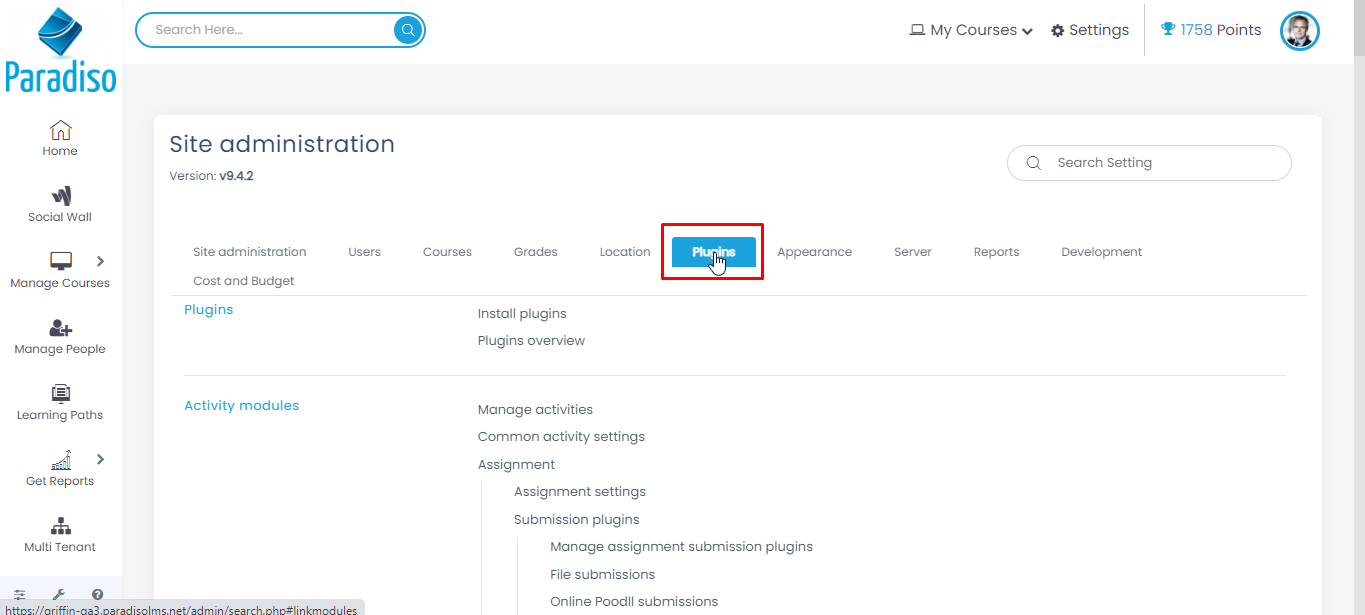
- Step 2: Select the Plugins tab
-
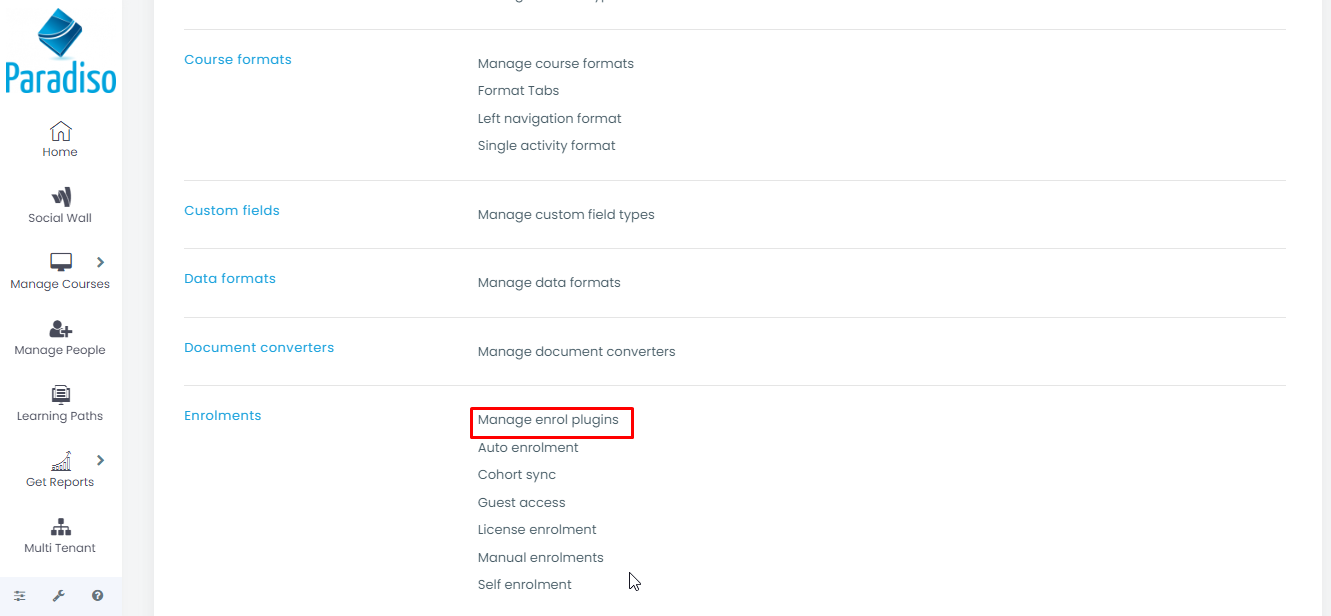
- Step 3: Click on Manage enrol plugins under the Enrolments.
-
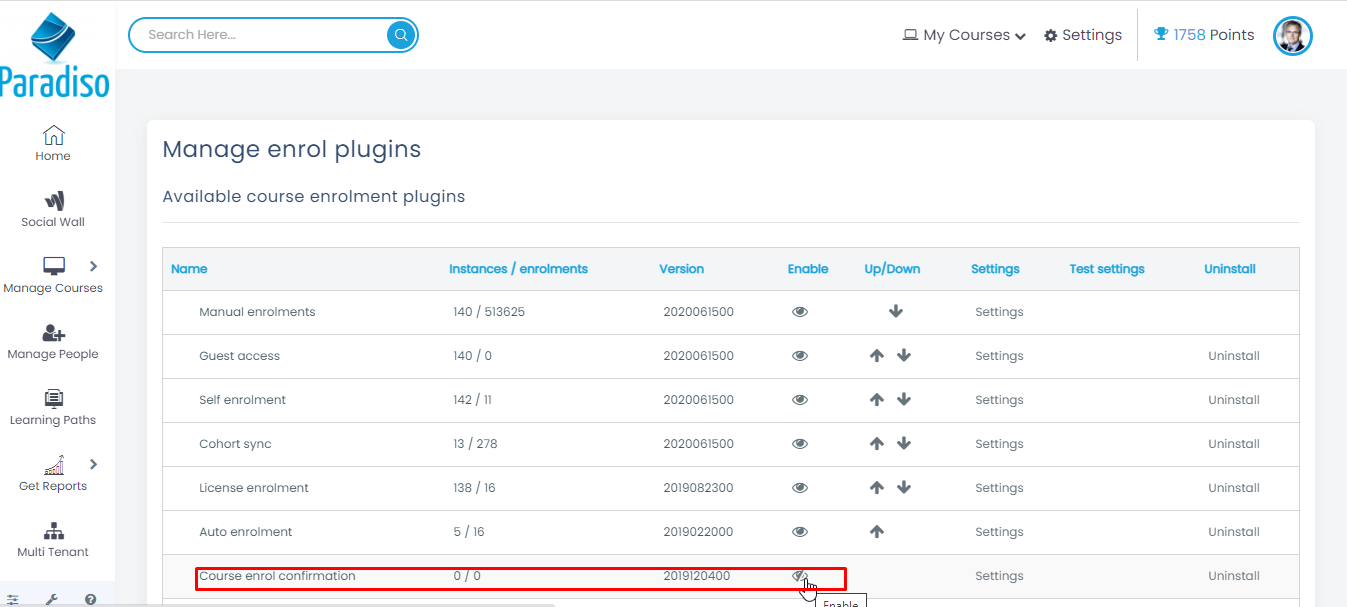
- Step 4: Enable the Course enrol confirmation plugin.
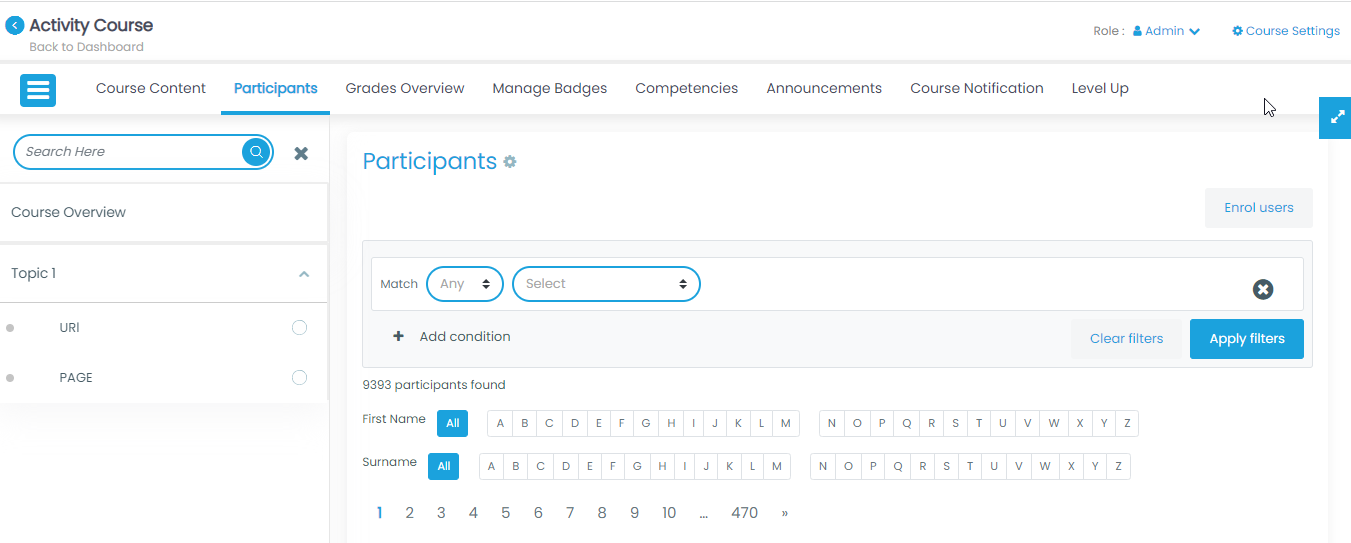
- Step 5: Select any course from the Course catalog and then click on the Course setting.
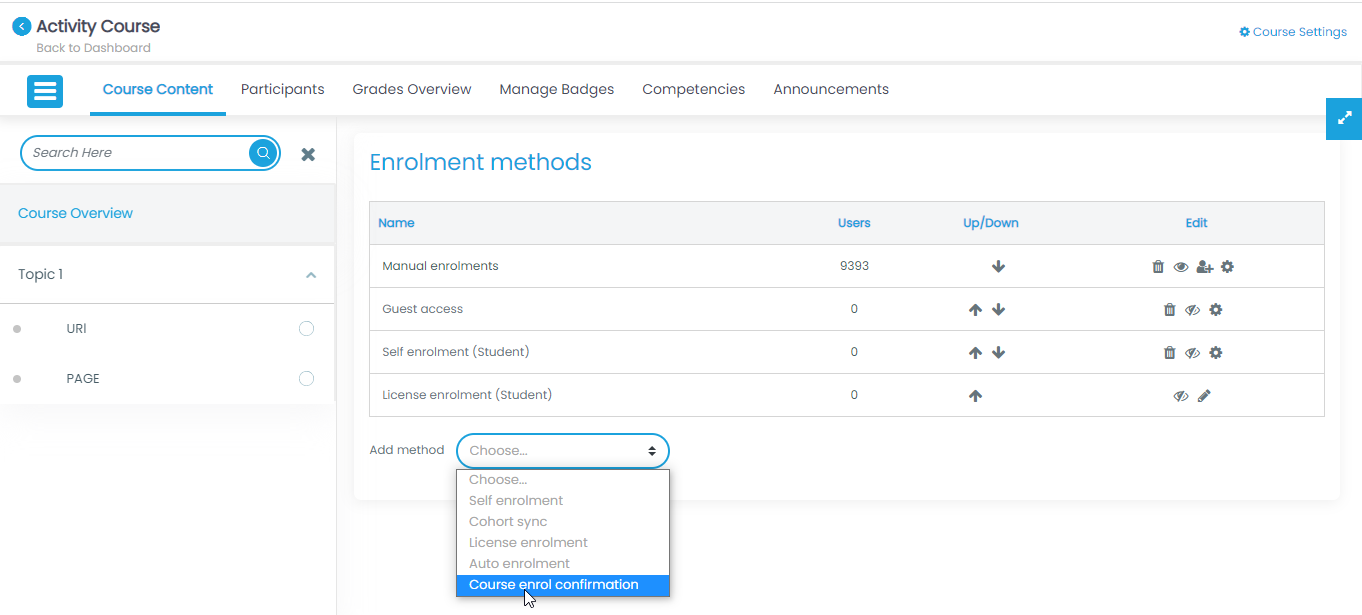
- Step 6: Select the course enrol confirmation method from the enrolment methods drop-down list.
- Step 7: Once we select the course enrol method then the below page will open.
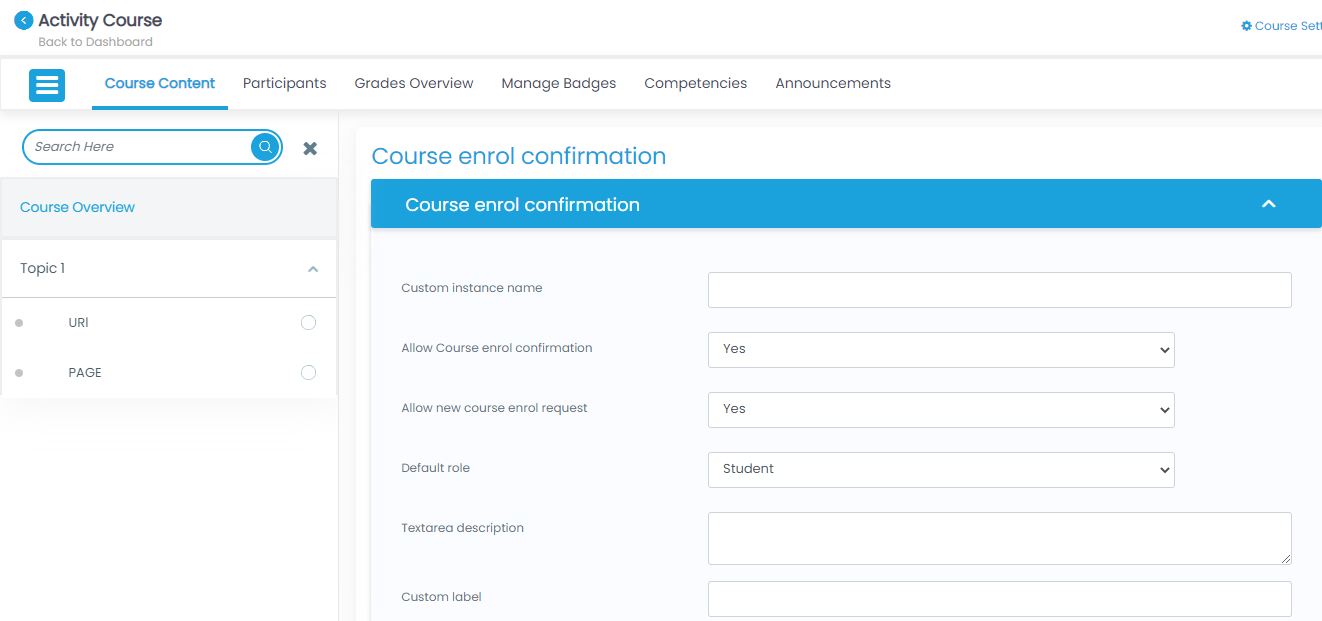
And click on the Add method button. 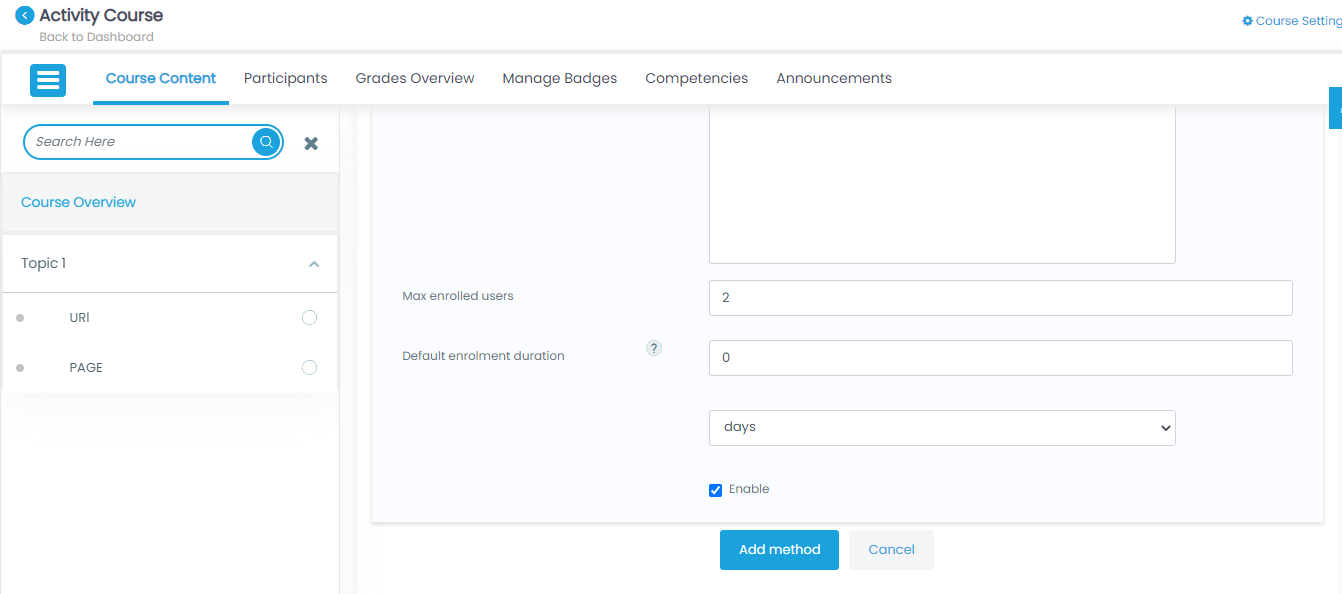
- Step 8: Created Test Course enrol method is added under the Enrolment methods. All other methods should be disabled while created Test course enrol method is enabled.
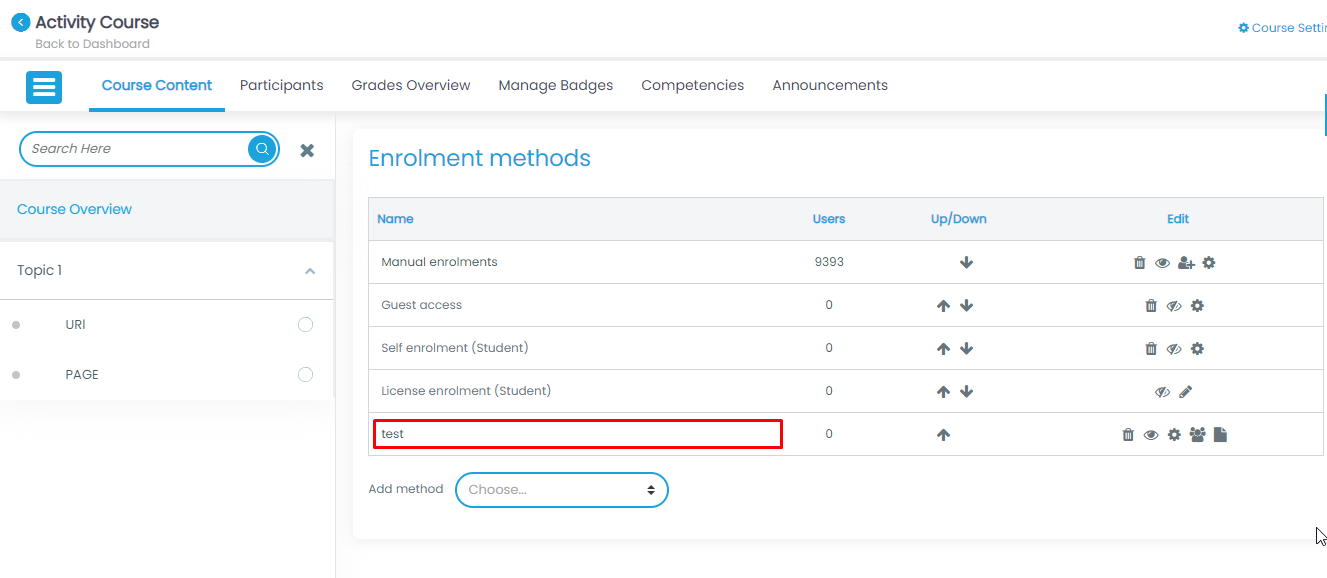
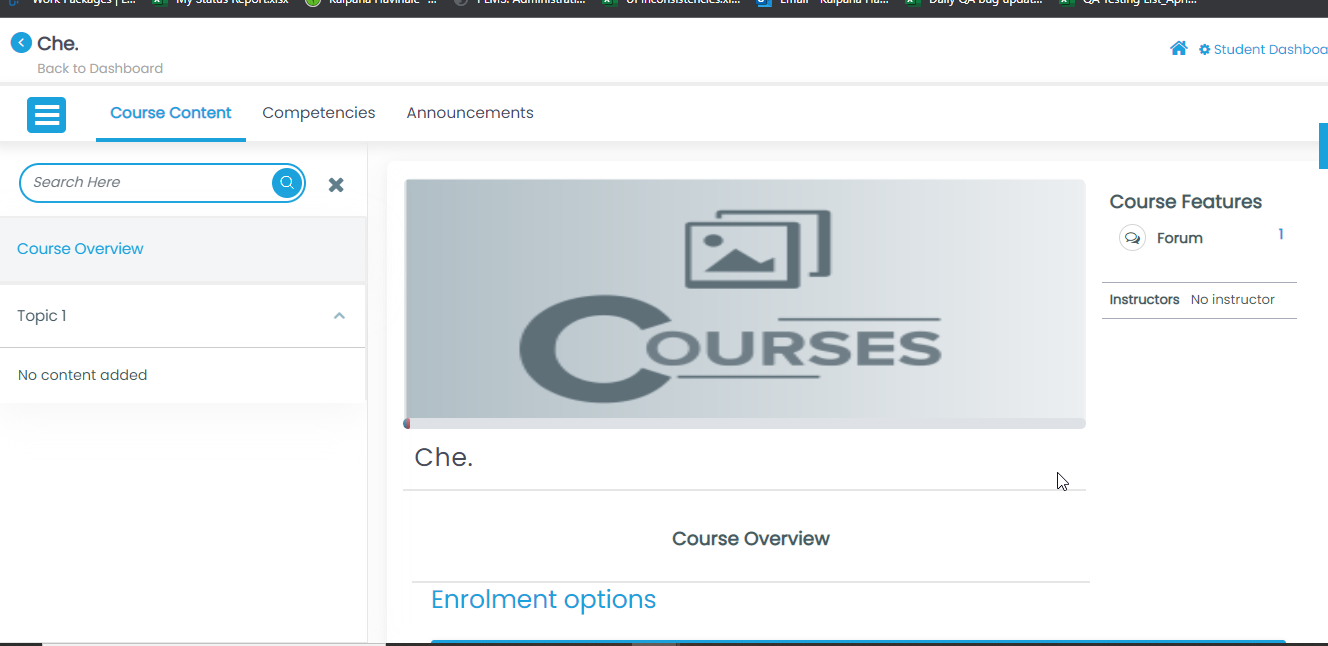
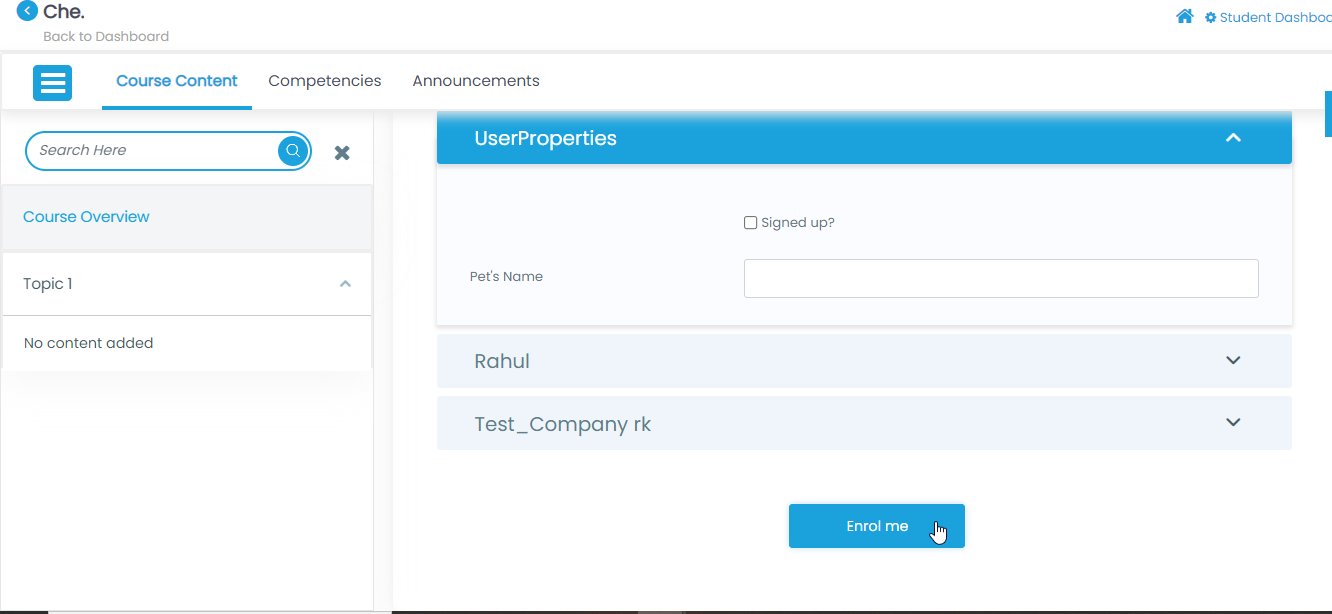
- Step 9: Log in with the student account and access the same course where the Test course enrol method is added.
Add Comments.
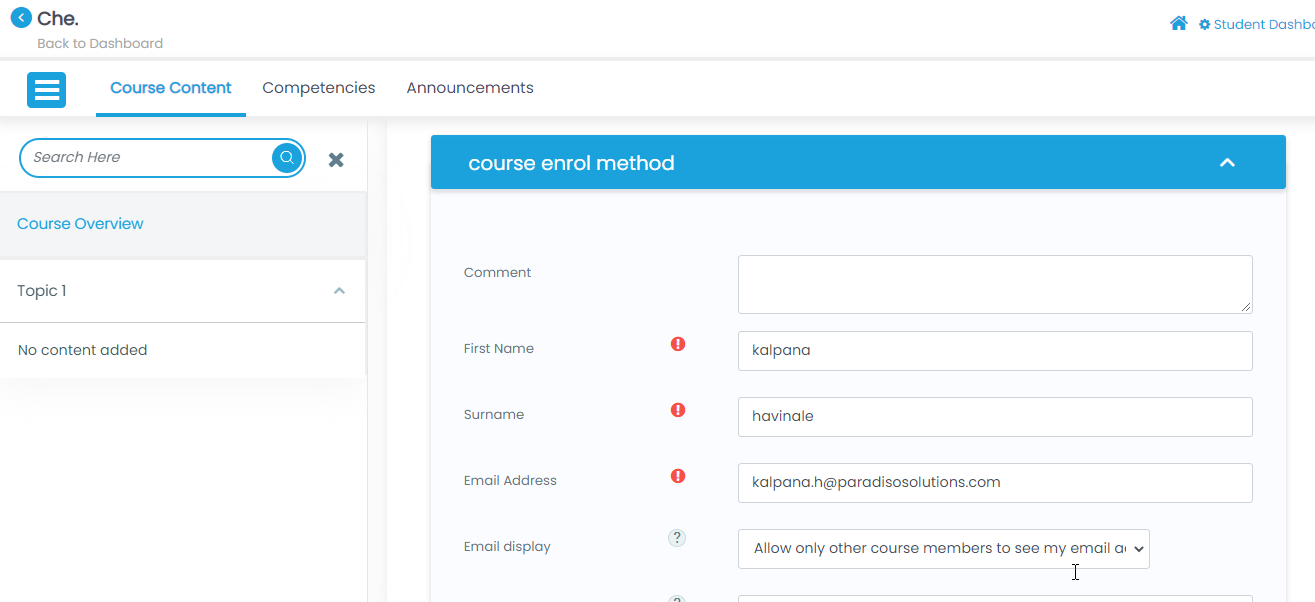
Add click on Enrol me.
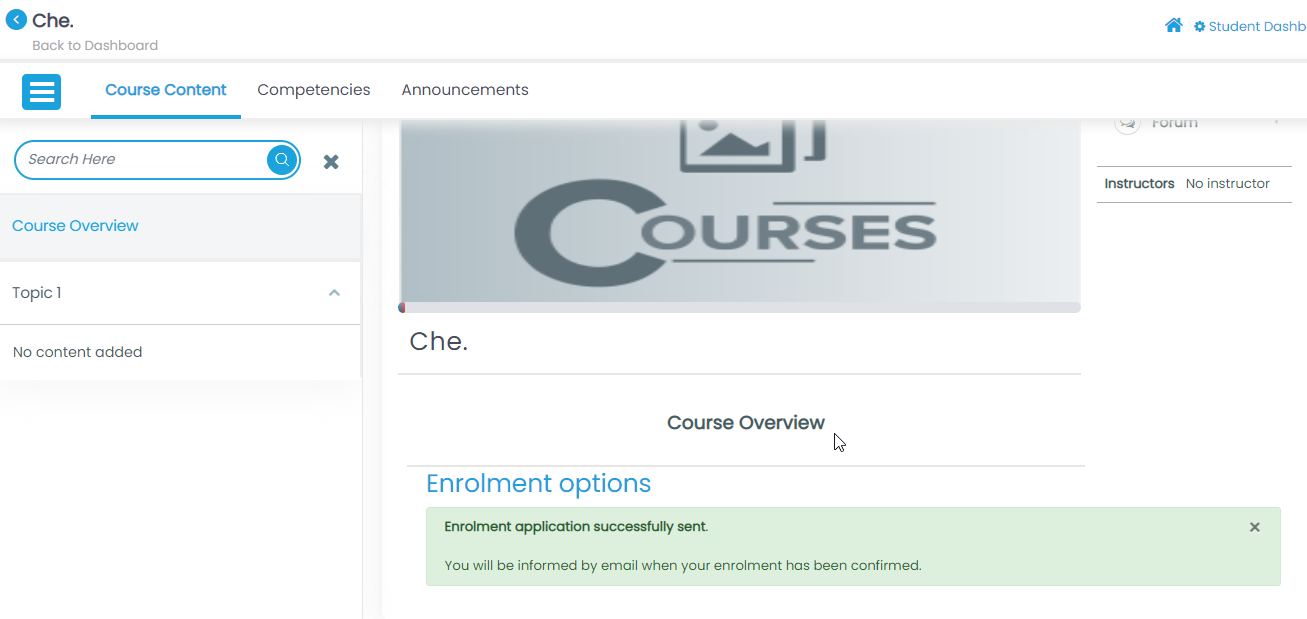
- Step 10: Student enrolment application successfully sent to the Admin.
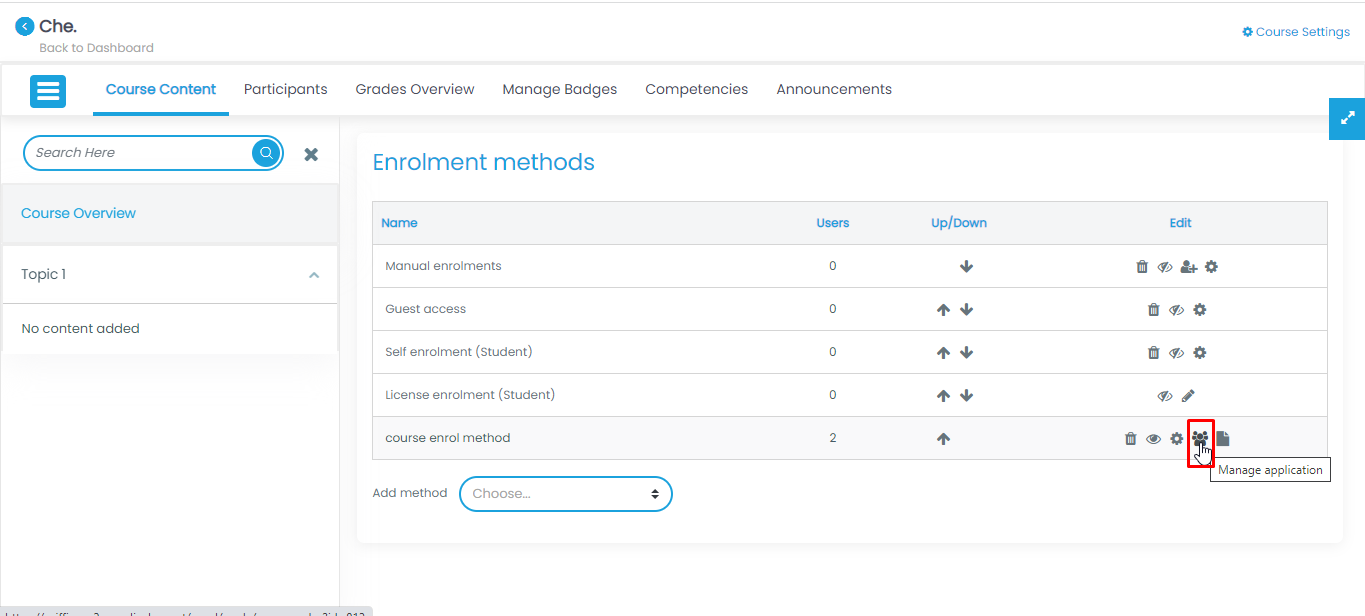
- Step 11: At the admin, side click on the Manage application icon.
- Step 12: On the Manage Application page select confirm request from the drop-down.
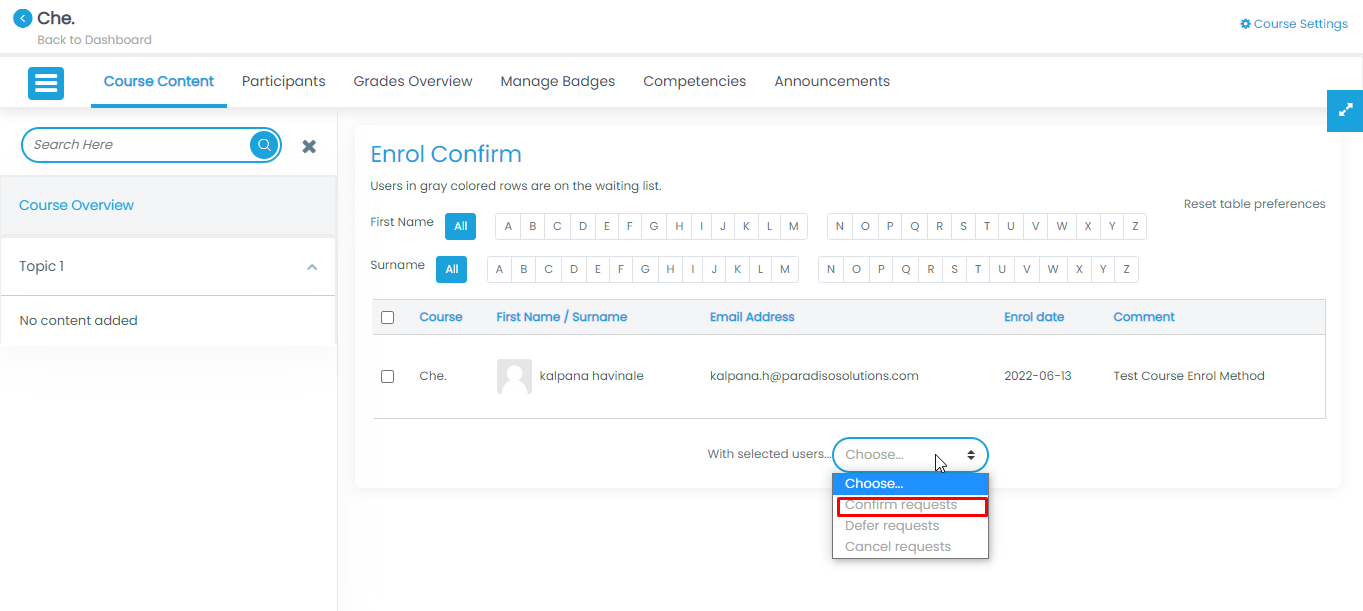
- Step 13: After Confirm request the requested student user will be enrolled and displayed on the page.