
Enabling the Flickr portfolio (admin settings)
- Go to Settings>Site administration>Advanced features and enable portfolios
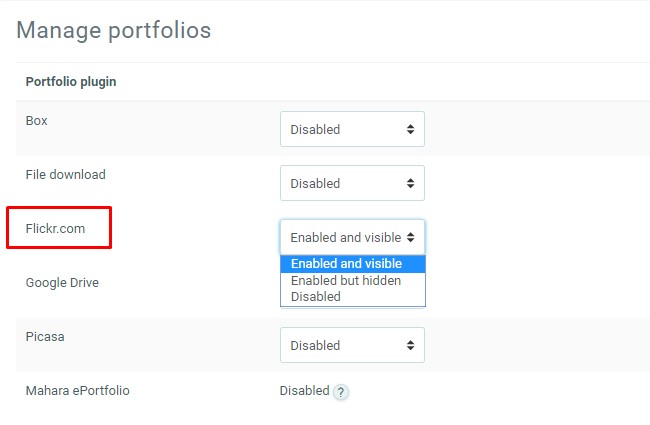
- Go to Settings> Plugins > Portfolios > Manage Portfolios;
- Select from the drop down next to Flickr “Enabled and visible”
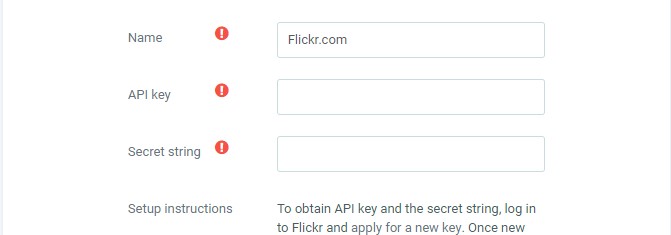
- Click the “Settings” link and -if desired -give the Flickr portfolio a new name
- Log in to Flickr and apply for a new API key, using the link provided on the Settings page.
- A screen will appear with a key and a “secret”.
- Copy both and paste into the boxes on the Settings page.
- Go back to the Flickr screen and click on “edit auth flow for this app”
- Click “Select app type” and choose “web application”
- Into the “Callback URL” box, paste the URL you are given on your Flickr Settings page and save.
- Save the Settings.
Sending/”pushing” an image to Flickr
- You can export to Flickr images attached to forum posts or uploaded in assignments, for example.
- The image will have an arrow icon next to it. Click this to export to Flickr.com
- If other portfolios have been enabled, choose Flickr.com from the drop-down menu. If not, then it will be your only choice!
- Click “Next”
- If you have not logged in before you will be asked for permission to connect to Flickr.
- Give authorization and on the next screen, choose your sharing and privacy options:
- Click “Next” and confirm your settings:
- You will receive a message “export complete”. Clicking “Continue” will take you – if you wish – to your Flickr account.